How to Ping in VALORANT: Ping Wheel and Map Guide
To ping in VALORANT on PC, tap your assigned Ping key to mark what you are aiming at. Hold the key to open the Ping Wheel, then use the mouse wheel to cycle through its Combat, Social, and Strategic categories and choose a callout. Z is the common default on PC, but use the key shown in your settings if you changed it. You can also ping a point on the expanded map and rebind the controls under Settings > Controls > Communication.
Riot’s current VALORANT Ping System guide confirms that a quick tap marks what you are looking at and that the wheel can show several ping categories. That distinction matters: the quick tap is a basic location ping, not an automatic enemy callout.
The interface figures below are visual examples; follow the labels and key prompts in your current game client if a patch changes their appearance.
VALORANT ping controls at a glance
| Action | What it does |
|---|---|
| Tap your Ping key | Places a basic ping on the object or location under your crosshair. |
| Hold your Ping key | Opens the Ping Wheel for a more specific communication. |
| Scroll while the wheel is open | Cycles through Combat, Social, and Strategic ping categories. |
| Use the map ping controls | Marks a point on the map; map pings appear on the minimap, not in the 3D world. |
How to place a quick ping
- Look at the spot, object, or area you want teammates to notice.
- Tap the assigned Ping key once. On the usual PC layout, that key is Z.
- Check the marker and adjust your aim before pinging again if you meant a different spot.
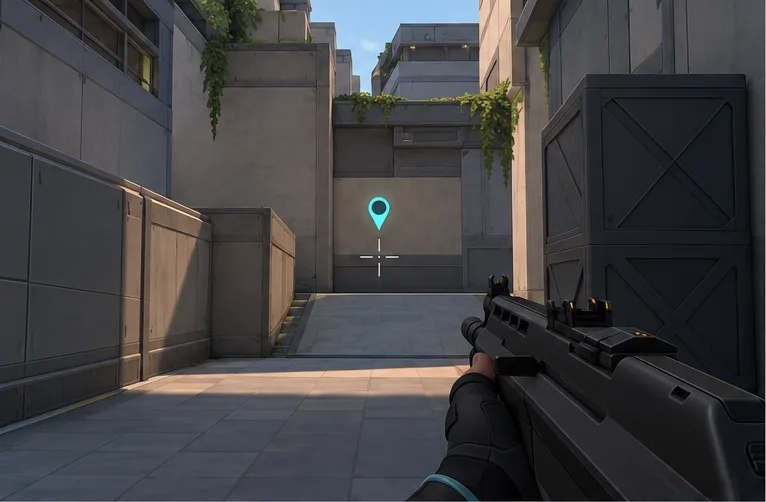
This is the fastest way to draw attention to a location when you do not need a full callout. A ping does not identify an enemy by itself; it marks the point you selected. If you see an opponent, a weapon, or the Spike and want to point it out, aim at it before tapping. Pair the marker with a short voice or text callout when teammates need context such as how many enemies you saw or which way they moved.
How to use the VALORANT Ping Wheel
- Press and hold your assigned Ping key until the wheel appears.
- Scroll the mouse wheel to cycle through the available groups. Riot lists Combat, Social, and Strategic pings.
- Move the selection to the callout you want, then release the Ping key to send it.
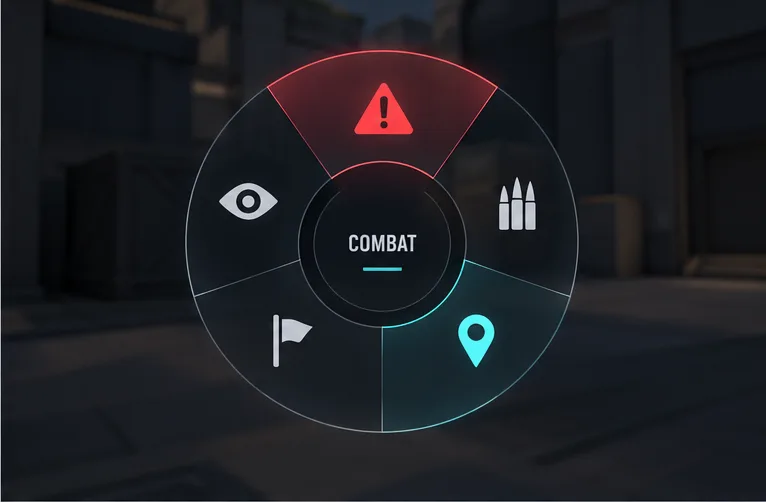
The exact options shown can depend on the category and your current controls. Do not rely on the older shortcut chart that assigns one permanent ping type to each compass direction. Riot’s support article describes a wheel with multiple categories, and its controls let players bind the wheel and individual notifications separately.
Use the wheel when the meaning matters: a warning, a request for help, or a strategic suggestion is clearer than a generic marker. If you opened the wheel by mistake, cancel it using the in-game cancel input shown for your current setup instead of releasing on an unintended option.
How to ping a location on the map
A map ping is useful when the location is outside your current view, such as a route or site you want the team to check. The exact input depends on your map and ping bindings, so check the key prompts in your client if your layout differs. There is one important limit: Riot changed map pings so they appear on the minimap only, not as markers in the 3D world.
- Open the expanded map with your assigned map key. M is the usual PC default.
- Move the cursor to the location you want to communicate.
- Use the map’s ping input to place a marker. Teammates see a map ping on the minimap; it will not appear as an in-world marker.
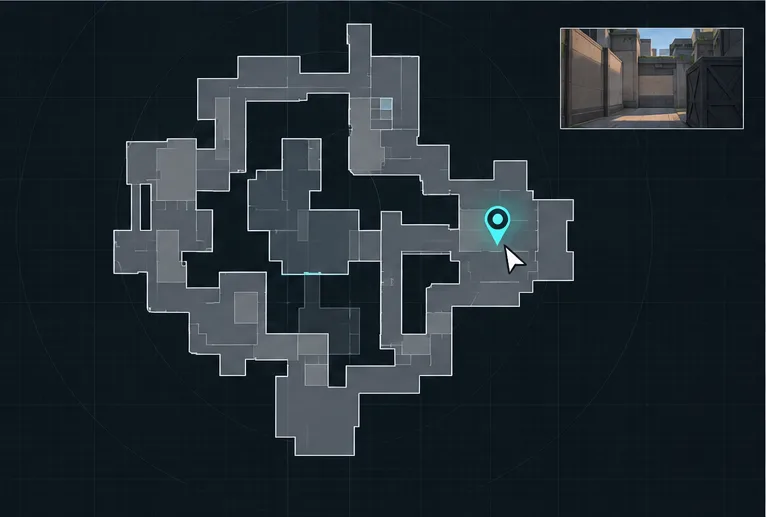
Riot’s Patch 9.11 notes explain the current distinction: pings placed on the map display only on the minimap, while in-world pings stop at smoke and land on its surface. If you need to point to a visible object in the world, use a crosshair ping; it will not travel through a smoke cloud.
Change the ping key or bind individual callouts
- Open Settings from the lobby or press Esc in a match.
- Select Controls, then open Communication.
- Find Ping Wheel or an individual ping notification, select its current binding, and press the key or mouse button you want to use.
- Return to the match and test the new binding in a safe moment.
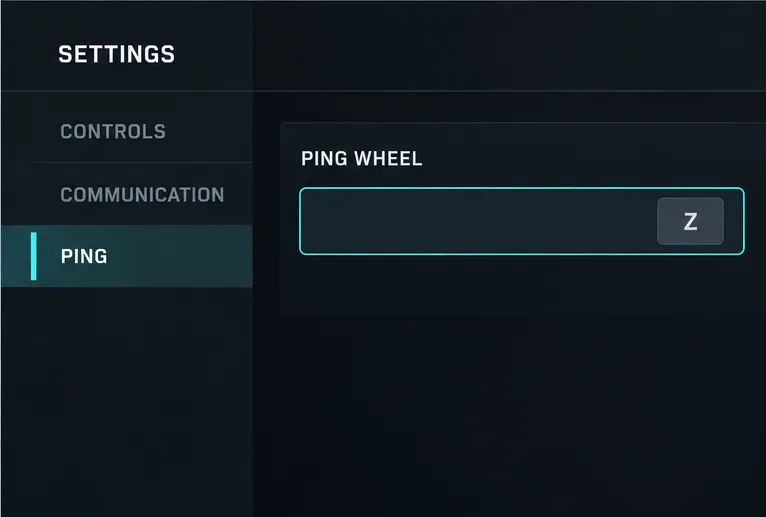
You can keep the wheel on one key and bind a frequently used callout separately if that feels easier. Before choosing a new key, check that it does not conflict with movement, an ability, or another communication command. If Z no longer opens the wheel, your assigned key may have changed; Riot’s ping settings instructions point to this Controls and Communication section.
Use pings clearly in a round
- Ping once per new piece of information. Repeating the same marker can make the location harder to read.
- Be precise. Put the crosshair on the relevant doorway, object, or area before using a quick ping.
- Use a specific wheel callout when the intent matters. A strategic suggestion or request communicates more than an unexplained marker.
- Keep callouts timely. Send the ping when the information is useful, then add a short explanation if the situation changes.
Ping troubleshooting
The Ping Wheel does not open
Open Settings > Controls > Communication and confirm the current Ping Wheel binding. Hold the assigned key long enough to bring up the wheel; a quick tap sends the basic ping instead. If another action is using that key, assign the wheel a different key and try again.
My ping marks the wrong place or does not show in the world
For a quick ping, the marker follows what your crosshair is pointing at. Re-aim and tap again. A ping placed through the map is supposed to appear on the minimap only. If your in-world ping meets smoke, it stops at the smoke instead of passing through to the other side.
How do I send a particular callout quickly?
Check the individual ping bindings in the Communication controls. Riot allows specific notifications, such as Need Support, to have their own hotkeys, so you do not have to navigate the wheel every time.
Frequently asked questions
What is the default ping key in VALORANT?
Z is the common default on PC. Because keybinds can be changed, verify the Ping or Ping Wheel entry under Settings > Controls > Communication if Z does not work.
Does tapping the ping key open the wheel?
No. A tap sends a basic ping at the point you are looking at. Hold the assigned key to open the Ping Wheel.
Can I ping on the minimap or expanded map?
You can place a ping by targeting a point on the expanded map. Map pings appear on the minimap only; they do not create an in-world marker. Use the map and ping controls assigned in your client.
Does a basic ping automatically mark an enemy?
No. A basic ping marks what you are looking at; it does not automatically detect or track enemies. Use a suitable wheel callout when you want to communicate a specific message.
For official details, read Riot’s VALORANT Ping System support page and Patch 9.11 notes on map and smoke ping behavior.









