Installing Overwatch 2 is free and only takes a few steps, whether you play on a Windows PC, a PlayStation, an Xbox, or a Nintendo Switch. This guide walks you through the whole process — choosing your platform, grabbing the right launcher or store, signing in, and downloading the game so you can jump straight into a match.
Because Overwatch 2 is a free-to-play game, you don't need to buy anything to get started. On PC the game lives inside the Battle.net desktop app; on consoles you install it from your platform's built-in store. The steps below cover both routes, and your progress can be linked across devices with a single Battle.net account.
What you need before you start
- A free Blizzard / Battle.net account (you can create one during sign-in).
- On PC: a 64-bit copy of Windows 10 or Windows 11.
- On console: a signed-in PlayStation Network, Xbox, or Nintendo Account.
- Roughly 50 GB of free storage — leave extra room for future updates.
- A stable broadband internet connection for the download and for online play.
How to install Overwatch 2 step by step
-
Step 1: Pick your platform and check requirements
Decide where you want to play first. Overwatch 2 is available on Windows PC, PlayStation, Xbox, and Nintendo Switch, and it's free on all of them. Before you download, make sure you have enough free storage (around 50 GB) and a Blizzard account, since you'll link the game to it. Cross-progression means your unlocks and rank follow you between platforms when they share the same account.
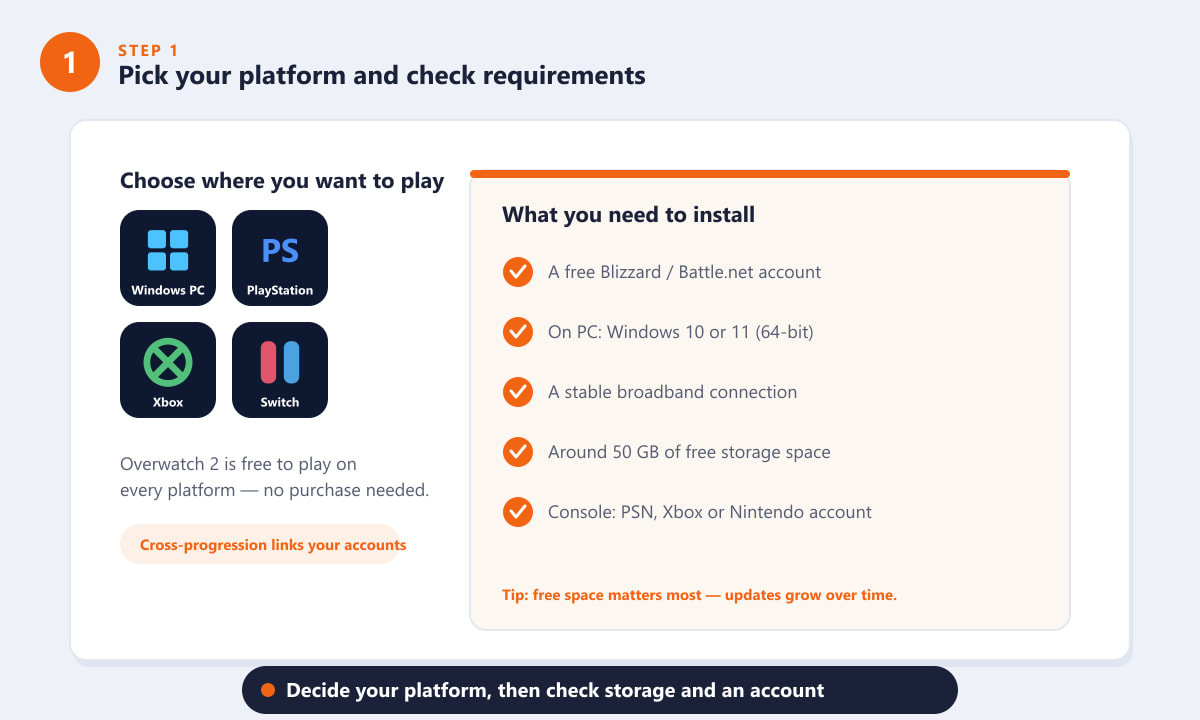
Pick PC, PlayStation, Xbox, or Switch, then confirm storage and an account. -
Step 2: Open the right store or launcher
On PC, you install Overwatch 2 through the free Battle.net desktop app, so head to the official Blizzard site and download the launcher. On a console, you don't need Battle.net — simply open the built-in store (the PlayStation Store, Microsoft Store, or Nintendo eShop) and search for "Overwatch 2."
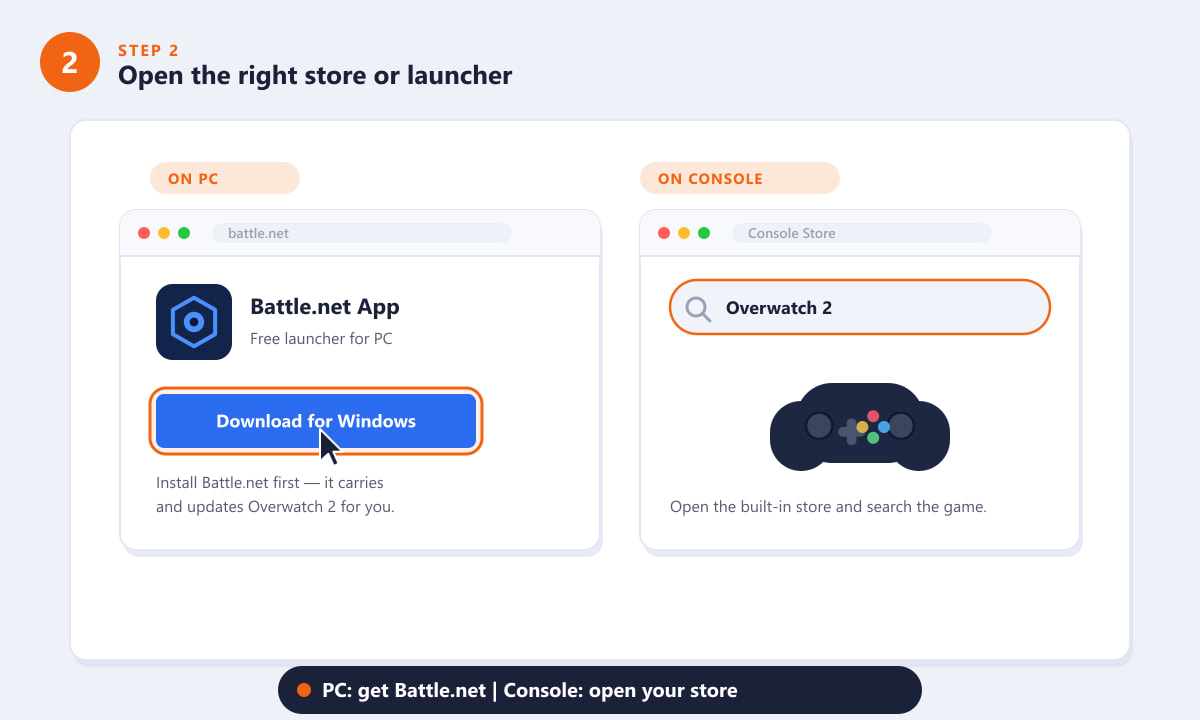
PC players use the Battle.net app; console players use their platform's store. -
Step 3: Install Battle.net and sign in to your account
On PC, run the downloaded Battle.net installer and let it finish, then open the app and log in. If you don't have a Blizzard account yet, choose Create a free account — it only takes a minute. On console, you simply sign in with your platform account; you can link it to Blizzard later in the game's options for cross-progression.
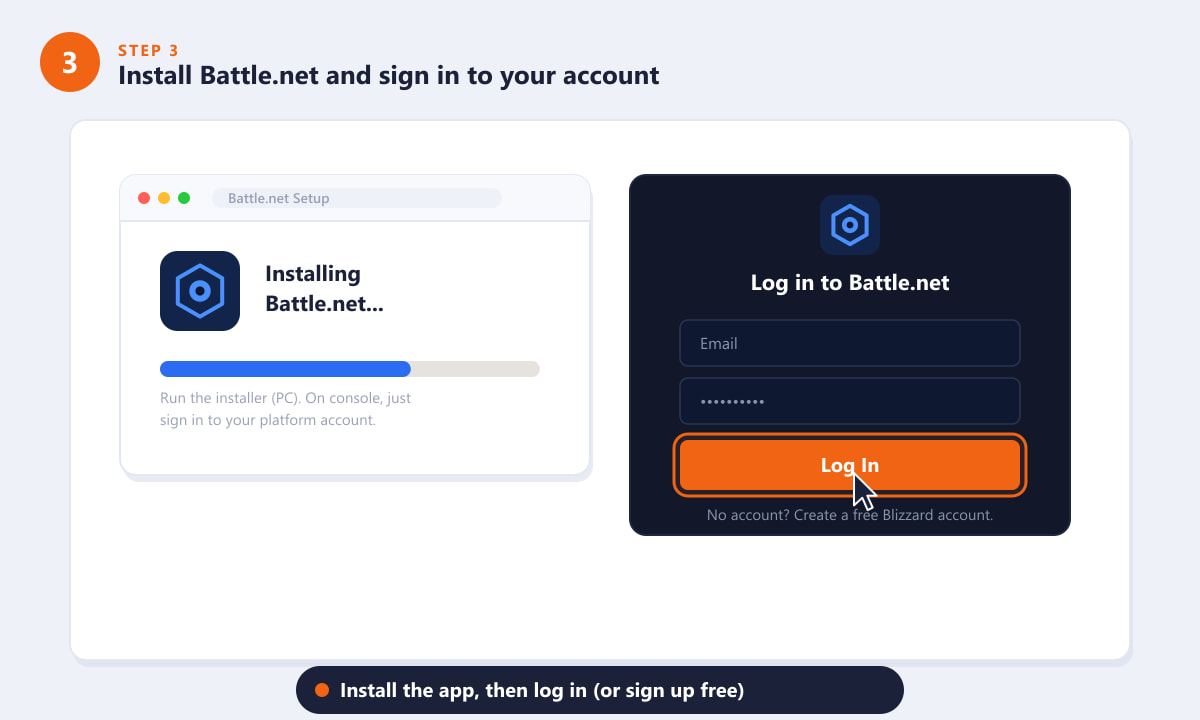
Finish the Battle.net install, then log in or create a free Blizzard account. -
Step 4: Find Overwatch 2 and start the install
In the Battle.net app, select Overwatch 2 from the game list on the left, then click Install and pick the drive you want it on. On console, open the Overwatch 2 store page and choose Get (or Download) to begin. Either way, the price will show as Free, so there's nothing to pay.
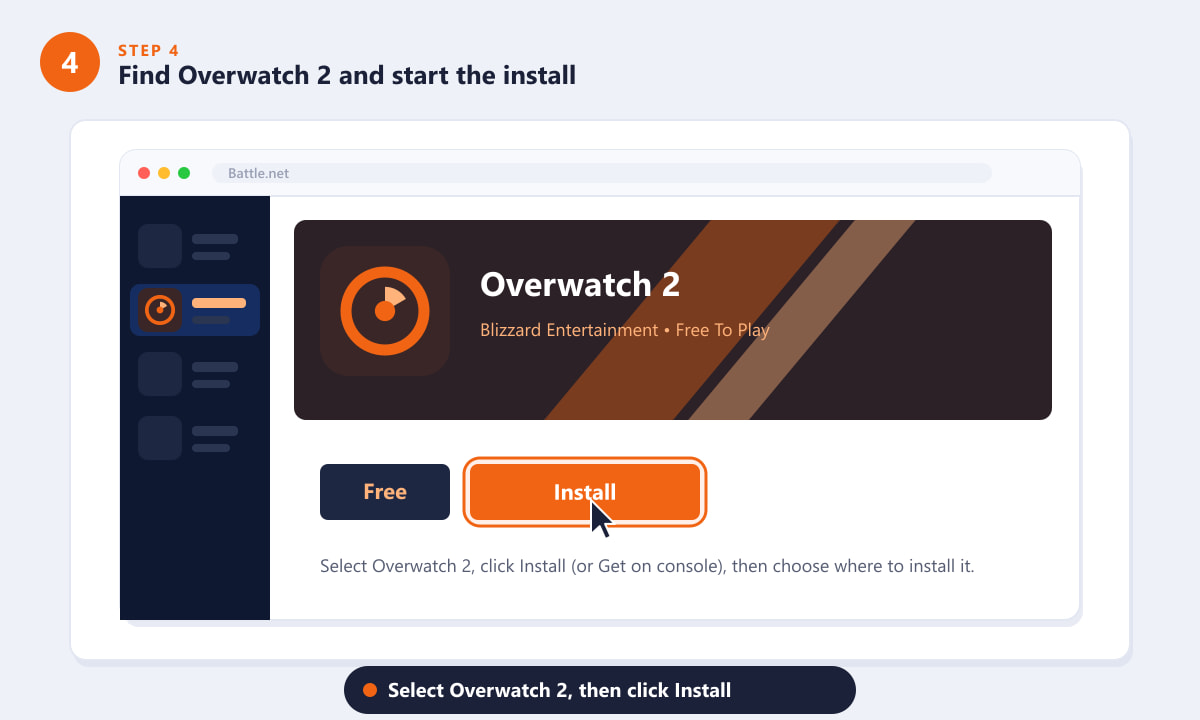
Choose Overwatch 2, click Install, and pick where to store it. -
Step 5: Wait for the download, then launch and play
The download takes a while depending on your connection — Overwatch 2 is a large game. Once it finishes, the Install button turns into a Play button (or you can launch it from your console home screen). The first launch may apply a quick update, after which you press Play, sign in, and you're ready for your first match.
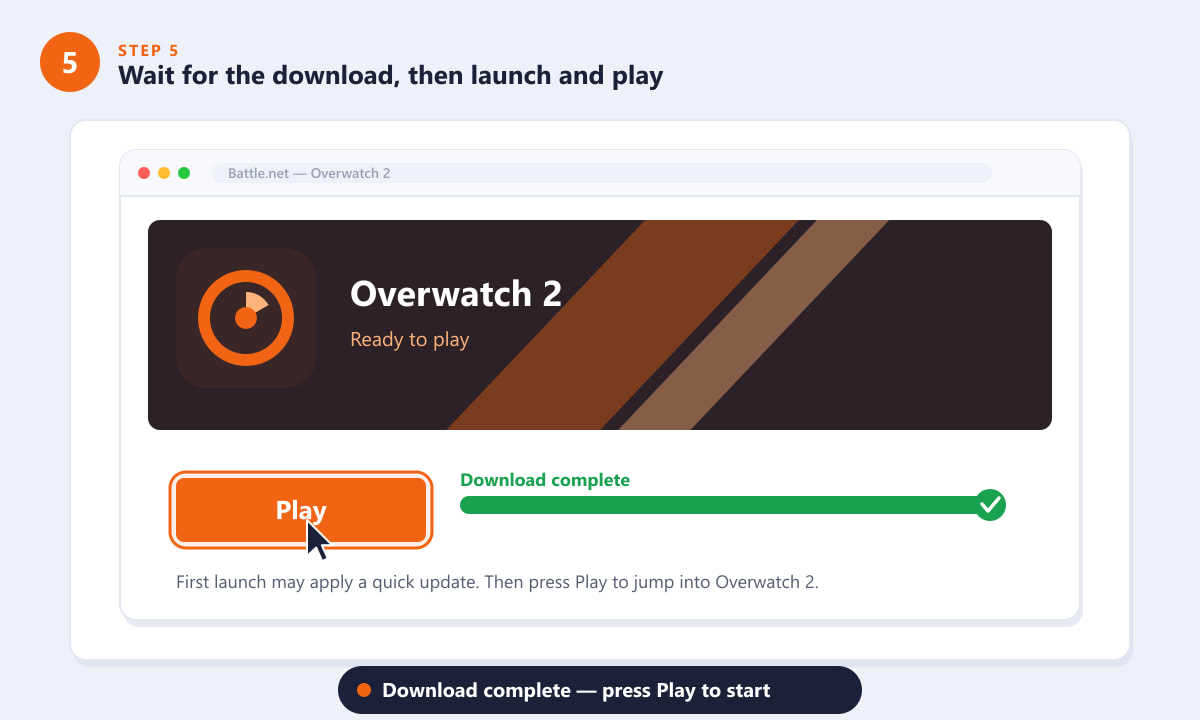
When the download completes, hit Play to launch Overwatch 2.
Helpful tips
- Use a wired connection if you can. A 50 GB download finishes much faster over Ethernet than Wi-Fi, and it makes online matches steadier too.
- Install to an SSD. Overwatch 2 loads maps and the menu noticeably faster from a solid-state drive than from an older hard disk.
- Link your accounts for cross-progression. Logging in to the same Battle.net account on each device keeps your cosmetics, level, and Competitive rank in sync.
- Set up two-factor authentication. Adding the Battle.net Authenticator protects your account and your unlocks at no extra cost.
Troubleshooting
The download is stuck or very slow
Pause and resume the download in Battle.net, or restart the app. Closing other programs that use the internet, switching to a wired connection, and making sure your firewall isn't blocking Battle.net usually clears it up.
I don't see Overwatch 2 in Battle.net
Use the game list on the left side of the app. If it's missing, click the + (plus) button near the list to browse all Blizzard games and select Overwatch 2, then choose Install.
The installer won't run on my PC
Make sure you're on 64-bit Windows 10 or 11 and that you have enough free disk space. Right-clicking the installer and choosing Run as administrator can also resolve permission errors.
Frequently asked questions
Is Overwatch 2 free to install?
Yes. Overwatch 2 is free to play, so installing it costs nothing on PC, PlayStation, Xbox, or Switch. Optional cosmetics and battle passes are the only paid extras.
How big is the Overwatch 2 download?
Plan for roughly 50 GB of free space. The exact size varies by platform and changes with each major update, so leaving extra headroom is wise.
Do I need Battle.net to install Overwatch 2 on console?
No. On PlayStation, Xbox, and Switch you install the game straight from the platform store. You only need the Battle.net app on PC, though you can still link a Blizzard account on console for cross-progression.
Can I play Overwatch 2 with friends on other platforms?
Yes. Overwatch 2 supports cross-play, so PC and console players can group up together once the game is installed and you're signed in.
Final thoughts
Installing Overwatch 2 comes down to picking your platform, opening the right launcher or store, signing in, and letting the download finish. Because the game is free to play, the only real cost is the time and storage space it takes to install. For the latest system requirements and official download links, check the official Overwatch website, then press Play and queue up for your first match.