How to Fix Warzone Lag (2026): Stop Stutters and Ping Spikes
To fix Warzone lag, first identify whether the problem is your connection, the game service, or your PC’s frame rate. A character snapping backward or delayed hit markers usually point to a network problem. Choppy motion and sudden frame drops point to local performance. Check the live service status, compare the game’s network and frame-rate telemetry if available, then follow the matching steps below. Lowering graphics can help FPS stutter, but it cannot improve ping.
“Lag” is an umbrella term. Activision’s lag and in-game performance guide describes rubber-banding, stuttering, and delayed hit markers as symptoms that can have different causes. The quick comparison below helps avoid changing unrelated settings.
| What you notice | Likely area to check first | Useful first test |
|---|---|---|
| Your character jumps back, actions register late, or ping changes sharply | Network route, Wi-Fi, other traffic, or a service issue | Check Warzone service status, then test with Ethernet |
| The picture hitches or feels choppy while the connection looks steady | Frame rate, graphics load, drivers, or background apps | Watch FPS/frame-time telemetry and lower one graphics setting |
| Both happen together, or the issue started after a patch | More than one cause is possible | Check known issues and test one change at a time |
How to fix Warzone lag step by step
Step 1: Check Warzone’s live status and known issues
Before reinstalling the game or changing router settings, check Activision’s Online Services page and choose Warzone and your platform. Check the platform’s network status too. If Activision lists an outage or a tracked issue that matches your symptoms, local troubleshooting may not help until service is restored or the issue is fixed. The Warzone Known Issues page is updated over time, so consult its live contents rather than relying on a dated screenshot.
Illustrative browser view of the Activision service page. Check the live page for current status; this image does not show a live result. Step 2: Separate network lag from FPS stutter
If your version/platform offers in-game telemetry, turn on the available network and performance readouts for a short test. Look for ping or latency, packet loss, and FPS (frames per second). Exact names and menu locations can change between updates, so use the telemetry menu currently shown in your game. Note what changes when the hitch happens: a network spike or packet-loss warning points toward the connection; an FPS drop with stable network readings points toward rendering or system load. This is a diagnostic clue, not proof that only one cause is present.
Activision defines ping as the time data takes to travel between locations and notes that geography and the internet provider’s route can affect it. A fast download speed by itself does not prove that a game route is stable. Avoid using a single speed-test result as your only measure.
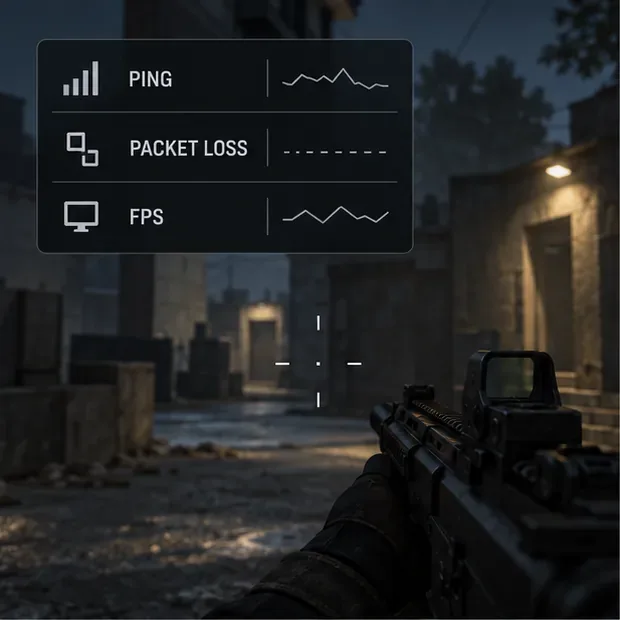
Use the telemetry available in your current game version to tell network symptoms from frame-rate stutter. Step 3: Test on Ethernet and pause competing traffic
Connect the PC or console directly to the router with an Ethernet cable if possible. Activision recommends wired play because Wi-Fi reliability and bandwidth can vary. If Ethernet is not practical, move closer to the router and reduce obstacles between it and the console or PC. For a clean test, restart the router once, then pause large downloads, cloud backups, video streams, and other bandwidth-heavy activity while you play. Uploading a stream can matter too, since it uses your outgoing connection.
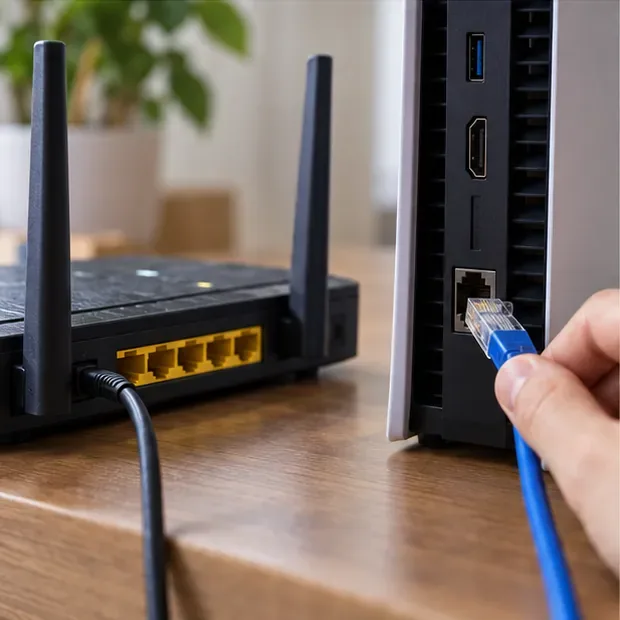
A wired connection removes Wi-Fi as a source of interference while you test. Step 4: Run your platform’s connection test
On PlayStation, use Settings > Network > Test Internet Connection. On Xbox, open the guide and go to Profile & system > Settings > General > Network settings, then run Test network connection; Activision also points Xbox players to Test multiplayer connection for game-related connection issues. On PC, compare Warzone with another online game and another device on the same network. If multiple apps or devices show trouble, contact your internet provider; if only Warzone is affected, recheck the game’s service status and known issues.
For platform-specific steps, see Activision’s Warzone connection troubleshooting guide.
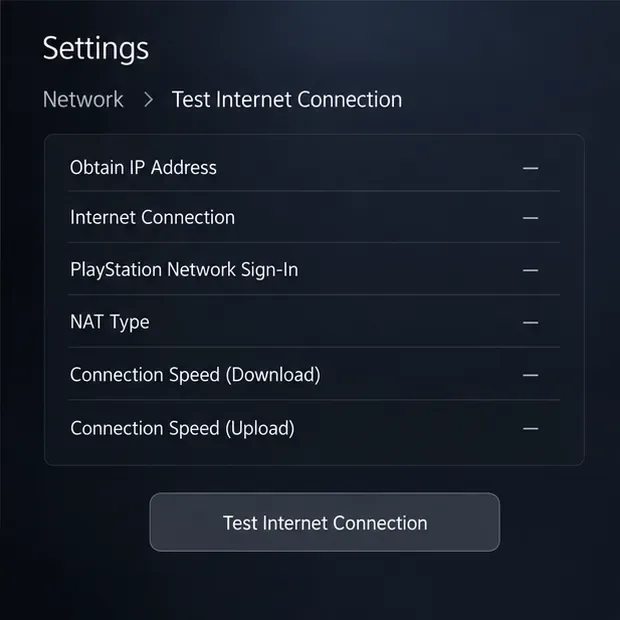 Network > Test Internet Connection screen with blank diagnostic results." width="620" height="620" loading="lazy">
The connection test can reveal console network problems; the pictured fields are illustrative and contain no measured results. Step 5: Reduce graphics load when FPS is the problem
This step is for frame drops and visual stutter, not high ping. On PC, open the game’s graphics settings and try a lower render resolution or demanding effects first. Set a frame-rate limit your system can sustain consistently instead of chasing a peak it cannot hold. Change one setting, test a match, and keep the change only if the motion becomes steadier. Menu names and available controls can vary by platform and game update, so do not assume every option shown in an illustration appears in your build.
If network telemetry is the part that spikes while FPS stays stable, return to the network steps instead. On console, focus on service status, connection testing, and game updates rather than PC-only graphics controls.
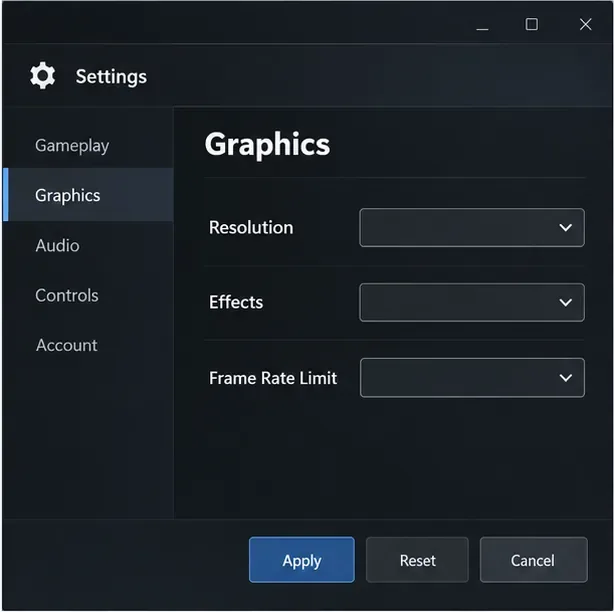
Graphics options and menu labels vary by platform and update; change one demanding setting at a time. Step 6: Update Warzone, Windows, and your graphics driver
Install the current Warzone update from your game platform. On PC, apply Windows updates and get the graphics driver from NVIDIA, AMD, or Intel’s official support channel. Activision’s Warzone PC requirements page lists the current baseline and recommended video-card driver information; driver versions change, so use the live page instead of copying an old version number from a guide. Restart after an update, then test again before making more changes.
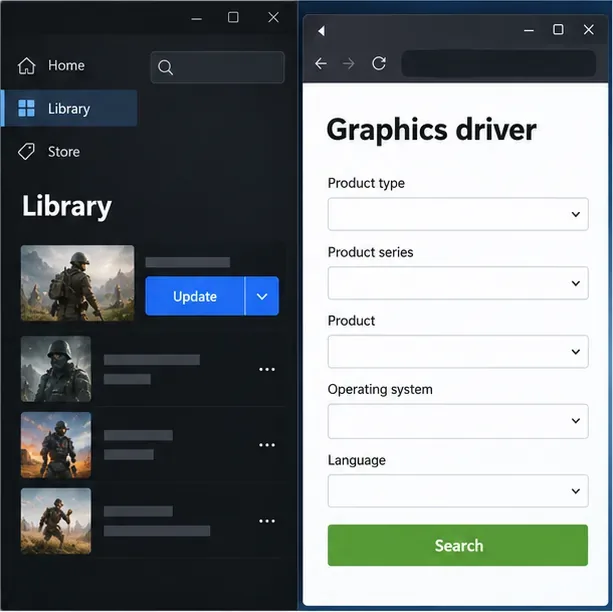
Install game updates through your platform and get GPU drivers from the manufacturer’s official support page. Step 7: Repair the game files on PC
A damaged or incomplete local file can cause errors, freezes, or instability. On Steam, open the game’s Properties and choose Installed Files > Verify integrity of game files. Steam checks the installation and may replace files it finds damaged or missing. If you use another PC launcher, use its current scan or repair option. File repair can address installation problems; it will not fix an Activision outage, a poor network route, or a PC below the game’s current requirements.
Follow the platform’s instructions and allow the check or repair to finish before launching the game again. Steam’s official Verify Integrity of Game Files instructions show the current menu path.
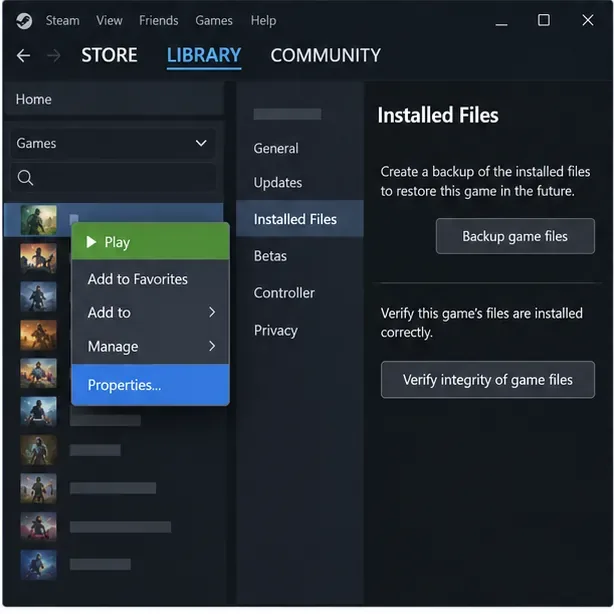
In Steam, use Installed Files to verify the game’s local files. Step 8: Free up system resources and check the PC baseline
Close downloads, browser video, recording software, and other apps you do not need during a match. In Windows, Task Manager can show whether CPU or memory use is already high; close only applications you recognize, not unfamiliar system processes. If stutter gets worse during a long session, check that the PC has clear airflow and is not overheating. Also compare your computer with the latest official Warzone PC requirements. When the CPU, GPU, memory, or storage falls below the current baseline, settings changes may reduce the load but cannot guarantee smooth performance.
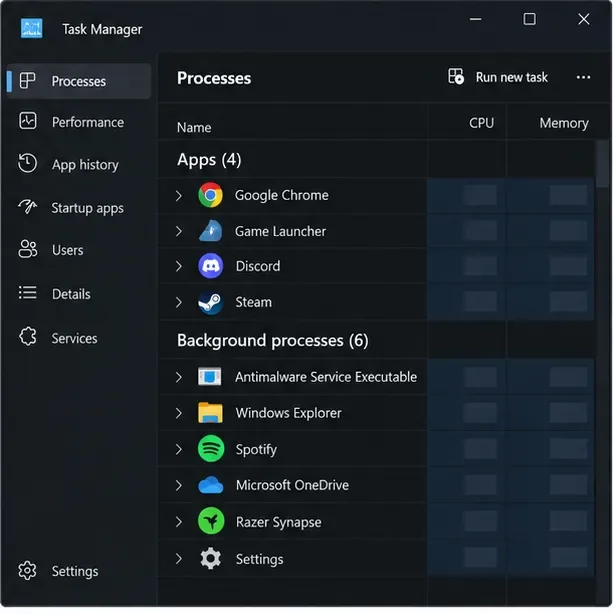
Review resource use and close only background apps you recognize and do not need.
Quick troubleshooting for common Warzone lag problems
Warzone suddenly became laggy
Check service status and the Known Issues page first, especially if the change began after a game update. Then compare the network and FPS readouts. A patch, a service issue, new background traffic, and a driver update can all coincide with a sudden change, so test one possible cause at a time.
My ping looks steady, but Warzone still stutters
Focus on FPS, graphics load, drivers, background apps, and whether your PC meets the current requirements. A stable ping does not prevent a local frame-rate problem. Lower one demanding graphics option and retest before changing several settings at once.
Will lowering graphics fix ping spikes?
No. It can help your system render frames more consistently, but ping measures the network trip between your device and another location. For ping spikes, check service status, use Ethernet, pause other traffic, and test your platform’s connection.
What is a good ping for Warzone?
There is no single cutoff that guarantees a smooth match. A lower, stable connection to the server is generally preferable; route quality and packet loss also matter. If the problem repeats across sessions or games, ask your provider whether there is congestion or a routing issue.
When to contact support
If the connection test fails across multiple games or devices, contact your internet provider or console platform support. If other games work but Warzone repeatedly has the same issue and no outage is listed, report it through Activision’s feedback and bug-reporting options or the Warzone support page. Include your platform, the time the issue occurred, whether you used Wi-Fi or Ethernet, and what the in-game telemetry showed. Those details make the report more useful.
Work through the checks in order: verify service, identify whether the symptom is network or rendering, stabilize the connection, then apply the platform-specific fix. That approach helps target the source of Warzone lag without confusing ping spikes with FPS stutter.









