How to Fix PUBG Crashes on PC: Six Troubleshooting Steps
If PUBG: BATTLEGROUNDS keeps crashing on a Windows PC, start by clearing custom Steam launch options and verifying the game files. Then update Windows and your graphics driver, remove unstable or conflicting software, reduce graphics load if the game reaches its menus, and reserve a clean reinstall for last. These are troubleshooting steps, not a guarantee: PUBG Support says crashes can have different causes and asks players with persistent failures to submit a crash dump.
This guide covers the Steam PC version of PUBG: BATTLEGROUNDS. It does not apply to PUBG Mobile or console versions. PUBG Support’s General Crashing and Performance Guide was updated February 26, 2026; the steps below prioritize that guidance and explain when each check is useful.
First, match the fix to the crash
Write down the exact message or error code and when the failure happens. A game that closes to the desktop is different from a lost connection or a full PC shutdown. If PUBG disconnects but stays open, start with the official connectivity guide; if Windows restarts or powers off, investigate system stability and cooling as well as the game.
| What you see | Start with |
|---|---|
| Crash before the lobby or just after the PUBG logo | Steps 1–4, then Step 6 if needed |
| Freeze or crash during a match | Steps 3–5; check for heat or an unstable overclock |
| An anti-cheat or unsupported-software code | Close overlays, monitoring tools, mods, or other recently installed utilities; follow the page for that exact code |
| PC restarts or shuts down | Check hardware stability and cooling; do not keep stress-testing a PC that powers off |
How to fix PUBG crashes: six steps
1. Restart Windows and Steam, then clear launch options
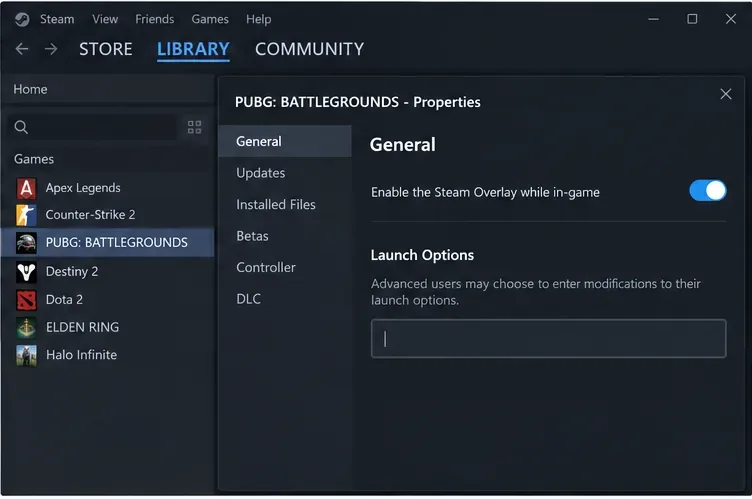
Exit PUBG and Steam, restart the PC, reopen Steam, and test once. If you have added any Steam launch commands for PUBG, remove them while diagnosing the problem: PUBG Support specifically recommends clearing all launch options because older community commands may cause issues.
- Open Steam Library and right-click PUBG: BATTLEGROUNDS.
- Choose Properties, stay on General, and find Launch Options.
- Delete the text in the field so it is blank, then close Properties and launch the game.
Do not add commands such as -USEALLAVAILABLECORES as a crash fix. The current PUBG guide recommends removing custom launch commands, not adding performance switches.
2. Verify PUBG’s files in Steam
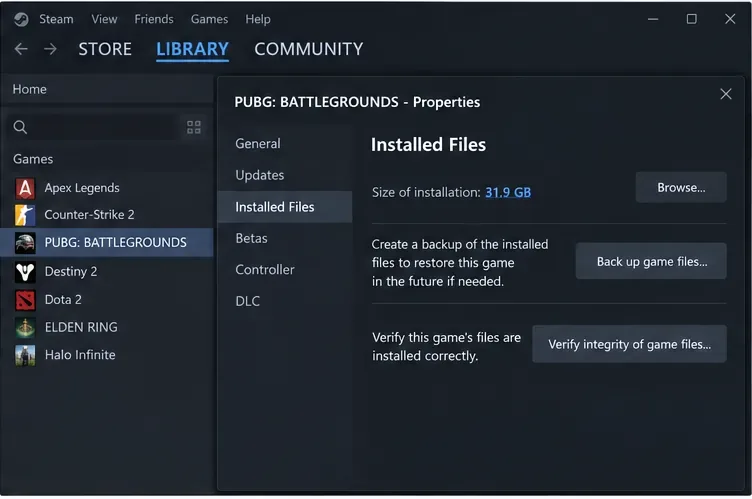
A damaged or missing file can prevent startup or destabilize a game after an update. Steam can compare the local installation with its files and replace items it cannot verify. This check is a sensible early step because it does not require deleting the full installation.
- In Steam Library, right-click PUBG and choose Properties.
- Open Installed Files, then select Verify integrity of game files.
- Let the check finish. If Steam downloads replacements, wait for that download to complete before relaunching.
Steam’s official Verify Integrity of Game Files instructions describe this option. Run the check again after a fresh install only if the issue returns or Support requests it.
3. Install Windows and graphics-driver updates
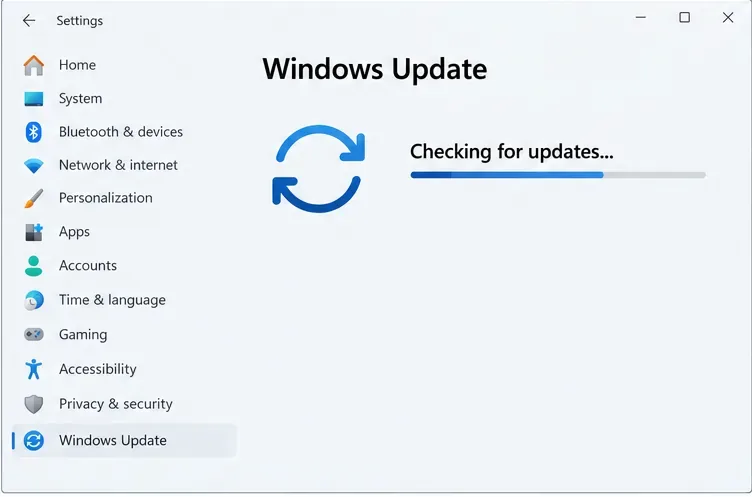
PUBG’s current troubleshooting guide calls out both Windows updates and graphics drivers. In Windows, open Settings > Windows Update, install available updates, and restart if prompted. Microsoft’s Windows update instructions show the current path.
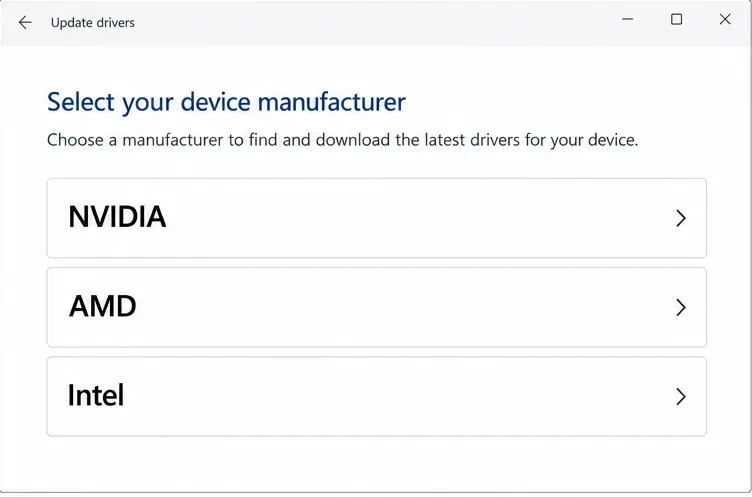
For the GPU driver, use the official support channel for the card in your PC: NVIDIA driver downloads, AMD drivers, or Intel downloads. Avoid third-party “driver updater” bundles. Restart after installing, then test the game before changing more settings. If crashes began immediately after a driver update, use the GPU or PC manufacturer’s documented rollback/reinstall path rather than downloading drivers from an unverified site.
4. Remove unstable overclocks and conflicting programs
For a clean test, return CPU, GPU, and memory tuning to the manufacturer’s default settings. PUBG Support warns that unstable hardware overclocks can cause crashes or data corruption. Also close nonessential monitoring, recording, overlay, or graphics-modification tools—especially anything installed or updated shortly before the crashes began. PUBG’s anti-cheat error-code guide associates some codes with unsupported software. Follow the instructions for the exact message instead of guessing at a generic anti-cheat repair.
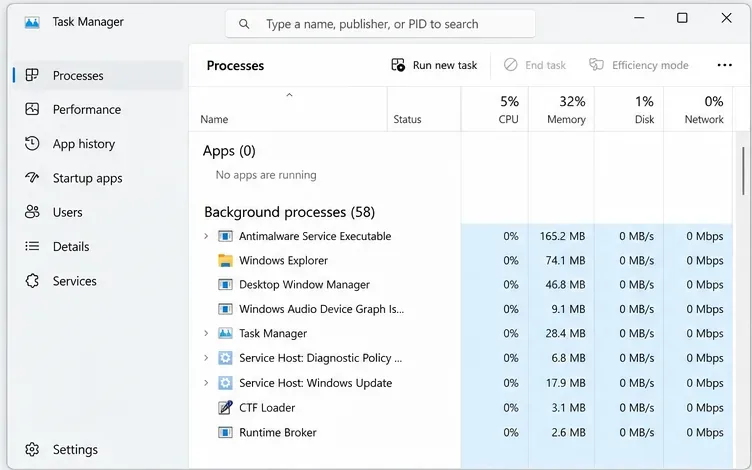
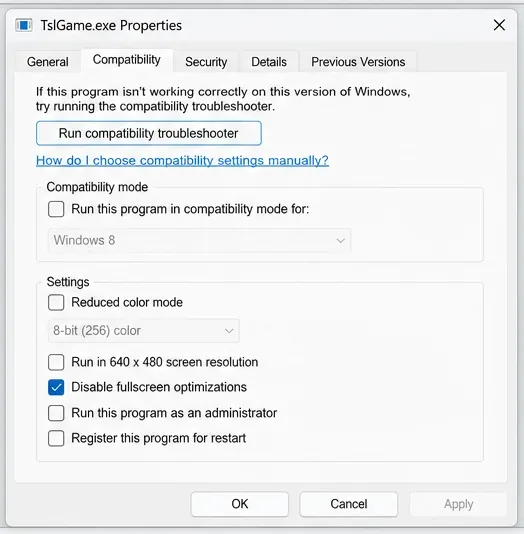
Use Task Manager (Ctrl+Shift+Esc) to close only applications you recognize, such as a recording app or browser you do not need. Do not end Windows, Steam, PUBG, or anti-cheat processes. If a crash persists and PUBG Support’s guide recommends testing fullscreen behavior, locate TslGame.exe in the game’s TslGame\Binaries\Win64 folder, open Properties > Compatibility, and try Disable fullscreen optimizations. Treat it as a reversible test: clear the checkbox if it does not help.
5. Lower graphics settings if the game reaches the menu
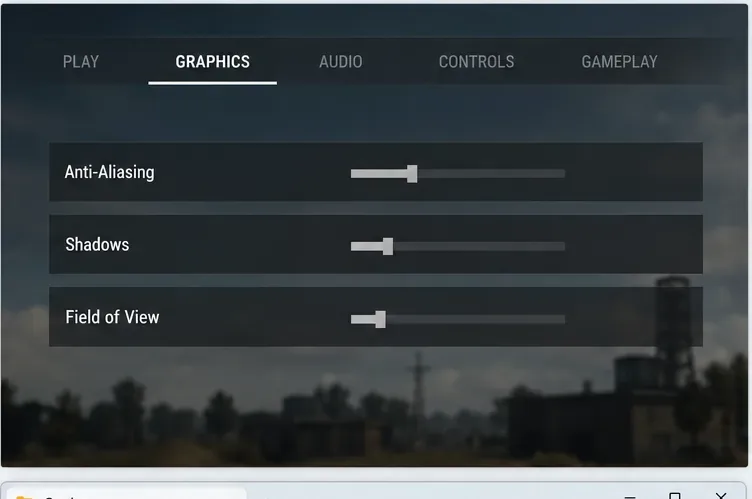
If PUBG launches but crashes while loading a match or during demanding scenes, lower one setting at a time—such as anti-aliasing, shadows, or field of view—and test again. PUBG’s lowering game settings guidance names these as options to reduce for performance. This is a diagnostic test, not proof that graphics were the cause; if PUBG crashes before the menus, skip this step.
Also compare the PC with PUBG’s published system requirements. That support page shows an update date of January 17, 2023, so check the current Steam listing before treating its figures as the latest requirements. If the PC slows sharply, becomes unusually hot, or shuts down, stop testing and check airflow and cooling; PUBG has a separate overheating guide.
6. Clean-reinstall PUBG only after the checks above
If file verification and the other checks do not help, a clean reinstall can replace damaged game and anti-cheat files. Before removing local data, back up any settings or configuration files you want to keep. PUBG’s official clean-install instructions for a standard Steam setup are:
- Uninstall PUBG from the Steam Library.
- Press Windows key + R, enter
%localappdata%, and remove theTslGamefolder only if you are following PUBG Support’s clean-install procedure. - For a standard Steam installation, PUBG Support names
C:\Program Files (x86)\Common Files\BattlEye\BEService_pubg.exeandC:\Program Files (x86)\Steam\steamapps\common\PUBGfor removal. If your Steam library is somewhere else, use Manage > Browse local files to locate the game and follow PUBG Support’s instructions; do not delete unrelated folders. - Clear Steam’s download cache from Steam > Settings > Downloads, restart Steam, and install PUBG again.
This cleanup removes local game data and may reset settings, which is why it belongs at the end of the list. Do not download replacement anti-cheat files from third-party sites. If an anti-cheat error appears after reinstalling, use the official help article for that exact code.
If PUBG still crashes, send Support the crash dump
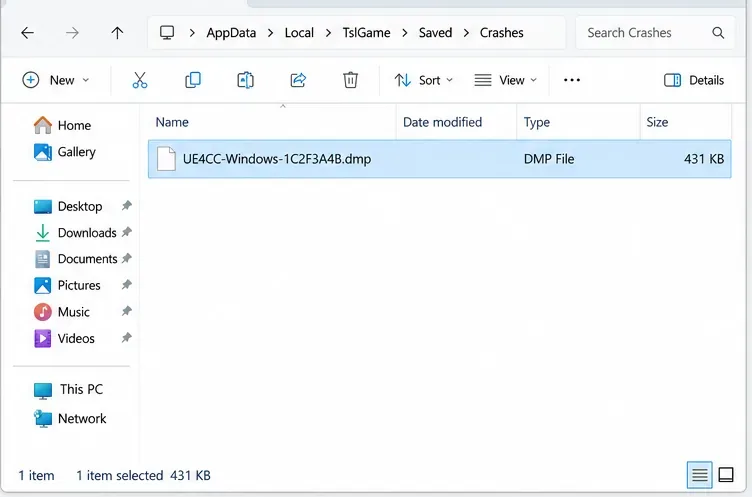
PUBG Support asks players with persistent crashes to open a ticket and include the date the problem began, a precise description, the full error text or code, a DxDiag report, and the newest crash dump. Press Windows key + R, enter %localappdata%\TslGame\Saved\Crashes, and zip the newest dump before attaching it to the PUBG Support request. To create DxDiag details, run dxdiag and choose Save All Information. Share these diagnostic files through the support ticket rather than a public post.
When reporting the issue, note whether the crash happens before the lobby, during loading, or mid-match and list the troubleshooting steps already tried. That gives Support useful context without making you repeat the same checks.
Frequently asked questions
Why does PUBG keep crashing on startup?
Start with a PC/Steam restart, blank Steam launch options, and a Steam file verification. Then update Windows and the graphics driver and close recently added utilities. A specific anti-cheat code can point to a more targeted fix, so record it exactly.
Should I run PUBG as administrator?
Do not make administrator mode a default fix. PUBG’s current general crash guide does not list it among its core steps. Use elevated permissions only if a specific error or PUBG Support instruction calls for them.
Should I reinstall PUBG right away?
No. Verify files and test the less disruptive steps first. A clean reinstall removes local game data and can reset settings, so use it only after the earlier checks fail and back up anything you need.









