How to Fix Low Client FPS in Valorant (2026 Guide)
Low client FPS in VALORANT means the game is rendering fewer frames on your PC. Start with the game’s built-in performance graphs, then work through six targeted checks: graphics quality, background apps, the FPS cap, graphics drivers, Windows graphics selection, and power mode. This order helps you identify whether the slowdown comes from a specific setting or from a CPU, GPU, or thermal limit.
Riot describes the “Low Client FPS” indicator as reduced game framerate. It is separate from network warnings such as high ping or packet loss, and Riot says the cause varies by machine. Its recommended starting points are closing competing apps, checking VALORANT’s performance graphs to see whether the system is CPU-bound or GPU-bound, and adjusting selected graphics settings. Riot’s VALORANT instability guide
Before changing settings
- Note when the slowdown happens: from launch, after several minutes, during fights, or only after a recent driver or Windows update.
- Check your monitor’s refresh rate in Windows under Settings → System → Display → Advanced display. A 144 Hz display does not make the game render at 144 FPS by itself.
- Change one setting at a time and compare in the same mode and a similar match situation. VALORANT’s frame rate can vary with the number of players and abilities on screen, so a quick visit to the Range may not match a busy round. Riot’s explanation of performance variation
How to fix low client FPS in VALORANT
-
1. Use VALORANT’s performance graphs to find the bottleneck
Open Settings → Video → Stats and turn on the available CPU and GPU frame-time graphs. Play until the slowdown occurs, then see which frame-time graph rises along with the FPS drop. If the GPU render-time graph is the one struggling, graphics changes are a sensible next test. If CPU frame time is the limiting graph, lowering resolution may do little; close competing apps and check the power and temperature steps below. Riot specifically recommends these in-game stats to help distinguish a CPU-bound issue from a GPU-bound one.
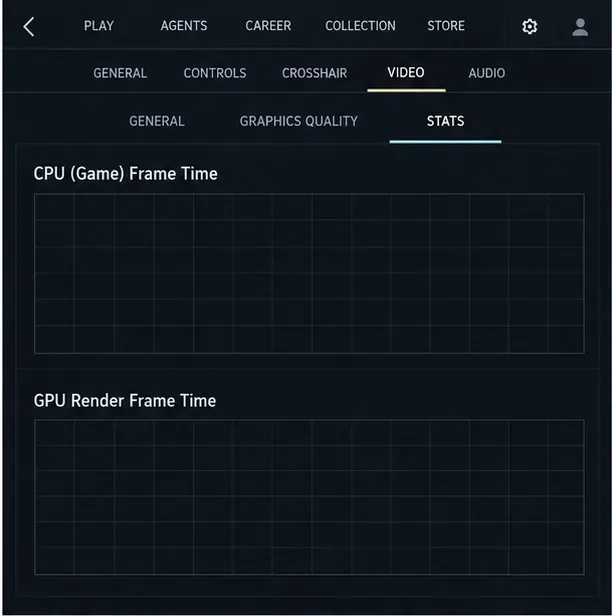
Use the built-in Stats graphs while the drop is happening; the blank graphs shown here are an interface illustration, not a performance reading. -
2. Lower the graphics options that affect frame rate
Go to Settings → Video → Graphics Quality. As a diagnostic baseline, set Material Quality, Texture Quality, Detail Quality, and UI Quality to Low. Try turning off Improve Clarity, Experimental Sharpening, Bloom, Distortion, and Cast Shadows as well. These are the settings Riot identifies for troubleshooting low client framerate. Riot’s VALORANT instability guide
Test after applying the changes. If the GPU graph improves, keep the options that make a difference and raise any visual setting you prefer one at a time. If the CPU graph remains the limiting factor, repeatedly lowering every graphics option is unlikely to solve the main bottleneck.
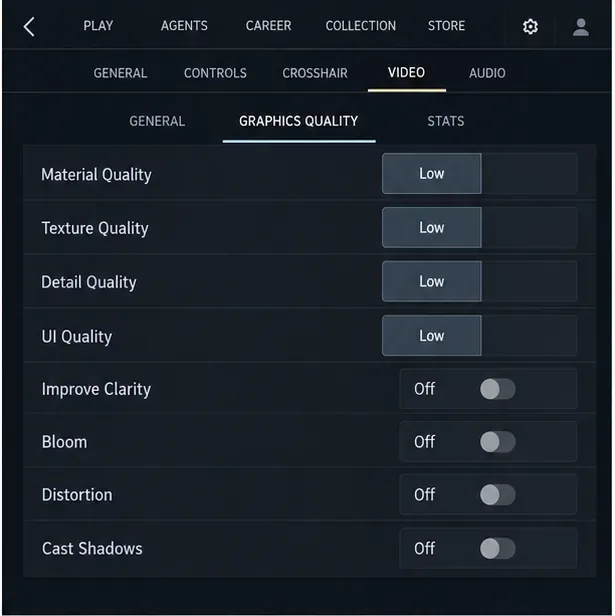
Riot recommends trying these quality controls when diagnosing low client frame rate. Retest after changing them. -
3. Close apps that are competing with the game
Press Ctrl + Shift + Esc to open Task Manager. On Processes, sort by CPU or Memory and close programs you recognize but do not need during a match, such as a large set of browser tabs, video capture or streaming software, active downloads, and heavy sync jobs. Do not end Windows processes, Riot Client, Riot Vanguard, or VALORANT itself.
Also test overlays one at a time. Temporarily turn off an overlay or screen recorder if you use one, then compare the same in-game graph. This makes it easier to identify a conflict without disabling every background feature or security tool. Microsoft likewise recommends checking resource use and closing apps you are not using. Microsoft’s PC performance guidance
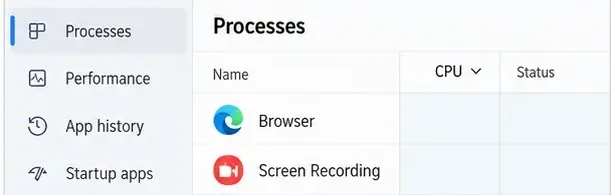
Close only apps you recognize and are not using; leave VALORANT and Riot components running. -
4. Check the FPS limit instead of leaving it at a low cap
In Settings → Video → General, find the in-game FPS limit controls. If your frame rate sits at the same low number even when the scene is quiet, check whether a cap is set below the rate you want. Temporarily use the game’s uncapped or highest available option to compare, then choose a cap your PC can hold steadily. An unlimited cap is a troubleshooting test, not a requirement: on some systems it can add heat, power use, or uneven frame pacing without improving how the game feels.
If your FPS appears capped at your display’s refresh rate, confirm the monitor is set to its intended refresh rate in Windows Advanced display. Change one limit at a time so you can tell whether the game setting or the display setting was responsible.
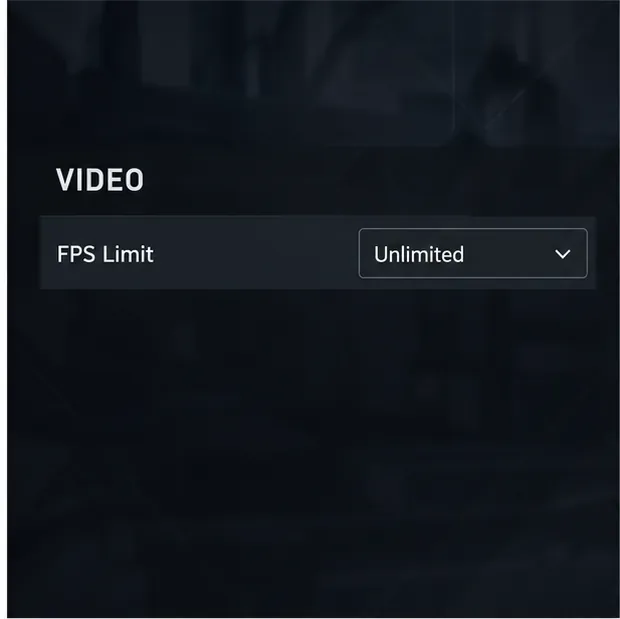
Use an uncapped setting only as a comparison test. Choose a stable cap for regular play if unlimited frames cause excess heat or inconsistent pacing. -
5. Update the graphics driver from the GPU manufacturer
Check the model of your graphics card, then get a compatible driver from the manufacturer’s official support page: NVIDIA’s official driver download page for GeForce cards or AMD’s official driver support page for Radeon cards. Avoid third-party “driver updater” downloads. Follow the installer’s restart instructions and retest before changing other settings.
If the FPS drop began immediately after a driver update, check the vendor’s release notes and use its supported method to return to a known-good version. The newest driver is not guaranteed to fix every game-specific issue, so compare results rather than assuming an update helped.
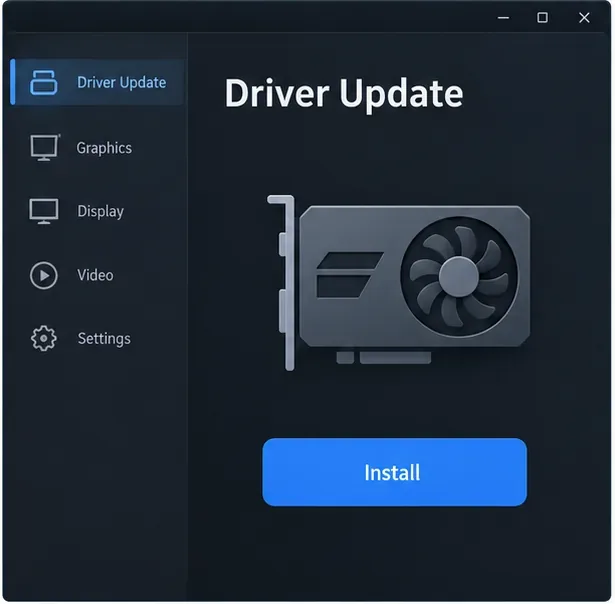
Get a compatible driver directly from your GPU maker. The mockup intentionally shows no version or release date. -
6. Check Windows power mode and GPU selection
On a laptop, connect the charger before testing. In Windows 11, open Settings → System → Power & battery → Power mode and select Best performance while plugged in. This mode prioritizes performance over battery life; it can use more power and create more heat. The option and its wording can vary by PC. Microsoft’s Windows power-mode instructions
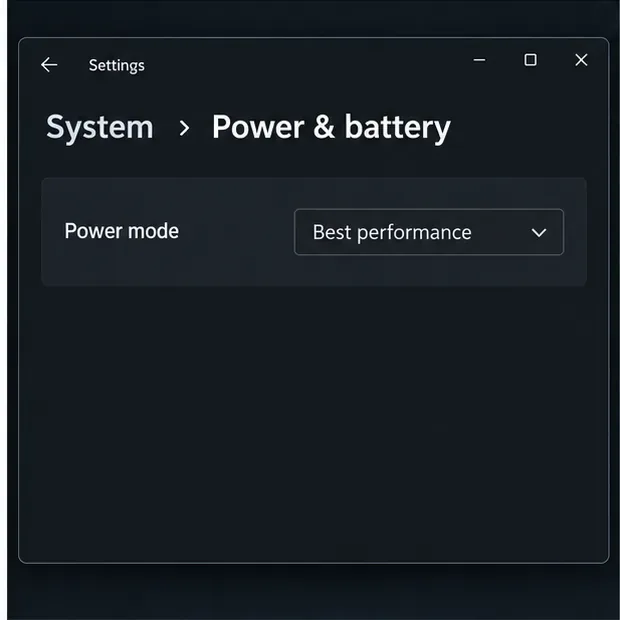
Best performance can increase power use and heat. On a laptop, test it while plugged in. If your computer has both integrated graphics and a separate graphics card, open Settings → System → Display → Graphics, select VALORANT, choose Options → High performance, and save. If VALORANT is not listed, use the game’s executable from its install folder. This Windows setting helps choose which GPU an app uses on systems with multiple GPUs; it will not add a second GPU to a single-GPU PC. Microsoft’s graphics settings instructions for Windows 11
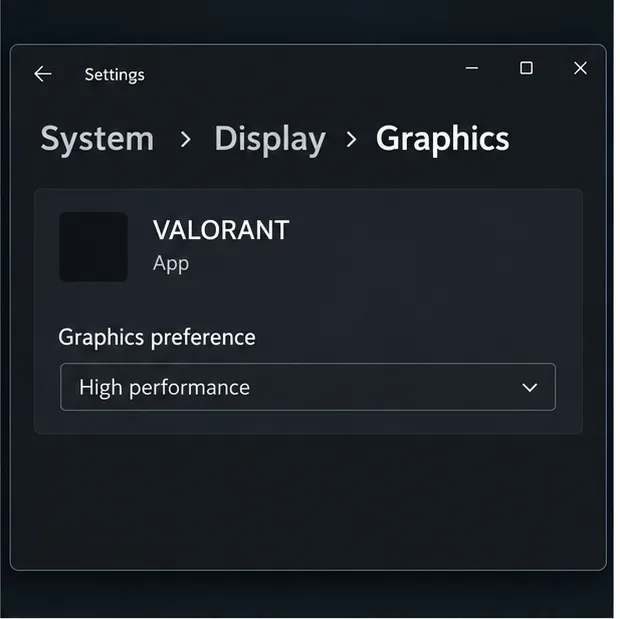
This per-app choice is mainly useful on a PC with both integrated and discrete graphics; it may not appear on every system.
If FPS still drops after these steps
It gets worse after the PC has been running for a while
Check CPU and GPU temperatures and clock speeds with your PC maker’s utility or a reputable hardware monitor. A temperature rise followed by falling clock speeds can point to thermal or power throttling. There is no single temperature cutoff that applies to every processor and graphics card; compare readings with the limits for your exact hardware. Make sure the laptop vents or desktop fans have clear airflow, and follow the manufacturer’s cleaning guidance.
The drop happens mostly during fights
Riot has explained that scenes with more players fighting and more ability effects can take more work to render, and performance can vary between game modes. Compare the CPU and GPU graphs during the drop, then adjust the setting or resource use that matches the limiting graph. A brief scene-related dip is different from a persistent low frame rate across the whole match. Riot’s explanation of performance variation
Your PC may be below the game’s performance targets
Compare your processor and graphics card with Riot’s VALORANT PC specifications. Riot lists separate hardware tiers associated with 30 FPS, 60 FPS, and 144+ FPS targets. Those tiers are reference points, not a guarantee that a system will hold a particular frame rate in every map, mode, or fight. Riot’s current VALORANT PC specifications
Common questions
Does “Low Client FPS” mean my internet connection is bad?
No. The warning refers to reduced game framerate on your PC. High ping and packet loss are separate network indicators in VALORANT. If the game looks choppy but the FPS graph is stable, check the network indicators separately.
Will lowering resolution always fix low client FPS?
No. Lower resolution mainly reduces the work of rendering each frame on the GPU. It can help when the GPU graph is the limiting factor, but it may have little effect when CPU frame time is the bottleneck. Use the in-game graphs to choose the next change.









