How to Fix Lag Spikes in League of Legends (2026)
To fix lag spikes in League of Legends, first check whether your in-game ping is jumping or your frame rate is dropping. Press Ctrl + F during a match to show the ping and FPS display. If ping suddenly rises while your champion freezes, abilities arrive late, or players rubber-band, troubleshoot the connection. If ping stays steady while the picture stutters, investigate FPS and PC performance instead. Then test on Ethernet, pause heavy network activity, and use Riot’s connection logs if the problem continues.
That distinction matters: a faster internet plan will not fix a graphics hitch, and lowering graphics settings will not repair packet loss. Work through the checks below one at a time, and replay or test after each change so you can tell what helped.
Check whether it is ping or FPS stutter
Riot’s in-game display shows latency in milliseconds and frames per second. A ping spike means game data is taking longer to travel between your PC and the game server. Packet loss means some data does not arrive, while jitter describes how much latency changes over time. Either can make movement and abilities feel delayed. By contrast, a steady ping paired with a falling FPS counter points toward rendering or system load.
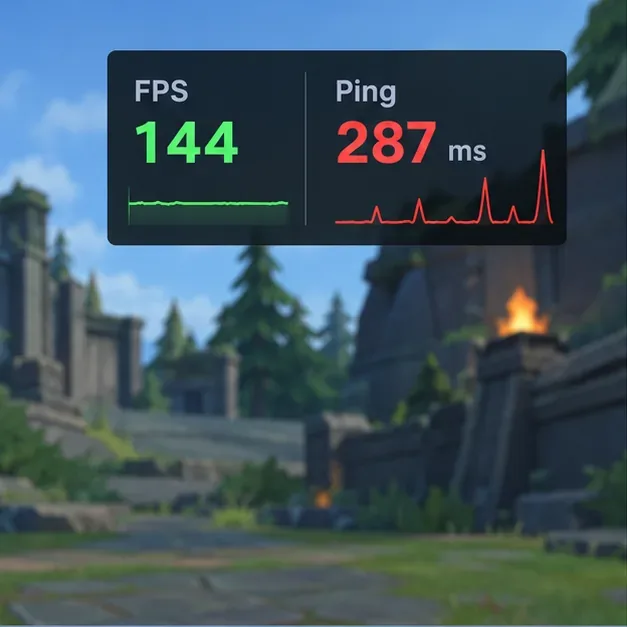
If Ctrl + F does not show the display, check the in-game hotkey under Options > Hotkeys > Display. The label may vary slightly by client version. For a choppy picture with stable ping, follow Riot’s PC performance troubleshooting rather than changing network settings at random.
How to fix League of Legends ping spikes
1. Check Riot’s service status and record the symptom
Before changing your PC, check the Riot Games service-status page for your game region. If Riot reports an incident or maintenance, local driver and DNS changes will not resolve a server-side problem. If there is no notice, note the time of a spike, whether it happens in every match, and whether other devices on the same network also slow down. Those details help separate a local Wi-Fi issue from an ISP or game-route issue.
2. Test the connection between your PC and router
On Windows, open Command Prompt and run ipconfig. Find the active adapter’s Default Gateway address. Then run ping <DefaultGateway> -t, replacing the placeholder with that address; for example, ping 192.168.1.1 -t. Let it run while you reproduce the problem, then press Ctrl + C to stop it. This checks the local link between your computer and router, not the complete route to Riot’s server.
If the gateway replies also jump or time out, focus on Wi-Fi signal, the router, or the PC’s network adapter. If gateway replies stay consistent but League’s ping still spikes, the problem may be farther along the internet route. A clean gateway test does not prove that the ISP or Riot route is clear.
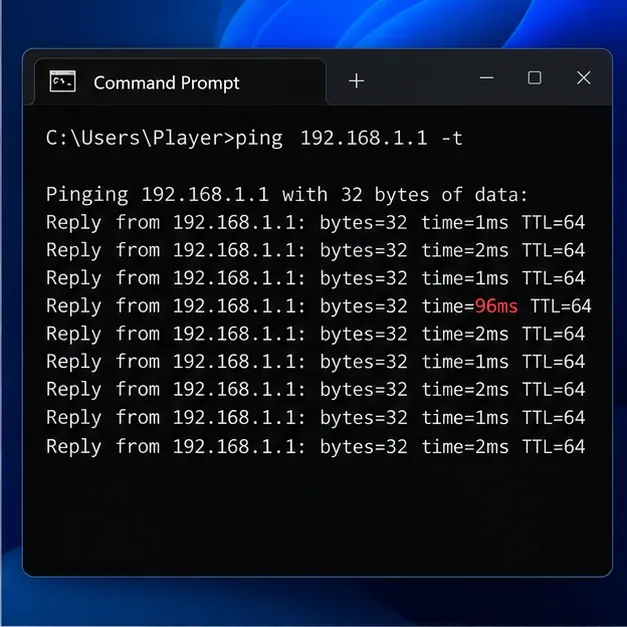
Microsoft’s Wi-Fi troubleshooting guide also explains how to find the gateway and run a router ping test.
3. Try Ethernet, then restart the modem and router
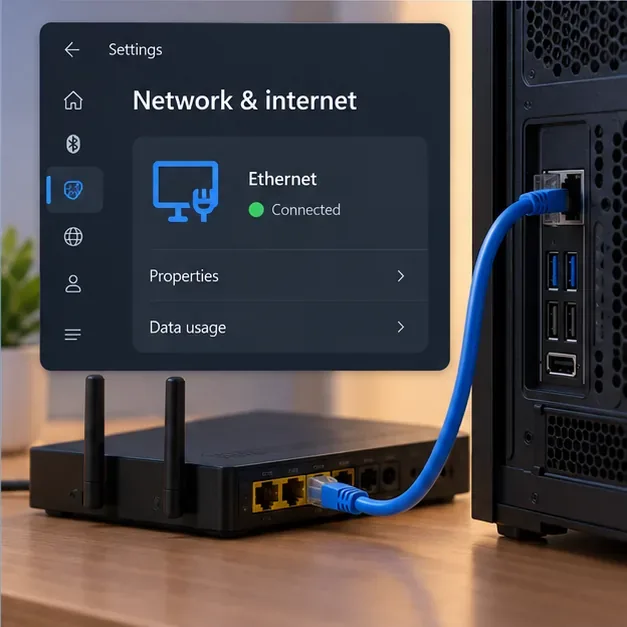
Connect the PC directly to the router or modem with an Ethernet cable and test another match. Riot recommends a wired connection because distance, interference, and other radio signals can cause Wi-Fi lag spikes or packet loss. If Ethernet stabilizes the game, the main issue is likely on the wireless link. If you must use Wi-Fi, test near the router and try the other available band, such as 5 GHz, if your device and router support it; the best band depends on signal strength and your home layout.
If the problem continues, power off the modem and router, wait at least 30 seconds, turn them back on, and wait for the connection to return before launching League. This briefly disconnects other people and devices using the network, so do it between matches.
4. Pause downloads and other heavy network use
Pause game downloads, large file transfers, cloud backups, video streams, and other high-volume activity while testing. On Windows, open Task Manager with Ctrl + Shift + Esc and look at the Network column to identify apps currently transferring data. Close or pause apps you recognize; do not end unfamiliar Windows processes just because they appear in the list. Riot specifically calls out downloads, streaming, and cloud syncing as activity worth reducing during connection troubleshooting.
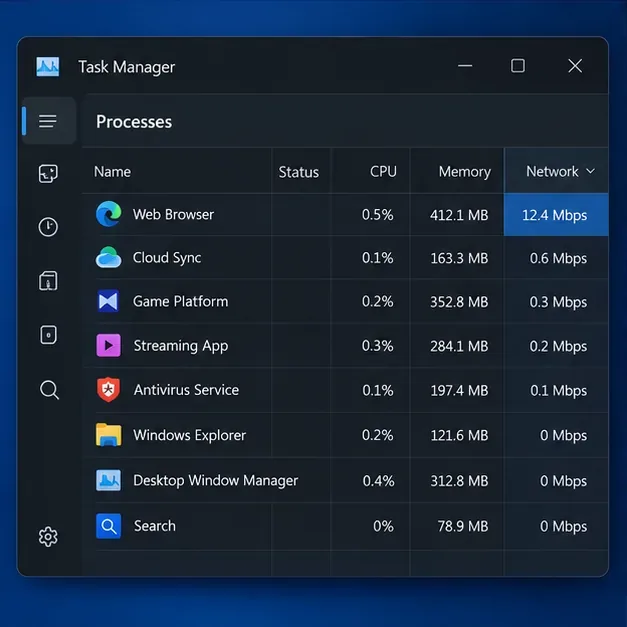
If other people share the connection, ask them to pause large downloads or streaming briefly while you test. This is a diagnostic check: if the spikes stop, household traffic or router congestion may be contributing.
5. Check VPN, drivers, and Windows network settings
Turn off any VPN or proxy while troubleshooting. Riot advises against using one for a normal game connection because it can add another route and create connection problems. Also check for an update to your Ethernet or Wi-Fi adapter in Device Manager. If Windows does not find a newer driver, use the support page for your PC, laptop, or motherboard model rather than a third-party driver-download site. Restart Windows and test again after an update.
If several apps have connection problems—not just League—Riot’s current PC guide recommends resetting TCP/IP and checking DNS. On Windows, an elevated Command Prompt can run netsh winsock reset, netsh int ip reset, and ipconfig /flushdns; restart the PC afterward. Follow the Riot PC connection guide and DNS instructions before changing DNS servers. Public DNS can help rule out a name-resolution issue when the Riot Client cannot connect to its services, but it is not a guaranteed fix for latency during an active match.
Do not turn off your firewall as a test. If you suspect it is blocking the game, use Riot’s firewall instructions to check that the Riot Client and League are allowed.
When to contact your ISP or Riot Support
If the gateway ping is stable, Riot’s status page shows no incident, and in-game spikes persist across matches, open Riot’s Connection Log Reader. Riot says the report can show average latency, packet loss, and jitter over time. A score of 90 or higher suggests the issue is likely not network-related, but treat the score as a troubleshooting clue rather than a guarantee.
Send Riot Support the relevant game log if its reader shows loss or unstable latency. If the issue affects multiple devices or services, give your ISP the times it occurred and the gateway-test results, and ask them to check the line and route. A ping to a public website alone cannot prove that the route to a League server is healthy.
Quick diagnosis
| What you notice | Most useful next check |
|---|---|
| Ping jumps and characters rubber-band | Check Riot status, test Ethernet, and review the connection log. |
| Ping stays steady but the image freezes or FPS falls | Check graphics settings, CPU/GPU load, and overlays; use Riot’s performance guide. |
| Several devices lag at the same time | Restart the modem/router and contact your ISP if the issue returns. |
| Only Wi-Fi has spikes; Ethernet is stable | Improve router placement, reduce interference, or continue on a wired link. |
Frequently asked questions
Can changing DNS lower my League ping?
Usually, changing DNS is not a direct way to lower match ping. Riot lists public DNS as a way to rule out DNS-provider issues when the client has trouble connecting to Riot services. Test it for that kind of problem, but do not expect it to repair packet loss or a poor route during a match.
Will a VPN fix lag spikes?
Riot recommends turning VPNs and proxies off while diagnosing a normal connection. A VPN can change the route and may add delay. Use one only for a specific route test when Riot Support asks you to.
Why does League feel laggy when my ping looks fine?
A stable ping with a choppy picture points more toward FPS drops or brief frame stutters than a network spike. Compare the FPS counter, close CPU- or GPU-heavy applications, and follow the relevant Riot performance troubleshooting steps.









