How to Download Overwatch 2 on Windows
To download Overwatch 2 on Windows, install the game through Blizzard’s Battle.net desktop app or its Steam listing. The current PC game is free to play, though optional in-game purchases are available. You will need a Battle.net account to play, including if you install through Steam.
One naming detail for 2026: Blizzard has dropped the “2” from the game’s branding, so current pages may call it Overwatch. The familiar phrase “Overwatch 2” still appears in searches and older support pages. The steps below apply to the current Windows game.
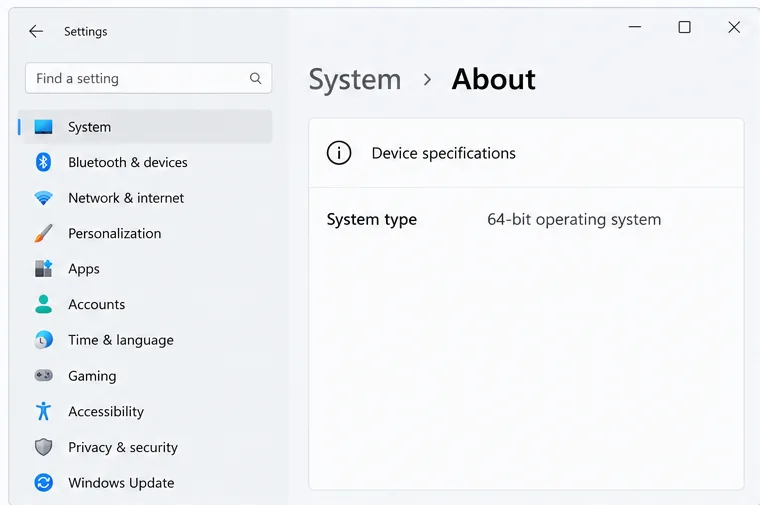 About page and identifies the computer as using a 64-bit operating system.">
Check your Windows PC before downloading
Blizzard’s published Windows requirements list a 64-bit version of Windows 10 with the latest service pack, DirectX 11, a broadband connection, and 50 GB of available storage. The live Steam listing shows the same minimum and recommended specifications. Leave additional room for updates because the installed game can change over time.
| Specification | Minimum | Recommended |
|---|---|---|
| Operating system | Windows 10 64-bit (latest service pack) | Windows 10 64-bit (latest service pack) |
| Processor | Intel Core i3 or AMD Phenom X3 8650 | Intel Core i7 or AMD Ryzen 5 |
| Memory | 6 GB RAM | 8 GB RAM |
| Graphics | NVIDIA GeForce GTX 600 series or AMD Radeon HD 7000 series | NVIDIA GeForce GTX 1060/GTX 1650, AMD R9 380/RX 6400, or Intel Arc A770 |
| Storage and network | 50 GB available; broadband internet | 50 GB available; broadband internet |
| DirectX | Version 11 | Version 11 |
These are the published figures, not a guarantee that every older PC will run the game smoothly. The requirements page lists Windows 10 rather than a separate Windows 11 specification. If your PC runs Windows 11, follow the same launcher steps, and check Blizzard’s current compatibility guidance if setup reports an operating-system issue.
For the latest details, see Blizzard’s Overwatch system requirements and the current Overwatch page on Steam.
Choose Battle.net or Steam
Battle.net is Blizzard’s direct PC launcher and follows the install route in Blizzard Support. Steam is an alternative storefront if you prefer to keep games there. Steam marks the game as free to play and says a third-party Battle.net account is required. Pick one launcher for this installation so you know which app will download updates and start the game.
How to download Overwatch 2 through Battle.net
Download the Battle.net app for Windows
Open Blizzard’s official Battle.net desktop app page and select Download for Windows. Run the installer saved by your browser. Use Blizzard’s own site rather than third-party download mirrors.
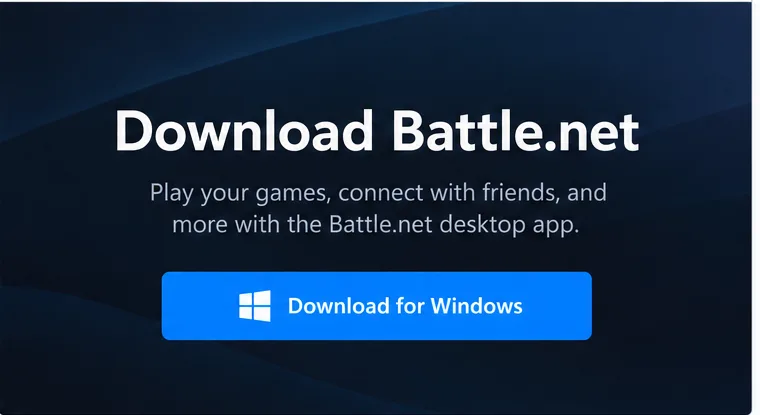
Choose Download for Windows on Blizzard’s official Battle.net desktop app page. Install Battle.net and sign in
Follow the installer prompts, then open the Battle.net app. Sign in with the Battle.net account you intend to use for Overwatch. If you do not have an account, create one through Blizzard’s sign-up flow. Keep your login details private; you do not need to enter them anywhere outside Blizzard’s app or website.
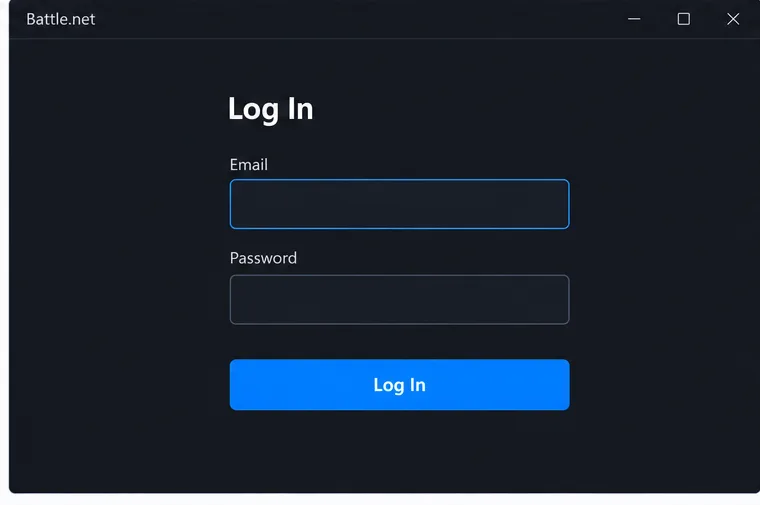
Sign in to Battle.net or create an account before opening the game library. Find Overwatch in the game library
Select the Overwatch tile or use All Games if it is not visible in the launcher. Blizzard’s install instructions direct players to select the game and then choose Install. If the page uses the newer name “Overwatch,” that is the same live game referenced by older “Overwatch 2” guides.
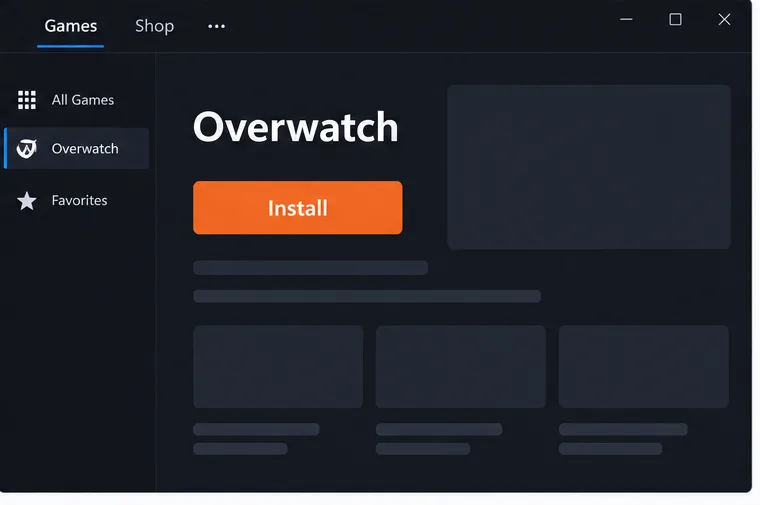
Select Overwatch in the launcher, then choose Install to begin the download. Choose an install location and start the download
Select a drive with at least the listed 50 GB free, review the destination folder, and confirm. If your main drive is nearly full, choose another drive before starting. Battle.net will download the files and apply available updates; the time depends on your connection and the amount of data currently required.
Launch the game
When the launcher is ready, select Play. It may finish a patch or show a short first-run update before opening the game. Keep Battle.net installed if you want it to manage future Overwatch updates.
Install Overwatch through Steam
- Open Steam and sign in, or install the Steam desktop client from Valve if you do not already use it.
- Visit the official Overwatch Steam store page and choose Play Game to add the free game to your Steam library.
- In Steam, select Overwatch and choose the install option. Pick a drive with enough free space, then wait for Steam to finish downloading and validating the files.
- Launch the game from Steam. When prompted, sign in to or connect a Battle.net account. Steam’s listing identifies that account as a requirement for the game.
The store lists optional in-game purchases, but the base game itself is free to download. Do not pay a third-party site for a download key just to install the free game.
Fix common download and installation problems
The game is missing from Battle.net
Open All Games and look for Overwatch there. If you are signed in but the library still looks wrong, confirm that you are using the Battle.net account you want to play with and restart the launcher.
The installer says there is not enough space
Check available space on the drive selected in the install window, not just the Windows system drive. Free space or select another destination. Keep some additional room for updates instead of filling the drive to its limit.
The download is slow or appears stuck
Check that your internet connection is stable, pause and resume the download, and restart the launcher if its progress does not change. If the issue continues, check Blizzard’s support page for current download or connection guidance.
Overwatch will not launch after installation
Install pending Windows and graphics-driver updates, restart the PC, then use the launcher’s repair option if you installed through Battle.net. On Steam, use the game’s file verification option. If an error names a specific system requirement, compare it with the current requirements page linked above.
Frequently asked questions
Is Overwatch 2 free to download on Windows?
Yes. The current Overwatch game is free to play on PC through Battle.net and Steam. Cosmetic items and other optional purchases may be offered in-game.
Do I need Battle.net if I use Steam?
You do not need the Battle.net desktop app to download through Steam, but Steam lists a Battle.net account as a required third-party account. You will need to sign in or connect one when playing.
How much space should I leave free?
The published minimum lists 50 GB available storage. Reserve extra space for patches, and check the selected drive before you begin because the launcher installs to that destination.
For Blizzard’s step-by-step installation route, see How to Install Overwatch. Blizzard’s 2026 update notes the shift to the name Overwatch in its Season 1 midcycle update.









