How to Download League of Legends on PC (2026)
To download League of Legends on PC, get the Windows installer from Riot’s official League of Legends site, open it, then let Riot Client install and update the game. You can use an existing Riot Account or create one for free. League is free to download and play, and Riot Client is required to finish setup and launch the game.
The figures below illustrate the main screens in the process. Your exact screen layout or wording may vary by language, region, and client update.
Check your PC before downloading
Riot’s system requirements page, updated September 22, 2026, lists these Windows specifications. A PC that only meets the minimum may still have performance issues.
| Component | Minimum | Recommended |
|---|---|---|
| Windows | Retail Windows 10, build 19041 or later, or Windows 11 with TPM 2.0 enabled; x64 | Windows 11 with TPM 2.0 enabled; x64 |
| Processor | Intel Core i3-530 or AMD FX-4100; ARM is not supported | Intel Core i5-8250 or AMD Ryzen 3 1200 |
| Memory | 2 GB RAM | 4 GB RAM |
| Graphics | GeForce 400 Series, AMD HD 6570, or Intel HD 4600; DirectX 11 feature level 11_0 and 1 GB VRAM | GeForce 560, Radeon HD 6950, or Intel UHD 630; 2 GB VRAM |
| Storage | 16 GB on an HDD | 16 GB on an SSD |
Confirm the complete, current list on Riot’s League of Legends system requirements page. The 16 GB figure is Riot’s listed minimum, not a guarantee that every future patch will use exactly that amount; leave extra free space if you can. The installer downloads the current game files and patches, so an old download-size estimate may no longer be accurate.
How to download League of Legends on PC
-
1. Open Riot’s official download page
Go to the official League of Legends download page and select Download for Windows. Do not choose the Mac installer on a Windows PC. Download only from a Riot-owned site; third-party mirrors can offer outdated or modified installers.

Select the Windows download on the official League of Legends page. The image is an interface illustration, not a captured Riot webpage. -
2. Sign in or create a Riot Account
When Riot Client asks you to sign in, use your existing Riot Account if you already play another Riot PC game. Otherwise, create an account through Riot’s account site, then return to the client and sign in. Use an email address you can access in case Riot asks you to verify the account or recover it later. Never share your password or verification code.
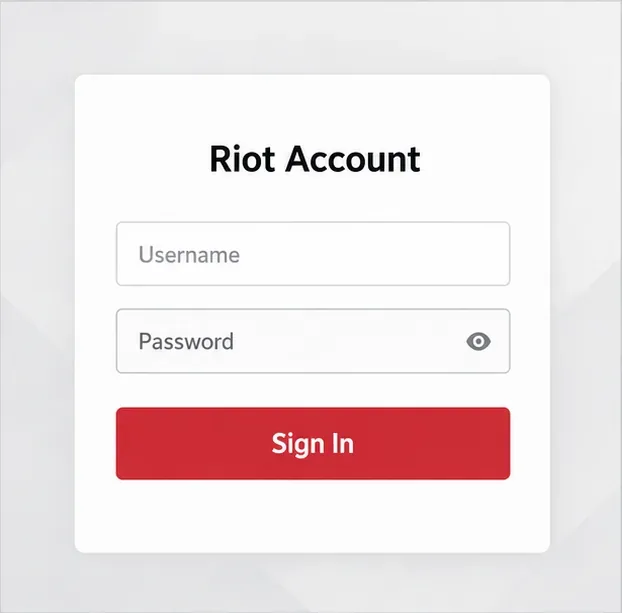
Sign in with your Riot Account, or create one before continuing. -
3. Open the installer and let Riot Client set up
Open the installer that your browser downloaded and follow the Windows prompts. Continue only when the download came from Riot’s official page. If Windows asks whether the installer may make changes, check that it is the Riot download you just opened before allowing setup to continue. If an installation-location option appears, choose a drive with enough free space for the game and later updates.
The installer sets up Riot Client, which handles the League download and future updates. Keep the client open while it downloads and patches the current game files; the total amount and wait time vary with the current build and your connection.
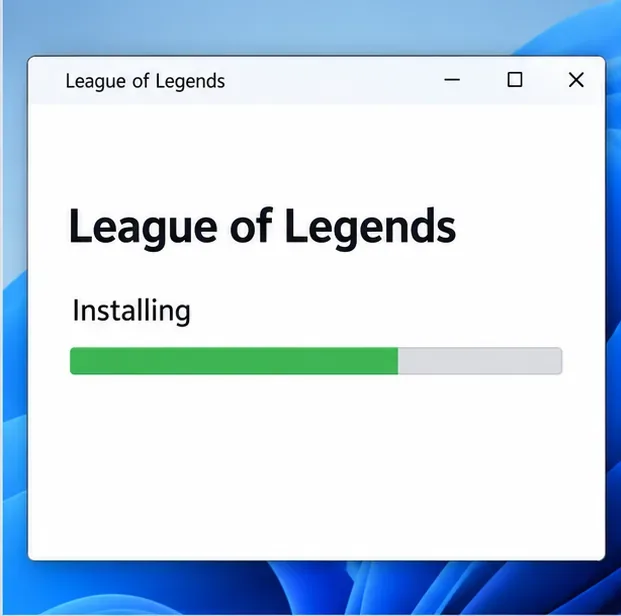
Let the Riot setup process finish; the actual installer’s appearance can change. -
4. Install League, then launch it from Riot Client
Sign in to Riot Client, open the League of Legends game page, and choose its install option. Wait for the download and patching to finish. When the game is ready, select Play. Riot says PC games launch through Riot Client in 2026, including when you start from a desktop shortcut, so expect the client to open before the game.
League requires Riot Vanguard. If Riot Client says a restart is needed after Vanguard is installed, restart Windows before trying to play. Riot’s support page explains that Vanguard must be active while League is running.

After installation and patching, use Play in Riot Client to start League.
Fix common download and installation problems
The download is slow or appears stuck
Pause other large downloads, then restart Riot Client. If nothing changes, restart the PC and check Riot Service Status for a known outage. Download time depends on your internet connection and the current patch, so a fixed time estimate is unreliable.
The installer will not run or League cannot launch
Confirm that Windows meets Riot’s current requirements, including the Windows 10 build, 64-bit architecture, and DirectX 11 feature level. If the game displays a Vanguard restart message, restart the computer as requested. Avoid downloading replacement files from unofficial sites; if the error continues, use Riot’s League of Legends support center and search for the exact error code.
Can I play on Linux or SteamOS?
Riot lists League of Legends as supported on Windows and Mac, not Linux, SteamOS, or Bazzite. This guide covers Windows PC installation; compatibility workarounds are not part of Riot’s supported setup.
Quick checklist
- Use Riot’s official League of Legends download page and choose the Windows installer.
- Meet the current Windows, graphics, memory, and storage requirements.
- Sign in or create a Riot Account, then complete setup through Riot Client.
- Allow the game to download and patch; restart Windows if Riot requests it for Vanguard.
- Launch the installed game with Play in Riot Client.
That is the complete League of Legends PC download process: download from Riot, install through Riot Client, and use the client to launch the updated game.









