How to Import Custom Crosshair Codes in VALORANT: Steps, Options, and Fixes

Learn how to import VALORANT crosshair codes, compare presets with manual settings and spectator copy, and fix common import issues.
To download Clash of Clans on your computer, install Google Play Games on PC on a supported Windows computer, then install Clash of Clans from its game catalog. Supercell now supports this official Windows PC version, so most Windows players do not need a separate Android emulator. The game is free to download and play, with optional in-game purchases.
This walkthrough covers the official Windows setup, the current PC requirements, account syncing, and what Mac owners should know. Google Play Games on PC is a Windows app, so its installer will not run on macOS.
The figures are schematic guides, not captured screenshots; app layouts and setup prompts can change.
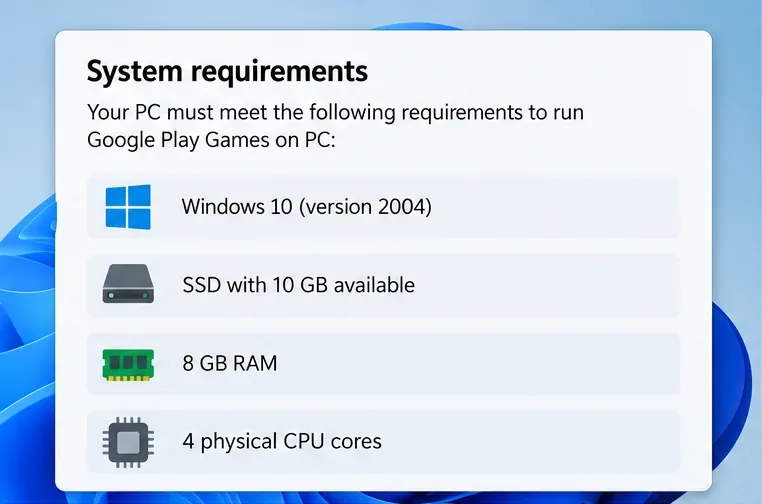
Google's current minimum requirements for Google Play Games on PC are more specific than the old emulator guides suggest. Confirm that your Windows computer has:
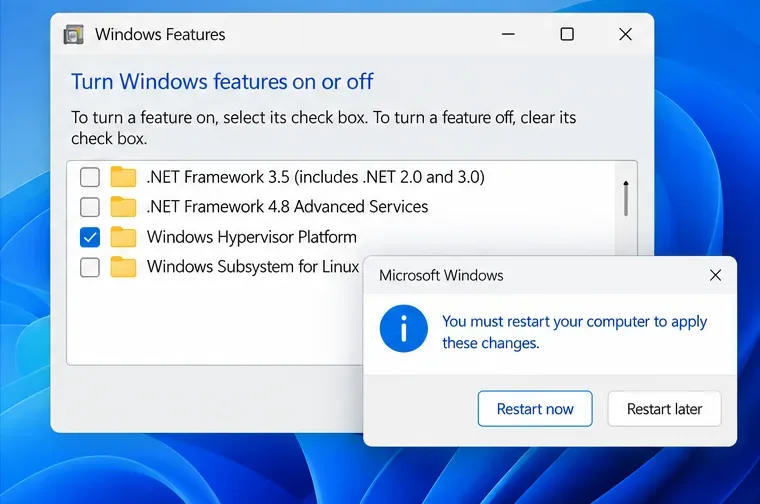
Google may also prompt you to enable Windows Hypervisor Platform and restart the computer. If the installer reports that CPU virtualization is off, check your PC maker's instructions for enabling virtualization in BIOS or UEFI. Google notes that a PC below the minimum can have trouble running some games. Its Google Play Games PC requirements page also lists account and supported-country eligibility.
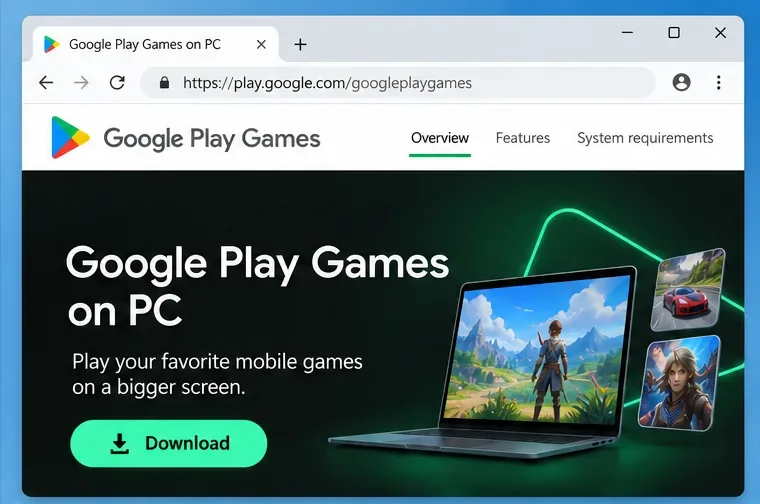
On your Windows computer, go to Google Play Games on PC and choose the download option. This is Google's official installer page. Avoid third-party download sites, modified installers, and APK mirrors; the supported PC listing is delivered through Google Play Games.
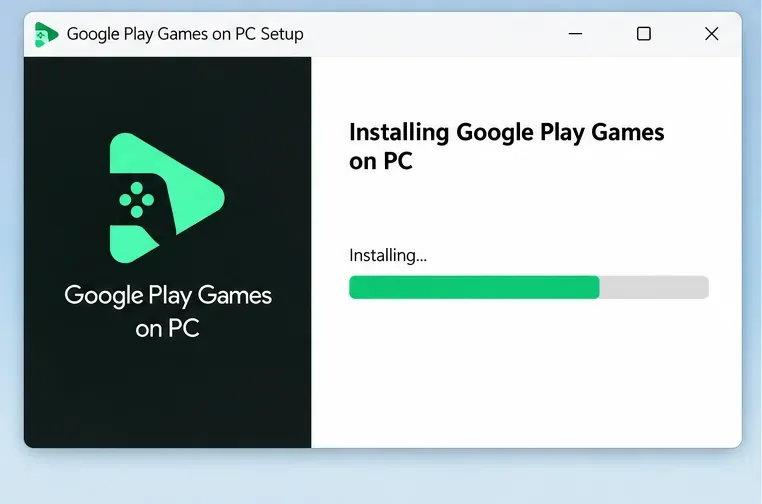
Open the downloaded installer and follow its instructions. The installation can take a few minutes. If Windows asks for permission to make changes, confirm only if you started the installer from Google's official page. Google's installation and setup instructions explain the current flow.
If Google Play Games asks to turn on Windows Hypervisor Platform, accept the prompt and restart Windows so the setting takes effect. Hardware virtualization must also be enabled. The exact BIOS or UEFI menu differs by computer manufacturer, so use the manufacturer's instructions if setup reports that it is disabled. You usually do not need to change this setting when it is already enabled.
Launch Google Play Games and sign in with a personal Google account. To use the same Google Play account across devices, sign in with that account on your PC and mobile device. Google also requires the account's Play country to be supported for Google Play Games on PC; availability can vary by country or region.
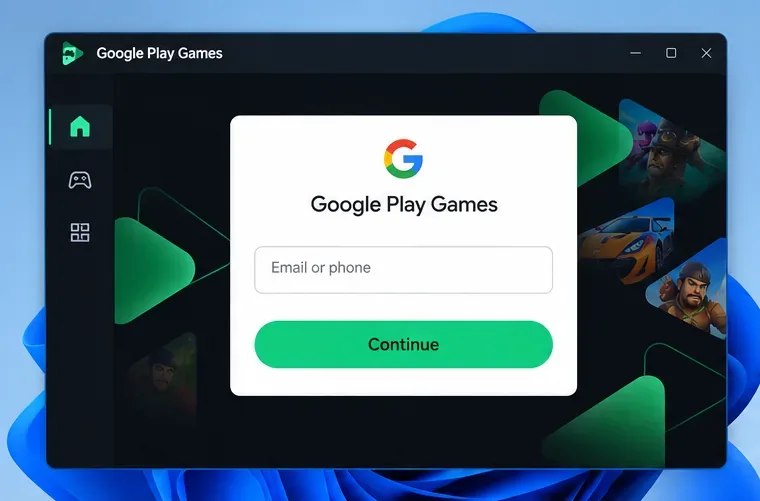
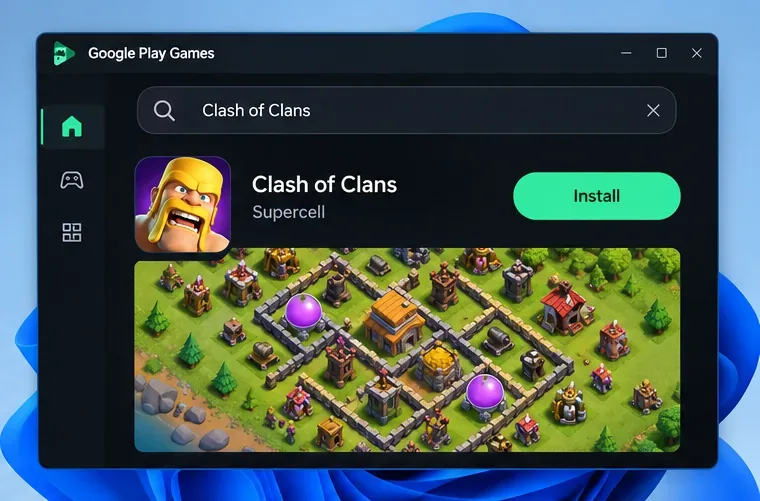
Search the in-app catalog for Clash of Clans. Open the listing published by Supercell, select Install, and wait for the download to finish. You can also check the official Clash of Clans PC listing before you begin. The game itself costs nothing to install, although optional purchases are available inside the game.
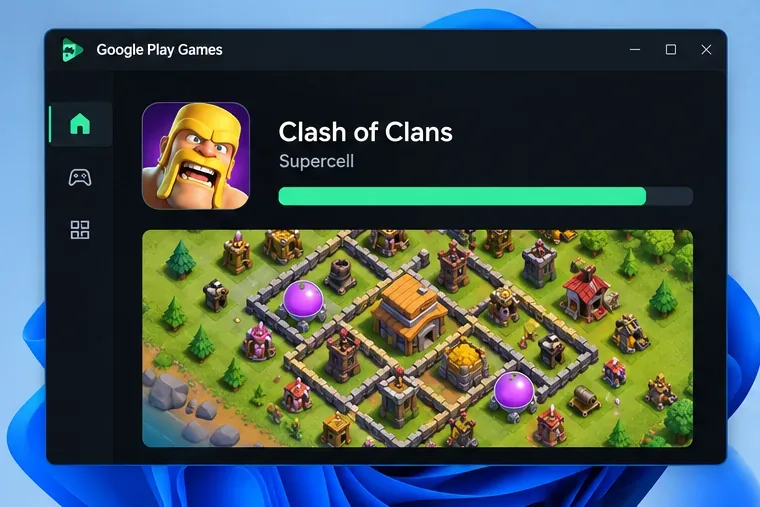
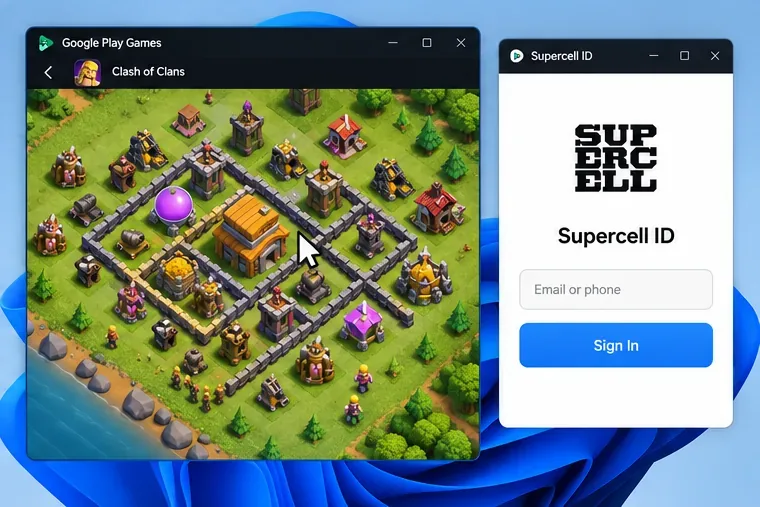
Open Clash of Clans from Google Play Games. If you are new, start a village in the game. To continue an existing village, use the same Supercell ID that is linked on your phone or tablet and follow the in-game sign-in prompts. Supercell says progress is saved through Supercell ID across its PC and mobile versions. The same account cannot play on both devices at once: opening the game on one device signs it out on the other.
There is no official Supercell Mac desktop client in this PC release. Supercell says Google Play Games for Clash of Clans is for Windows, so the official steps above apply to Windows PCs. Mac users should not expect the Google Play Games Windows installer to work on macOS.
A third-party alternative is BlueStacks Air, which BlueStacks says is built for Apple silicon Macs. Its published minimum is an Apple silicon Mac with at least 8 GB of RAM. That does not make it an official Supercell PC release, and the BlueStacks Mac setup guide does not specifically confirm Clash of Clans compatibility. Before using it, check the current BlueStacks store and support information for the game. Download any emulator only from its maker's official site, and install the game only from a legitimate store within that emulator.
The official PC release keeps the same Clash of Clans gameplay and supports mouse controls with graphics optimized for a larger screen. You can still play with mobile users, and Supercell ID carries your progress between supported devices. The PC version does not remove optional purchases, and you cannot use the same village simultaneously on a computer and phone. For the official product details, see Supercell's announcement about Clash of Clans on PC.
Learn how to import VALORANT crosshair codes, compare presets with manual settings and spectator copy, and fix common import issues.
Choose Dota 2 minimap size, hero icons, team colors, and background settings by readability, fewer misclicks, and clear results on your own display.
Fix Fortnite texture pop-in on PC with official steps for GPU drivers, file verification, DirectX 12, high-resolution textures, VRAM, SSDs, and stutter.
Learn what Heroes of the Storm minimap size and position options are verified, improve readability, and choose camera-click controls that suit you.
Set Super Smash Bros. Ultimate Quickplay to prefer hazards-off stages. Follow the Preferred Rules menu steps and learn why matchmaking may not always honor them.
Enable Server Latency and Packet Loss in Warzone to monitor connection quality, read the overlay, and use recurring spikes to guide troubleshooting.
Learn how to carry from mid lane in League of Legends by setting up waves, choosing safe roam windows, reading side lanes, and converting pressure into objectives.
Fix Minecraft Evoker spell problems with a safe vanilla test, version checks, log review, and a step-by-step way to isolate mod or datapack conflicts.
Fix PUBG stuck on Initializing on Steam with a focused checklist for PC service notices, launch options, game files, downloads, and connection issues.
Fix Brawl Stars stuck at 92% loading with an ordered checklist for service notices, network tests, safe updates, Android cache, and account-safe reinstalling.








