How to Copy a Crosshair in Valorant (2026)
To copy a crosshair in Valorant, import its profile code in Settings > Crosshair, or use the in-game /cc command while spectating a player. A profile code transfers the crosshair settings together, so you do not need to rebuild the lines, center dot, and other options by hand. Use the code method when someone has shared a string with you; use the spectator command when you are watching the player you want to copy.
The code is plain text. You do not need to download a file or install another program to import it. The steps below follow Riot’s documented import and export controls; the exact button wording can vary with the game’s language.
Before you start
- For a shared profile, copy the complete Valorant crosshair code, including its punctuation.
- For the spectator method, enter a match where you can watch the player whose crosshair you want.
- Keep in mind that copied settings are a starting point. Test the crosshair in the Range and adjust it to suit your visibility and aim preferences.
How to import a crosshair code in Valorant
Step 1: Copy the full profile code
Get the code from the player who made the crosshair, a post or stream where they shared it, or a crosshair community page. Check that the source identifies it as a VALORANT profile code. Select the entire string and copy it; do not include surrounding quotation marks, a page link, or explanatory text. If the source offers a copy button, use it and make sure the code is on your clipboard before opening the game.
Step 2: Open Settings and choose Crosshair
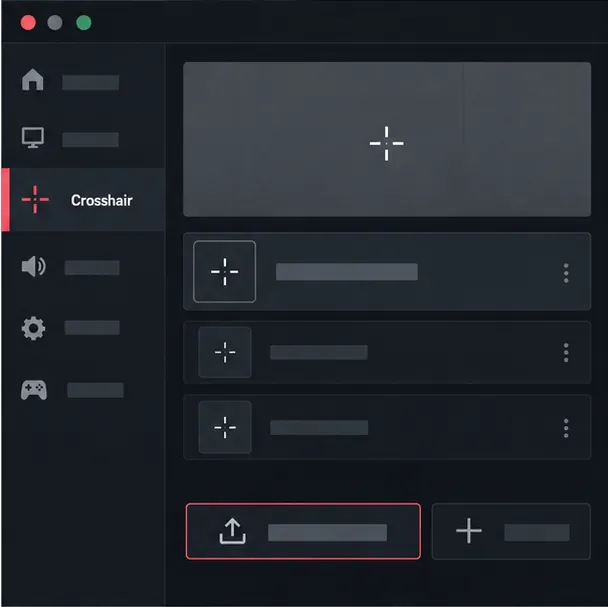
From the VALORANT lobby, open Settings with the gear icon, then select the Crosshair tab. If you are already in a match, open the in-game menu and choose Settings. The crosshair profile controls appear in the Crosshair section. Riot’s original import instructions describe choosing the down-arrow icon beside Crosshair Profile; in the current client, use the control labeled Import Profile or its equivalent icon.
Step 3: Paste the code and import it
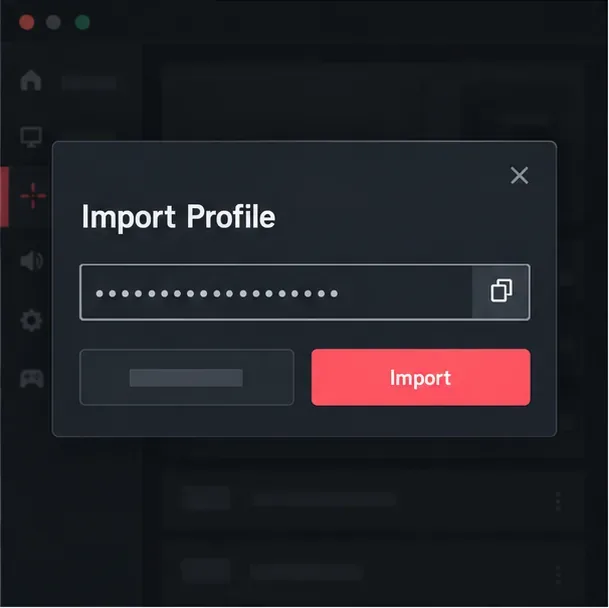
Choose Import Profile and paste the code into the field in the dialog. On a PC, use Ctrl + V. Review the beginning and end of the string to confirm that it was copied in full, then select Import. Riot added crosshair-code import and export in Patch 4.05 and described this same Settings > Crosshair workflow in its official Patch Notes 4.05.
If the game asks you to name the imported profile, give it a distinct name so you can recognize it later. Riot’s instructions also recommend a unique profile name. After the import, check the preview and the profile list to make sure the new setup is selected.
Step 4: Preview and test the crosshair
Look at the preview before you leave Settings. Confirm that its shape and color match what you expected, then try it in the Range. You can fine-tune the crosshair’s color, outline, center dot, inner or outer lines, and movement or firing behavior from the Crosshair settings. Those options are preference choices; there is no single profile that works best for every player.
To share your own setup, return to the profile controls and use the export or copy-code control. Riot’s Patch 4.05 notes describe the export icon as the up-arrow beside Crosshair Profile and say that it copies an auto-generated code to your clipboard.
Copy a crosshair while spectating a player
If you are watching a player in a match, you can copy their current crosshair without asking them for a code. While spectating them, open chat and enter /cc or /crosshair copy. The game imports the crosshair you are viewing and saves it as a new profile. Riot documented both commands in Patch Notes 5.04.
This method is useful when you notice a teammate’s or opponent’s crosshair during a match. Make sure you are spectating the player you intend to copy before entering the command. When the copy is complete, open Settings > Crosshair to review and select the saved profile. Riot’s Patch 5.04 notes raised the documented profile allowance from 10 to 15; check the current profile list if you reach its cap.
Troubleshooting crosshair imports
The import control is missing
Confirm that you are in Settings > Crosshair and looking at the profile controls. Riot’s documented import/export icons sit beside Crosshair Profile, rather than in the General or Controls settings. If labels differ, look for the profile import icon in that row.
The code is rejected or the crosshair does not change
Copy the code again and make sure you pasted only the code itself, with no missing characters, extra spaces, quotes, or added punctuation. Also check the profile list after importing: you may need to select the imported profile to make it active. If you used /cc, confirm that you were spectating the intended player when you entered the command.
The preview looks different from the source
Compare the active profile and its Primary, Aim Down Sights, and Sniper Scope settings, then test the crosshair in-game. A screenshot or clip may show a different view or profile state than the code you received. Treat the imported code as a baseline and adjust it until the result is easy for you to see.
Which method should you use?
| What you have | Use this method |
|---|---|
| A crosshair code from a player or post | Settings > Crosshair > Import Profile |
| A player you are currently spectating | Enter /cc or /crosshair copy in chat |
For a saved code, importing gives you a reusable profile that you can review and adjust. For a live match, the spectator command is the quickest route. Either way, preview the result and test it before deciding to keep it as your main crosshair.









