Getting Warzone Running on PlayStation 4 (2026)
You can no longer begin a new Call of Duty: Warzone download on PlayStation 4. Activision removed Warzone from PS4 digital storefronts on June 4, 2026. If the game is already in your PlayStation library, you can still install or reinstall it and play through the end of Black Ops 7 Season 06. After that, Warzone will leave PS4 when Modern Warfare 4 Season 1 begins. As of October 16, 2026, Season 06 is underway, so this is a limited window for existing library owners.
Can you still get Warzone on PS4?
It depends on whether Call of Duty: Warzone is already in your PS4 account’s library. Activision’s platform update says new PS4 downloads ended June 4, but users who own the game in their platform library can continue to install and play it until the end of Season 06. Season 06 launched September 17, 2026, according to the official season announcement. Activision has not given a calendar date for the PS4 shutdown in the platform update; it ties the end to the start of Modern Warfare 4 Season 1.
| Your situation | What you can do |
|---|---|
| Warzone is already in your PlayStation Library | Download or reinstall it from Library > Purchased, then install required updates. Play remains available only until the announced PS4 support cutoff. |
| You never added Warzone to your PS4 Library | You cannot start a new PS4 download through the official storefront. Searching the Store does not bypass Activision’s restriction. |
| You want to keep playing after PS4 support ends | Move to a supported platform. Activision says Warzone progression can continue on a supported current-generation console or PC with the same linked Activision account. |
That changes the usual Warzone PS4 download instructions: searching PlayStation Store and selecting a new download is no longer a working route for first-time players. Use the Store only to check what your account can see; an item page or search result does not guarantee that a PS4 download is still available.
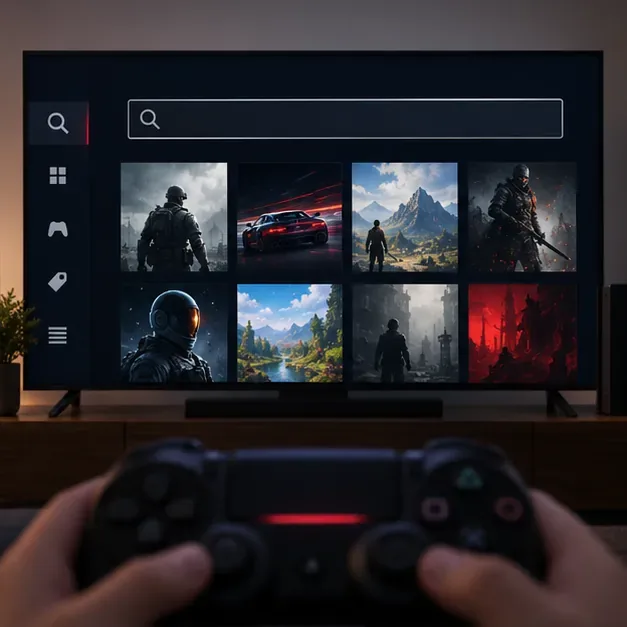
How to install Warzone from your PS4 Library
Follow these steps only if Warzone was previously added to the PlayStation account you are using. The PS4 path below is Sony’s standard download process for owned games. Activision’s platform update is the source to check for Warzone’s current PS4 availability.
1. Sign in to the account that owns Warzone
On your PS4, sign in to the same PlayStation Network account that added the game to its Library. If you use several profiles, check each account’s Library before assuming the entitlement is missing. A different account will not inherit the original account’s download access.
2. Open Library and find the game
From the PS4 home screen, select Library, open Purchased, and look for Call of Duty: Warzone. Select the title and choose Download. Sony’s PS4 download instructions say the game installs automatically after the download. If it is not listed, confirm the account and transaction history, then contact PlayStation Support; there is no official new-download workaround for PS4.
3. Let the download and updates finish
Warzone requires an internet connection, and the installed files can change as updates arrive. Check the download in Notifications > Downloads. If you want the PS4 to continue downloading in Rest Mode, enable Stay Connected to the Internet under Settings > Power Save Settings > Set Features Available in Rest Mode. A wired connection can help if Wi-Fi is unstable.
4. Launch the game and use the right Activision account
Open Warzone from the PS4 home screen or Library and allow any first-launch update or required content installation to complete. When prompted, sign in to the Activision account linked to your PlayStation profile. Use the same Activision account that holds your existing progress; Activision explains that cross-progression is tied to that account. Avoid creating or linking a second account if you want to retain the original progression.
Storage, PlayStation Plus, and account details
How much free storage do you need?
The old 150 GB estimate is not a reliable fixed requirement for every current Warzone installation. Activision’s current setup page does not publish a PS4 install-size figure, and updates or installed content can change the space needed. Check the game’s Details in PlayStation Store when available, and check Settings > Storage on the console. Sony’s download troubleshooting guide also recommends checking available space before retrying an install.
If you need more room, PS4 supports compatible USB drives formatted as extended storage for installing applications. Sony lists a supported capacity range of 250 GB to 8 TB; that is the drive range, not a Warzone size requirement. Follow the setup instructions before moving or installing games to an external drive.
Do you need PlayStation Plus?
Warzone is a free-to-play online game. PlayStation’s online multiplayer FAQ specifically lists Call of Duty: Warzone among the free-to-play games that do not require PlayStation Plus. Store terms can vary by country, so check your regional listing if your console displays a different prompt.
Will your progress carry over to PS5 or PC?
Activision says Warzone progression can continue on a supported current-generation console or PC when you sign in with the same linked Activision account. Some currency and purchases can be subject to platform-family rules, so check Activision’s platform-change FAQ before switching. Your PS4 entitlement does not make the PS4 version playable after its announced shutdown.
Fix common PS4 setup problems
- Warzone is missing from Purchased: Check the PlayStation account that originally added it and review transaction history. If you never added the game before downloads ended, Activision’s current policy does not provide a new PS4 download route.
- The download is stuck: Open Notifications > Downloads, pause and resume the item, test the PS4 internet connection, and check PlayStation Network status. Then confirm that the console has the latest system software and enough free space.
- The game will not launch: Finish pending downloads, restart the console, and check for service notices. Sony lists rebuilding the PS4 database in Safe Mode as a later troubleshooting step. Reinstall only if the game remains in your Library and you can download it again.
- You want more storage: Remove games you no longer use or set up a compatible USB drive as PS4 extended storage using Sony’s instructions.
Official sources
- Activision: Warzone platform update for PS4 and Xbox One
- Call of Duty: Black Ops 7 and Warzone Season 06 launch details
- PlayStation: Download games and add-ons on PS4
- PlayStation: Troubleshoot game downloads
- PlayStation: USB extended storage on PS4
- PlayStation: Online multiplayer and PS Plus requirements
- Activision: Manage and link your Activision account









