Fortnite Lagging but Internet Is Fine? Here’s Why and What to Check (2026)
Fortnite lagging but your internet is fine usually means the problem is not raw download speed. A speed test measures how quickly data moves to its test server; Fortnite depends on a steady round trip to the game server, with low ping and little or no packet loss. A fast connection can still have a poor route, a busy home network, wireless interference, or a PC that is dropping frames.
Start by checking Fortnite’s in-match network stats while the problem happens. If ping rises or packet loss appears, troubleshoot the connection. If those numbers stay steady while the picture freezes or hitches, focus on game performance on your device. If several players report the same issue, check Epic’s live service status before changing settings.
Is it network lag or frame stutter?
| What you notice | First thing to check |
|---|---|
| Your character snaps back, movement feels delayed, or other players skip around | In-match ping and packet loss |
| The screen freezes or animation hitches while ping looks steady | Frame rate, frame-time consistency, and device load |
| The issue starts suddenly for multiple players or modes | Epic’s Fortnite and Matchmaking service status |
How to troubleshoot Fortnite lag step by step
1. Check Epic’s live service status
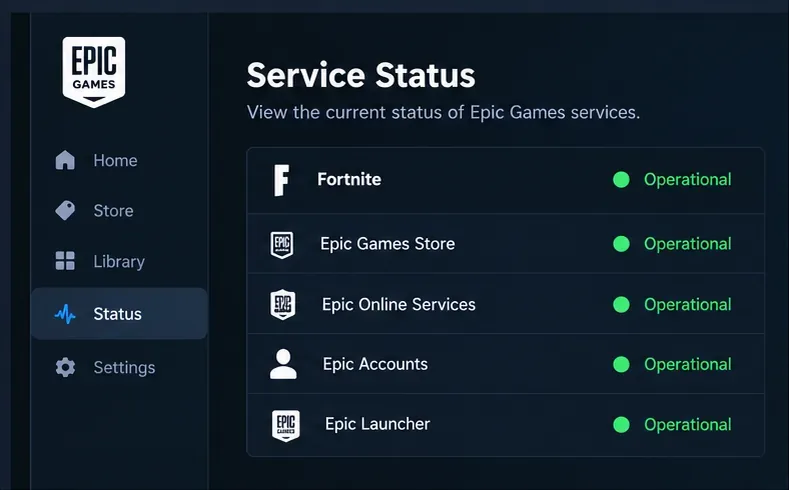
Open Epic Games Public Status and look specifically for Fortnite and Matchmaking. If Epic lists an incident or maintenance, wait for the update and test again after service is restored. A status page can reveal a widespread problem, but an “operational” listing does not rule out a bad route between your ISP and the game server.
2. Read ping and packet loss inside a match
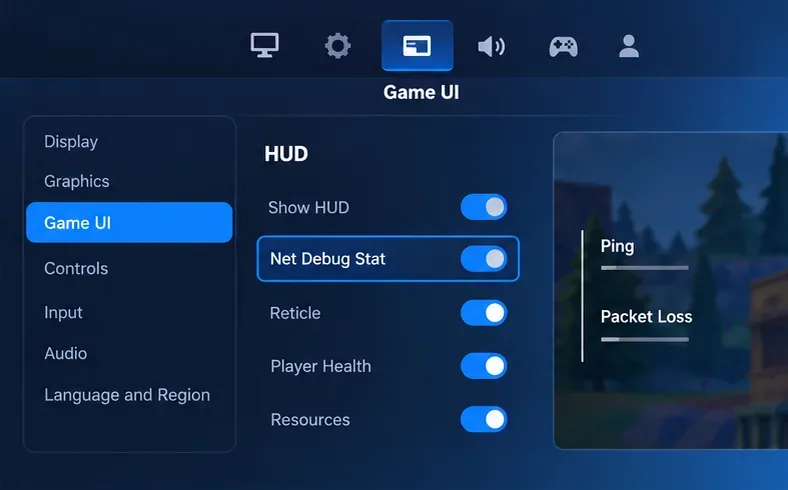
In Fortnite, open your player icon, choose the gear-shaped Settings control, select the Game UI tab, then turn on Net Debug Stat under HUD. Start a match to see the overlay; the lobby alone is not a useful sample. Watch the values during the lag rather than relying on a speed test taken at another time. Epic’s packet-loss instructions describe this display and where to find the setting.
High or sharply changing ping points to delay along the route to the server. Packet loss can cause rubber-banding or delayed actions even when average ping looks acceptable. Note whether the problem affects every match or only one experience, since a match may use a different server location.
3. Leave Matchmaking Region on Auto first
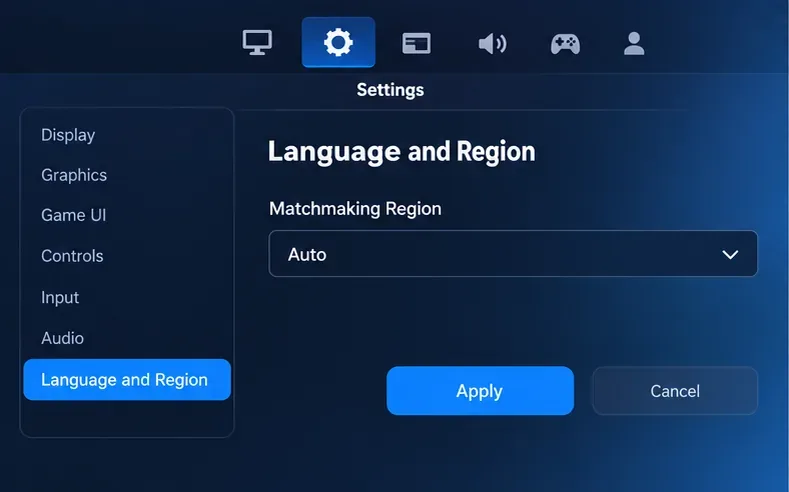
Epic recommends Auto for the best connection in most cases. If you keep seeing high latency, compare another region from Settings > Game > Language and Region, then apply the change and compare ping in a real match. Do not assume the geographically nearest region will always route best. A region can include multiple subregions, and choosing a preference may increase queue time or affect match quality. Follow Epic’s matchmaking-region steps if the menu labels differ on your platform.
4. Test the route to an Epic endpoint
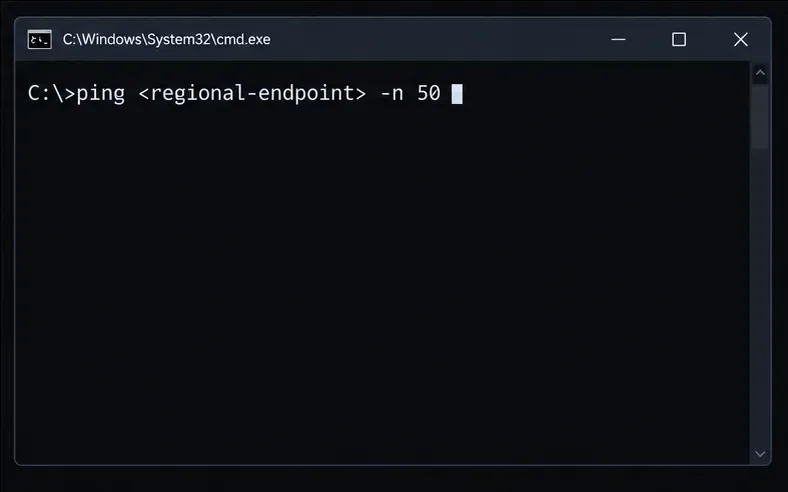
For a more relevant comparison than a general speed test, use an endpoint listed in Epic’s latency and ping troubleshooting guide. On Windows, the command format is ping <regional-endpoint> -n 50. On macOS, use ping -c 50 <regional-endpoint>. Replace the placeholder with the host for the subregion you want to test; Epic lists the current endpoint names and platform-specific instructions.
Compare the average, packet loss, and spread between the minimum and maximum results. Epic says packet loss should be 0% and that a sustained rate above about 1% can cause in-game problems. Repeat the test while the home connection is busy if lag only appears during downloads or streaming. This command uses ICMP, while Fortnite gameplay uses UDP, so a clean ping test cannot completely rule out a gameplay-route problem. If the in-game overlay and test disagree, share both results with your ISP or Epic Support.
5. Pause downloads and background traffic
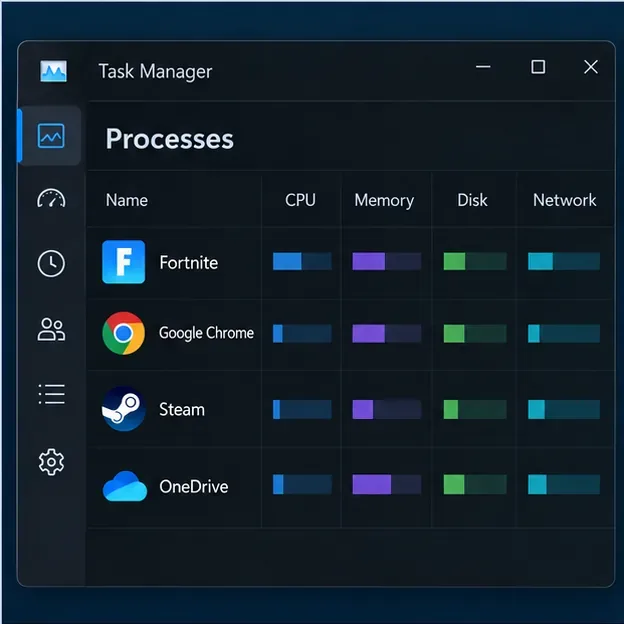
Large downloads, uploads, backups, and video streams can make latency jump when they compete with the game. Uploads are especially disruptive on many home plans because upload capacity is lower than download capacity. Pause game updates and cloud syncing, and ask others on the same connection to stop heavy transfers briefly while you test.
On Windows, open Task Manager with Ctrl + Shift + Esc and sort the Processes list by Network or CPU to look for an obvious transfer or resource-heavy app. Close only apps you recognize and do not need during the match. If ping worsens only when the household network is busy, check whether your router supports QoS, Smart Queue, or Gaming Mode; follow the router maker’s instructions rather than changing unrelated network settings.
6. Compare Wi-Fi with Ethernet
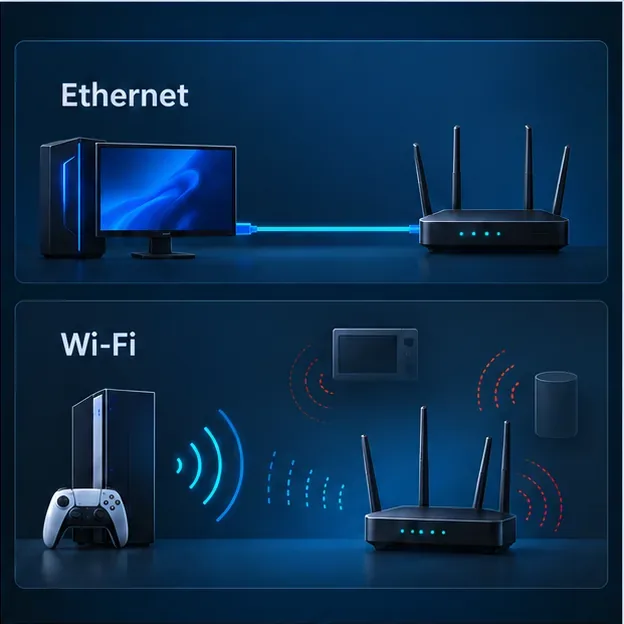
If you are on Wi-Fi, try one match over Ethernet if possible. A cable removes wireless signal quality as a variable, though it cannot fix a congested ISP route or a server issue. If Ethernet is not practical, move closer to the router, keep it in an open central location, and test both Wi-Fi bands if your router offers them. The 2.4 GHz band reaches farther but can be crowded; 5 GHz is often faster nearby but has shorter range. Epic also recommends restarting the modem or router when connection trouble persists.
7. If ping is steady, troubleshoot frame-time stutter
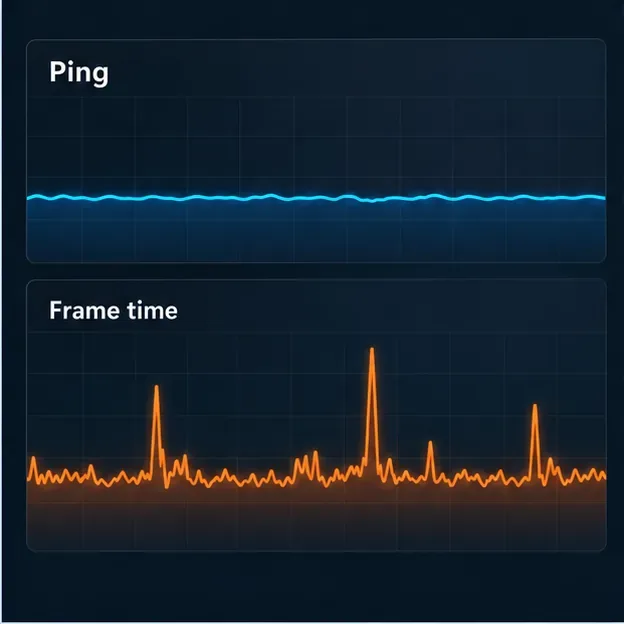
When ping and packet loss remain stable but Fortnite freezes, drops frames, or hitches, the issue is more likely on the device than on the internet route. On PC, check whether another app or overlay is using CPU or GPU resources, make sure the computer is not overheating, and lower one demanding graphics setting at a time to see whether the hitch changes. If performance worsens after playing for a while, heat or power limits may be involved.
Epic’s low-frame-rate troubleshooting guide and PC performance support steps cover device requirements, background apps, and graphics troubleshooting. Console players can check the console’s performance and system-update guidance; PC-only launcher steps below do not apply to consoles.
8. Verify Fortnite files and update PC graphics drivers
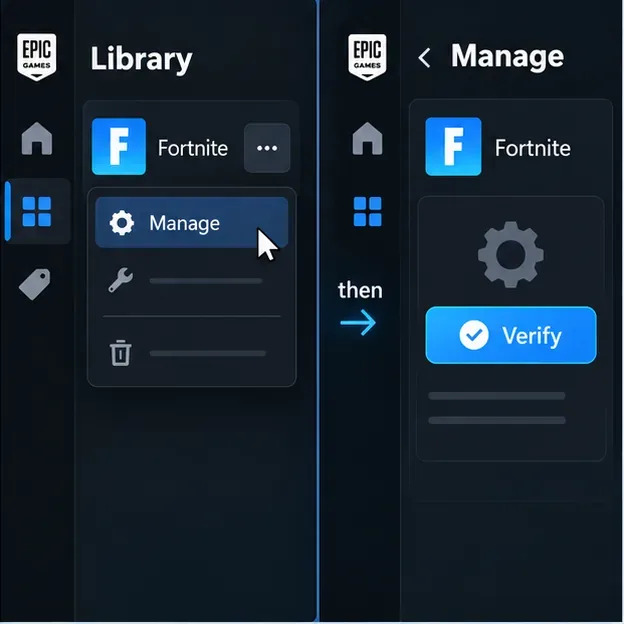
If the problem is limited to freezes, crashes, or frame drops on PC, verify the installation in the Epic Games Launcher: open Library, click the three dots beside Fortnite, choose Manage, then click Verify. The launcher checks local files and repairs files that are missing or different; it does not repair high ping or packet loss. See Epic’s game-file verification instructions.
Also check for a current driver from your graphics-card manufacturer. Epic links to Intel, NVIDIA, and AMD driver pages in its video-driver support article. Use the maker’s official source and restart the PC after installing. A driver update can address rendering problems; it will not shorten the network route to a Fortnite server.
Quick answers
Why can Fortnite lag when my speed test is fast?
A speed test reports throughput to its own test server. Fortnite lag can come from high round-trip latency, packet loss, jitter, a congested route, or local frame stutter. Check the in-game network overlay while the symptom occurs.
Is Wi-Fi always the cause of Fortnite lag?
No. Wi-Fi can add instability when the signal is weak or the radio channel is crowded, but lag can also come from the router, ISP routing, Epic services, background traffic, or device performance. A short Ethernet test helps isolate wireless as a factor.
Will verifying Fortnite files fix high ping?
No. Verification repairs local game files and is useful for some PC crashes or stutters. For high ping or packet loss, check Epic’s service status, in-match stats, matchmaking region, and network path instead.
If the issue continues, give Epic Support or your ISP the platform, Fortnite mode, approximate time, in-match ping and packet-loss readings, and the result of any endpoint test. That evidence helps distinguish a server, routing, home-network, or device problem.









