Fixing Apex Legends crashes on PC usually comes down to a handful of reliable fixes rather than one magic button. Whether the game freezes on the loading screen, drops to desktop mid-match, or throws a "stopped working" error, the causes are almost always the same: corrupted files, an outdated graphics driver, overloaded settings, or background apps fighting for resources. This guide walks you through each fix in order, from the quickest to the most thorough.
Apex Legends is a demanding free-to-play battle royale, and on PC it leans heavily on your GPU, CPU and storage. Most crashes are fixable in a few minutes, so start at Step 1 and only move on if the game is still unstable.
What you'll need
- Apex Legends installed through Steam or the EA app.
- An internet connection to verify files and download a driver.
- Around 10–15 minutes and admin access to close background apps.
- Optional: knowledge of your graphics card brand (NVIDIA or AMD).
How to fix Apex Legends crashes on PC
-
Step 1: Verify or repair the game files
Corrupted or missing files are the single most common cause of crashes, especially right after a patch. In Steam, right-click Apex Legends in your Library, choose Properties → Installed Files → Verify integrity of game files, and let it scan. On the EA app, open Apex Legends, click the three-dot (⋮) menu, and select Repair. Either tool will re-download anything that's broken.
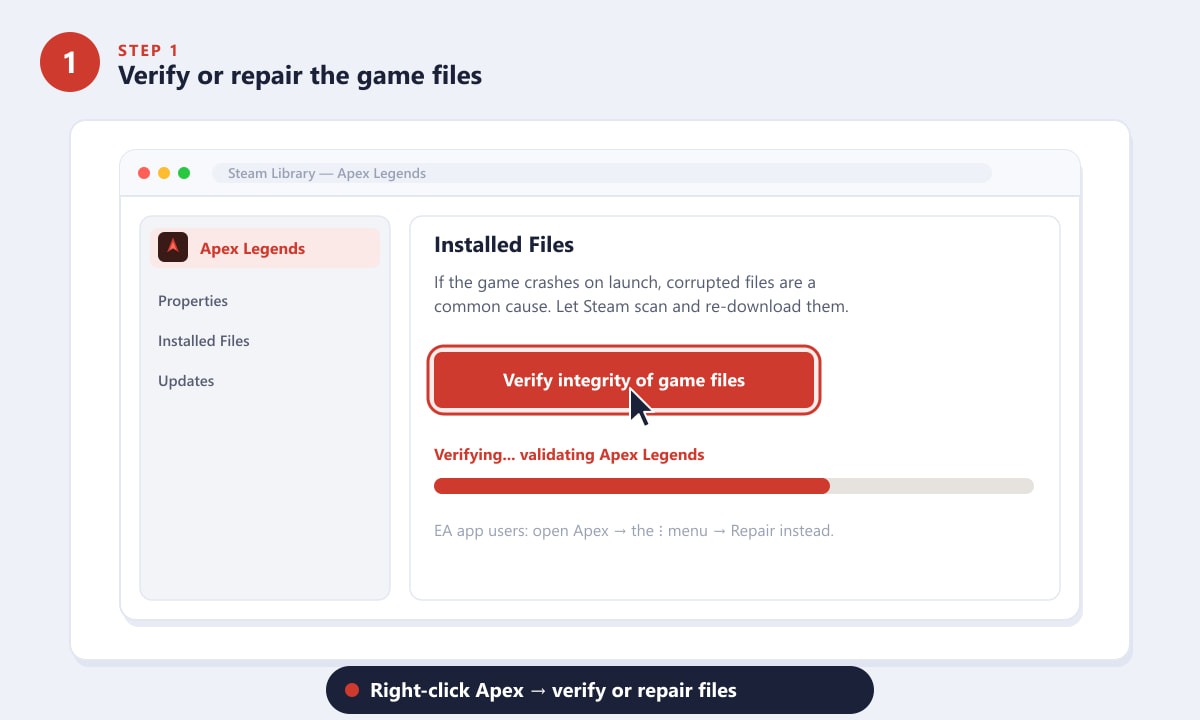
Verify the game files in Steam (or use Repair in the EA app) to fix corrupted data. -
Step 2: Update your graphics card drivers
An outdated or buggy GPU driver causes a huge share of Apex crashes and freezes. Update to the latest stable driver: use NVIDIA App / GeForce Experience for GeForce cards or AMD Software: Adrenalin Edition for Radeon cards. If the installer offers a Clean install option, choose it to wipe out any conflicting old files, then restart your PC before launching Apex again.
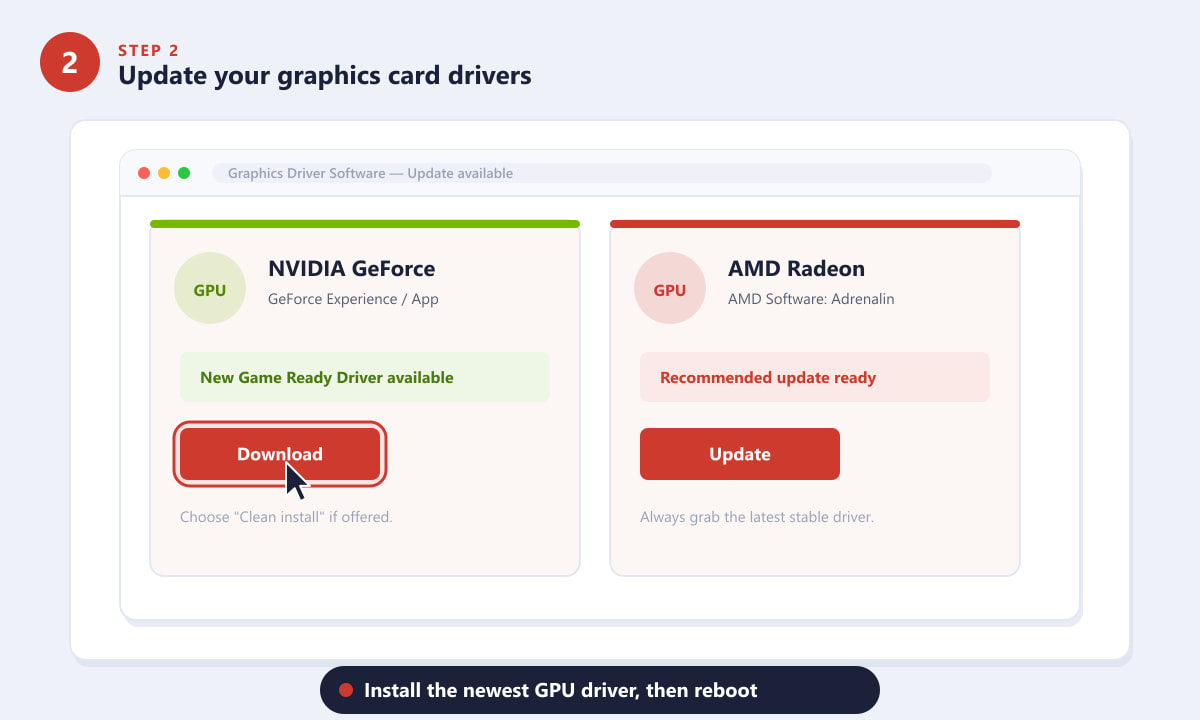
Install the newest NVIDIA or AMD driver, then reboot for a clean start. -
Step 3: Lower demanding in-game video settings
If Apex crashes after a few minutes of play, your hardware may be overheating or running out of video memory. In the Settings → Video menu, set Display Mode to Fullscreen, turn V-Sync off, and lower heavy options such as Texture Streaming Budget, Model Detail and Shadow settings. Setting Adaptive Resolution FPS to 0 keeps your resolution steady, which can also help stability.
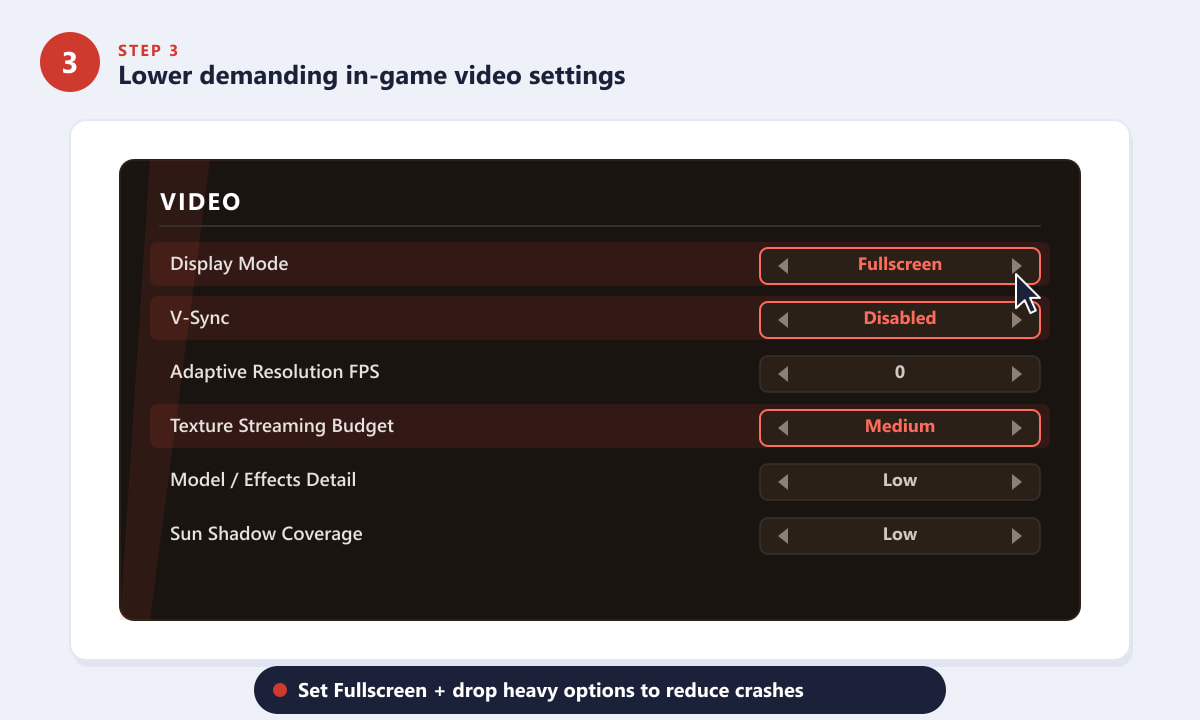
Use Fullscreen mode and dial down the heaviest options to ease the load. -
Step 4: Add launch options to stabilise the game
Launch options can force Apex to start in a more stable state. In Steam, open Properties → General → Launch Options and paste a line like
-novsync +fps_max 144 -high. Here-novsyncdisables V-Sync to prevent stalls,+fps_maxcaps your frame rate so the GPU isn't pushed to its limit, and-highraises Apex's CPU priority. Adjust the frame cap to suit your monitor and hardware.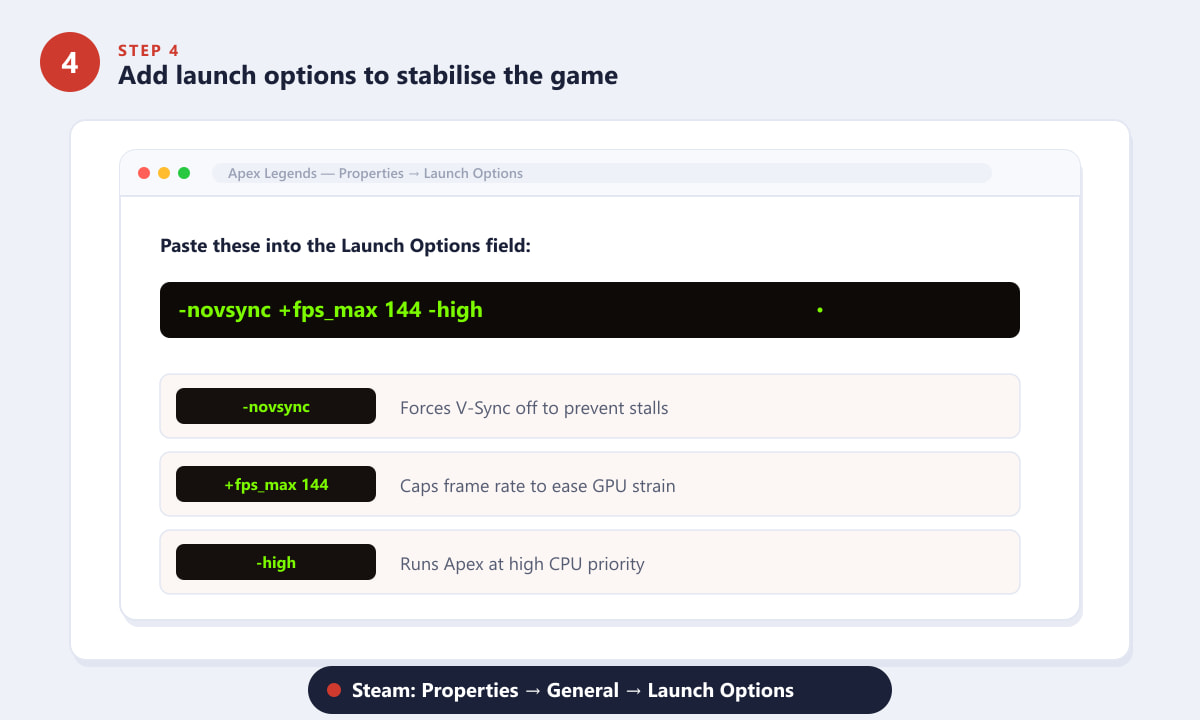
Paste stabilising launch options into Steam's Launch Options field. -
Step 5: Close overlays and heavy background apps
Background software can conflict with Apex and trigger crashes. Open Task Manager (Ctrl + Shift + Esc) and end resource-hungry tasks such as browsers with many tabs, RGB or fan utilities, and any running antivirus scan. Disable in-game overlays from Discord, Steam, the EA app and GeForce Experience, since overlay hooks are a frequent crash culprit. If the game is still unstable, a clean reinstall is the reliable last resort.
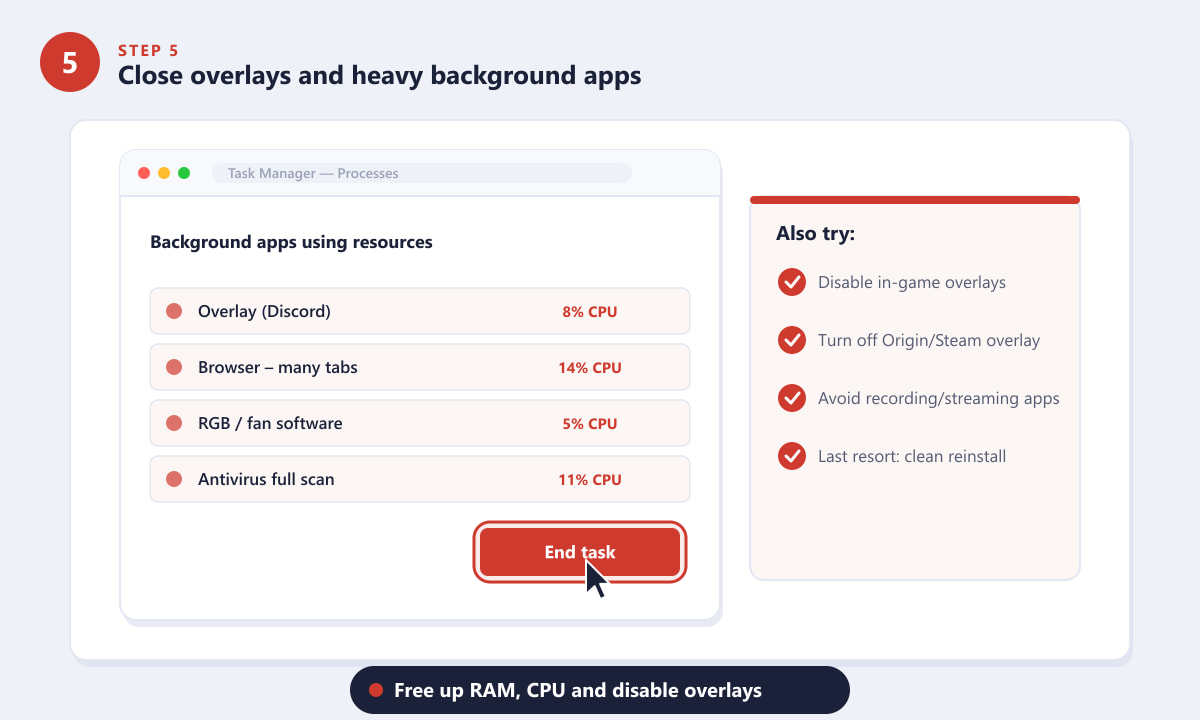
Free up CPU and RAM, and switch off overlays before launching Apex.
Extra tips that prevent crashes
- Keep Windows updated. Missing system or DirectX updates can break newer game builds.
- Watch your temperatures. Use a monitoring tool; if your GPU or CPU runs very hot, clean dust from fans and improve airflow.
- Leave free disk space. Apex needs room for shader caches and temporary files, so keep several gigabytes free on the install drive.
- Disable third-party FPS overlays and boosters. "Game optimiser" apps often do more harm than good.
- Run as administrator. Right-click the launcher and choose Run as administrator if Apex won't start at all.
Troubleshooting common crash types
Apex crashes instantly on launch
This almost always points to corrupted files or a bad driver. Run the verify/repair from Step 1, then do a clean driver install from Step 2 before trying anything else.
The game freezes mid-match
Mid-game freezes are usually heat, memory pressure or an overlay conflict. Lower the settings in Step 3, cap your frame rate in Step 4, and close overlays in Step 5.
I get a DirectX or engine error
Update Windows and your GPU driver, then verify the game files. These errors typically clear once your system and the install are both up to date.
Frequently asked questions
Why does Apex Legends keep crashing on my PC?
The usual culprits are corrupted game files, an outdated graphics driver, settings that overload your hardware, or background apps and overlays. Working through the five steps above resolves most cases.
Does verifying game files delete my progress?
No. Verifying or repairing only checks and re-downloads game files. Your account progress, ranks and cosmetics are stored online and are not affected.
Will lowering my settings really stop crashes?
Often, yes. Lower settings reduce GPU load, heat and video-memory usage, which are common triggers for mid-match crashes and freezes.
What if nothing fixes the crashing?
Do a clean reinstall of Apex Legends, update Windows, and check your hardware temperatures. If problems continue, contact official EA support with your crash details.
Final thoughts
Most Apex Legends crashes on PC are fixed by the basics: verify or repair the files, update your GPU driver, ease off heavy settings, add a few launch options, and clear out background apps and overlays. Tackle them in order and you'll usually have a stable game within minutes. For account or installation issues you can't solve, check the official Apex Legends website for support resources.









