How to Fix DirectX Runtime Errors in VALORANT (2026)
If VALORANT closes with a DirectX, D3D11, or DXGI error, start by recording the exact message, then update Windows and your graphics driver. A missing legacy DLL needs a different fix from a graphics-device hang, so do not reinstall DirectX or download DLL files at random. These steps apply to Windows 10 and Windows 11.
Identify the error before changing settings
DirectX errors can point to different problems. Use the wording on the error dialog to choose where to begin:
| Error shown | What it indicates | Start here |
|---|---|---|
DXGI_ERROR_DEVICE_HUNG or 0x887A0006 | A graphics-device operation stopped responding. The code alone does not identify whether the underlying issue is the game, driver, or system stability. | Update Windows and the GPU driver; then test with tuning and overlays off. |
A named file such as d3dx9_*.dll, XAudio, or XInput is missing | The message may name an older, optional DirectX library rather than the DirectX version built into Windows. | Use Microsoft's DirectX End-User Runtime only if the missing component matches its package. |
D3D11 initialization failed or a graphics-device error | VALORANT could not initialize its graphics device. | Check DirectX 11 support, Windows updates, and the graphics driver. |
Riot lists DirectX 11 support as a requirement for VALORANT. There is no DirectX 11/DirectX 12 switch to change in the game's video settings, so skip guides that ask you to select a different version there. See Riot's current VALORANT PC requirements.
Fix DirectX runtime errors in VALORANT
Step 1: Record the error and check DxDiag
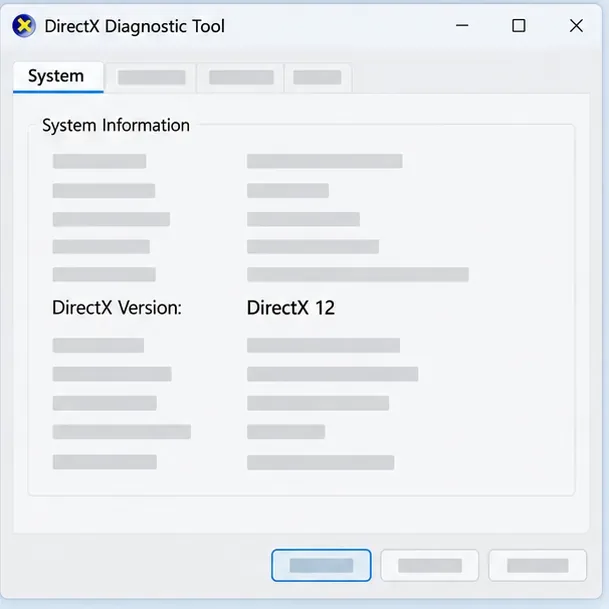
Write down the full error text and code, including when it appears: at launch, while loading a map, or during a match. Press Win + R, enter dxdiag, and press Enter. On the System tab, note the DirectX version. On each Display tab, note the graphics adapter name and driver details. DxDiag reports what Windows has installed; its DirectX version is not a setting that VALORANT switches between.
If you plan to contact Riot, select Save All Information in DxDiag and keep the report for your ticket. A clear error message plus the GPU and driver details makes the next troubleshooting step easier to choose.
Step 2: Update Windows and install legacy DirectX files only when needed
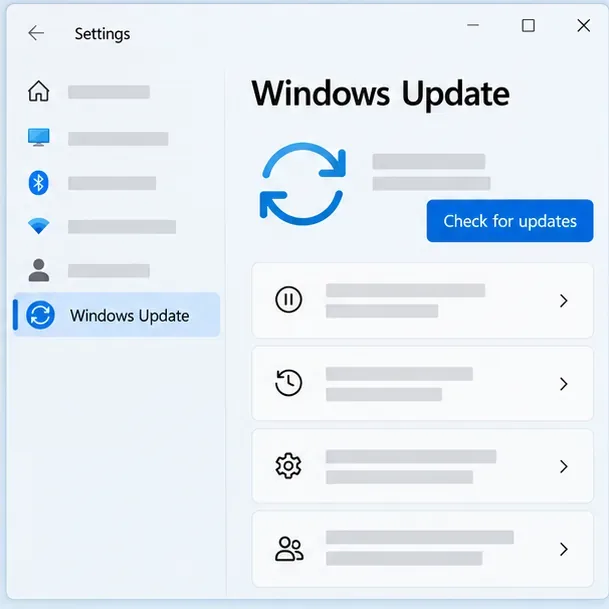
Open Settings > Windows Update, select Check for updates, install available updates, and restart the PC. Windows 10 and 11 include DirectX, and Microsoft delivers updates to the Windows DirectX runtime through Windows Update. There is no separate DirectX 12 installer that repairs the Windows runtime.
Use the DirectX End-User Runtime Web Installer only when the dialog names a missing legacy library covered by that package, such as D3DX, XAudio 2.7, or XInput 1.3. Microsoft says this installer adds optional side-by-side components from its legacy DirectX SDK; it does not change the DirectX version installed in Windows. It is not a targeted fix for DXGI_ERROR_DEVICE_HUNG. For the general Windows procedure, see Microsoft's guide to installing or updating DirectX.
Step 3: Update the driver for the GPU VALORANT uses
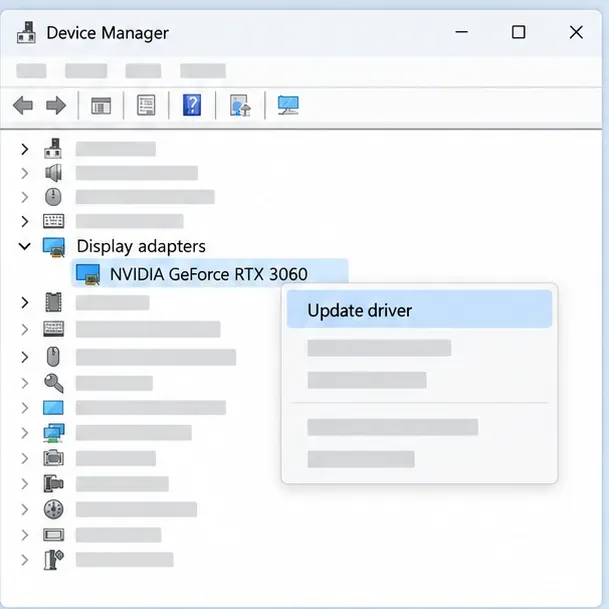
Open Device Manager from the Start menu and expand Display adapters to identify the GPU. For a laptop, check the PC maker's support page first if it provides a model-specific graphics driver. Otherwise, download the driver from the GPU maker: NVIDIA, AMD, or Intel. Choose the package for your exact GPU and Windows version, install it, and restart.
Device Manager's automatic search can be a useful first check, but the newest compatible driver may be listed on the manufacturer's site. If Display adapters shows Microsoft Basic Display Adapter, Windows is using a generic driver; install the compatible driver from your PC or GPU manufacturer.
Step 4: Test with stable GPU settings and the correct graphics processor
If the error continues, temporarily return GPU tuning to its factory defaults. Disable any GPU overclock or undervolt, then close overlays and recording tools while you test VALORANT. Change one thing at a time so you can tell whether the crash pattern changes. This is a diagnostic check, not proof that a particular app or setting caused the error.
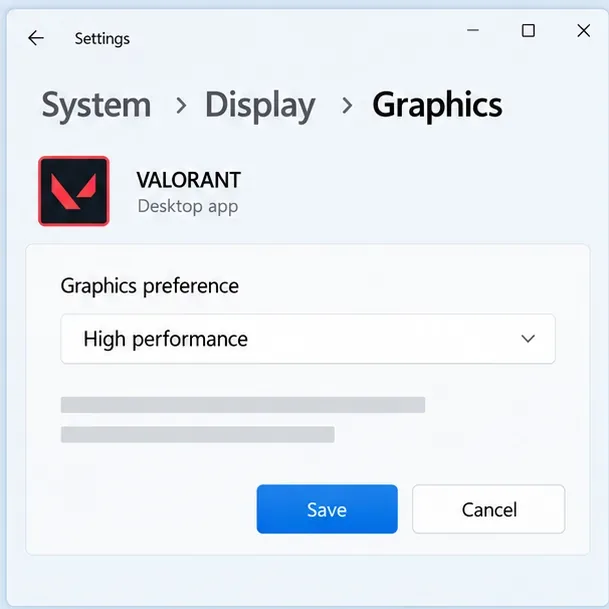
On a laptop or PC with both integrated and dedicated graphics, set the game to use the high-performance GPU: open Settings > System > Display > Graphics, add or select the VALORANT game application, choose Options > High performance > Save, then restart the game. The available options and labels can vary by Windows version. This setting is only relevant when the PC has more than one GPU; Microsoft's guide explains the Windows graphics preference controls.
Step 5: Repair VALORANT, then reinstall if the crash persists
Use Riot Client's current repair option before reinstalling: sign in, select the profile icon in the upper-right corner, open Settings, choose VALORANT, and select Repair. Follow the prompts and try the game again. Riot says this tool checks for missing or corrupted game files.
If repair does not help, close Riot Client, open Installed apps from Windows Search, uninstall VALORANT, and restart if Windows asks. Download the installer again from the official VALORANT download page. Riot's uninstall and reinstall instructions cover the current process. A reinstall can replace game files, but it cannot fix an incompatible or unstable graphics driver by itself.
If the DirectX error returns
If the same error remains after the steps above, collect a DxDiag report and VALORANT logs instead of repeatedly reinstalling drivers or editing Windows registry timeouts. Riot's Windows log guide explains how to gather diagnostics with the Riot Repair Tool. Attach the requested files to a Riot Support ticket, along with the exact error and whether it started after a Windows or driver update.
For crashes that happen only after playing for a while, test with GPU settings at factory defaults and overlays disabled. Check that the PC's cooling system is working, but do not rely on one temperature number as a universal cutoff: safe operating ranges vary by GPU model.
Frequently asked questions
Should I reinstall DirectX 12 to fix VALORANT?
No separate DirectX 12 installer repairs Windows 10 or 11. Install Windows updates first. The DirectX End-User Runtime is for specific optional legacy libraries and does not upgrade the Windows DirectX version.
Does DXGI_ERROR_DEVICE_HUNG mean DirectX is corrupted?
No. The code reports a graphics-device failure condition, but it does not by itself prove that DirectX files are missing or identify the exact cause. Check the driver and system stability, then send the error and logs to Riot if it persists.
Can I download a missing DirectX DLL from another website?
Avoid standalone DLL download sites. Use Windows Update for Windows DirectX components, the Microsoft installer for matching legacy libraries, or Riot Client's repair option for VALORANT files.









