Can You Play League of Legends on a MacBook Pro? (2026)
Yes, you can play League of Legends on a MacBook Pro, but check the chip, macOS version, memory, and available storage before installing. Riot’s system-requirements page, updated September 22, 2026, lists an Apple M1, macOS 12 or later, a Metal-capable GPU, 8 GB of unified memory, and 40 GB of free storage. Riot now prioritizes Apple Silicon support; older Intel MacBook Pros may still run the game, but Riot says Intel-specific problems may not be investigated or fixed.
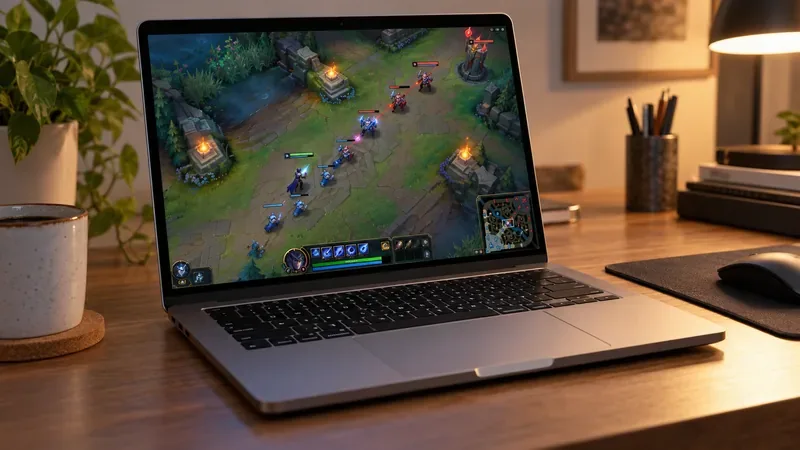
The short version: an M-series MacBook Pro that meets Riot’s current requirements is the safer choice. The game has a Mac installer, so you do not need Boot Camp or a Windows virtual machine. One detail the old guidance often gets wrong: Riot describes its Mac support as Intel-native, so Apple Silicon compatibility should not be described as a native ARM build.
Current MacBook Pro requirements for League of Legends
Riot’s 2026 table gives the following macOS requirements:
| Requirement | Riot’s current macOS listing |
|---|---|
| Processor | Apple M1 (listed for minimum and recommended) |
| Graphics | Metal-capable GPU |
| Memory | 8 GB unified memory |
| Operating system | macOS 12 |
| Free storage | 40 GB |
| Graphics preset and resolution | Low for minimum, High for recommended; 1680 × 1050 listed |
Riot’s page lists macOS 12 as its minimum version, but an older support page still contains a 10.12 reference. For a current install, follow the newer League of Legends system requirements page. Leave the full 40 GB free before installing and patching; the download size can change as the client updates.
To check your Mac, open the Apple menu and choose About This Mac. Look for the chip or processor name, memory, and macOS version. A model year alone is not enough: two MacBook Pros from nearby years can use different processors, and Riot’s current support policy treats Intel and Apple Silicon differently.
Does League of Legends run natively on Apple Silicon?
League of Legends works on Apple Silicon MacBook Pros, but Riot does not describe its Mac client as a native Apple Silicon build. Riot’s current requirements say that it natively supports Intel macOS, list M1 as the Mac processor baseline, and note that Intel Mac users may continue playing while support focuses on Apple Silicon. Apple explains that Rosetta translates Intel-based apps so they can run on Apple silicon. Taken together, the official guidance indicates that an M-series Mac runs the Intel Mac client through Rosetta rather than through a native ARM version.
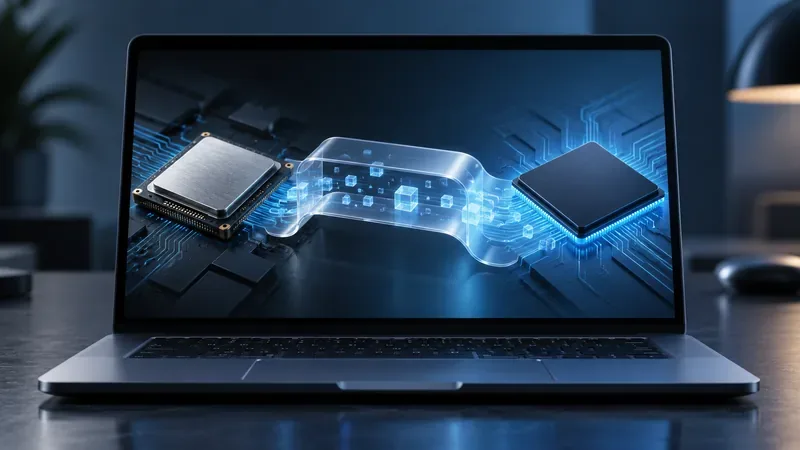
If macOS asks to install Rosetta the first time you open the game, approve the prompt while connected to the internet. Apple says Rosetta works in the background and is available through macOS 27; its current documentation also warns that some Intel apps or components may not work in macOS 28. Riot’s requirements page does not confirm League’s status on macOS 28, so check Riot’s latest compatibility notes before making that major upgrade.
An Intel MacBook Pro is a less certain option. Riot says Intel configurations may continue to play, but future support is centered on Apple Silicon and an Intel-specific issue may not be investigated. If your Mac is Intel-based, is below macOS 12, lacks Metal support, or cannot provide the required free space, do not assume that an installer download means the game is supported.
How to install League of Legends on a MacBook Pro
- Check the Mac first. Confirm the chip, macOS version, memory, and 40 GB of free storage in About This Mac and System Settings.
- Download Riot’s Mac installer. Go to the official League of Legends download page and choose Download Mac Installer. Use Riot’s site rather than a third-party download mirror.
- Move the app into Applications. Open the downloaded .dmg file, drag League of Legends.app to the Applications folder, close the installer window, and launch the app from Applications. Riot warns that launching directly from the mounted .dmg can cause an installation error.
- Let the Riot client update the game. Sign in to an existing Riot account or create one, then allow the client to download and patch the game files. The time depends on your connection and the current patch. Riot’s Mac troubleshooting notes say the Mac version needs administrator privileges for installation and patching.
Riot’s Mac installation and reinstall instructions show the .dmg-to-Applications process and explain common installation mistakes.
Settings for a smoother MacBook Pro session
Start with the graphics preset that matches your Mac’s headroom. Riot lists Low for minimum graphics and High for recommended, so begin at Low if the laptop is older, warms quickly, or stutters. If a match stays smooth, raise individual settings gradually. A moderate frame-rate cap can reduce unnecessary heat and power use; there is no universal FPS number for every MacBook Pro, and Riot does not publish model-by-model frame-rate guarantees.
- Keep the laptop on a firm, clear surface and avoid covering its vents.
- Connect power for a long session and close demanding apps if you notice stutter.
- Use a stable Wi-Fi connection or Ethernet adapter if your network has ping spikes.
- Keep macOS and the Riot client current, and leave enough free disk space for patches.
Riot also calls out two macOS features that can interrupt play: Hot Corners and “Shake mouse pointer to locate.” If the pointer jumps, the client loses focus, or performance dips when you shake the mouse, disable those features while gaming using the relevant controls in System Settings. See Riot’s Mac player settings guidance for the current instructions.
Common problems and fixes
- Rosetta prompt on an M-series Mac: install Rosetta when macOS offers it, then reopen League. Rosetta is an Apple compatibility component, not a separate game version.
- The installer or patcher fails: confirm you copied the app to Applications, have administrator privileges, and have enough free storage. Restart the Mac and try again.
- The client opens to a black screen or game files seem damaged: use the repair option in the Riot client if it opens. Riot’s patching troubleshooting page documents the launcher’s full-repair option.
- Low frame rate or heat: lower graphics quality, close resource-heavy apps, keep the laptop on a clear surface, and check whether the Mac meets the current Metal, memory, and OS requirements.
- An older Intel Mac will not launch: check Riot’s latest requirements and contact Riot Support with your Mac model and macOS version. Riot’s current notice says Intel-specific issues may fall outside its support focus.
Frequently asked questions
Is League of Legends free on Mac?
Yes. League of Legends is free to download and play, and Riot offers a Mac installer. Optional purchases are not required to install the game.
Can an M1 MacBook Pro run League of Legends?
Riot lists Apple M1 as the minimum and recommended Mac processor in its current requirements. Make sure the Mac also has macOS 12 or later, 8 GB of unified memory, a Metal-capable GPU, and 40 GB of free storage. The client is not described as Apple Silicon-native, so Rosetta is part of the compatibility picture.
Do I need Boot Camp, Windows, or a virtual machine?
No. Download the official macOS installer and launch League from Applications. Boot Camp or a Windows VM is not needed for the supported Mac client.
Verdict: A MacBook Pro can play League of Legends if it meets Riot’s current requirements. An Apple Silicon model is the safer purchase or upgrade target in 2026; an older Intel Mac may still work, but comes with a clear support caveat.









