Home
» 🎮 Esports
»
Best TFT Keybinds for Fast Rolling and Selling Without Misclicks
Best TFT Keybinds for Fast Rolling and Selling Without Misclicks
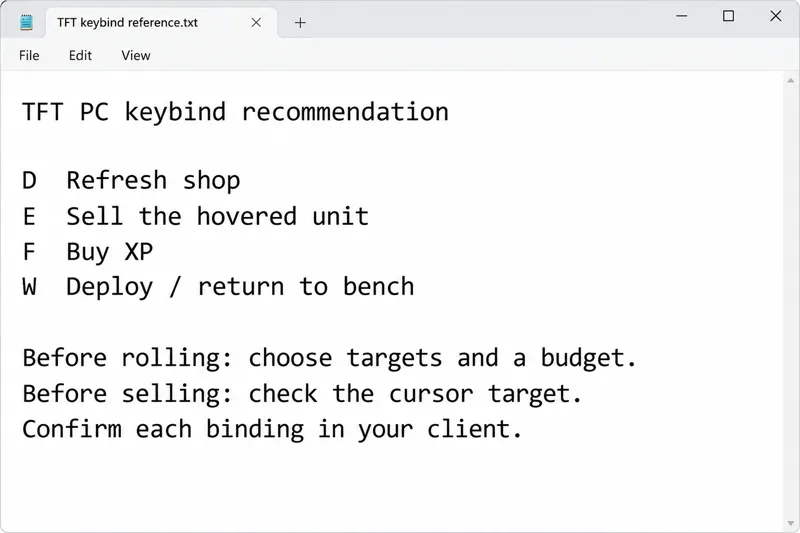
For fast rolling and selling in Teamfight Tactics on PC, start with D for Refresh Shop and E for Sell, with F for Buy XP and W for moving a unit between the bench and battlefield. Keep that compact arrangement if you can press each key reliably. If you repeatedly hit Sell while trying to move a unit, put Sell on a distinct, comfortable key supported by your client instead of prioritizing proximity above accuracy.
The important improvement is dividing the work between your hands: the keyboard triggers shop actions while the mouse stays available for choosing purchases and identifying units. A faster keybind does not decide which champion is worth buying or selling. You still need a target list, a spending limit, and a clear stopping point.
Checked October 8, 2026: Riot’s current accessibility page lists Basic Input Remapping for TFT and notes that features can vary by platform and version. The public Riot sources reviewed did not provide a complete live table of default bindings or confirm every mouse-button and shop-slot binding option. Treat the layout below as a recommendation to confirm in your installed PC client, not a guarantee about an account’s existing settings.
The best starting keybind layout
Action
Recommended key
Why keep it accessible?
Accuracy check
Refresh Shop
D
Repeated shop checks need a key you can reach without moving the mouse away from purchases.
Read the current shop before refreshing again.
Sell
E
A dedicated sell action avoids a long drag for every unwanted unit.
Place the cursor over the intended unit before pressing the key.
Buy XP
F
Leveling remains close at hand.
Keep it distinct from Refresh so an incorrect press does not redirect your spending.
Deploy or return to bench
W
Moving a unit and selling it should be separate actions.
Check that you are using the movement action rather than Sell.
These keys are a starting layout, not a measured winner among all possible arrangements. Use the action names in your client to verify what is assigned. A familiar alternative can be better than changing four keys at once, especially when you already play without mispresses.
The reference note pairs the recommended D/E/F/W layout with reminders to choose a rolling budget and check the unit under the cursor.
Misunderstanding: faster rolling means pressing Refresh as fast as possible
Fast input is useful only when you can evaluate the shop between presses. If you refresh before recognizing a useful purchase, you have accelerated past the decision you were trying to make. The relevant skill is a repeatable rhythm: inspect the shop, buy what meets your plan, handle necessary bench space, and then refresh.
What is verified: Riot’s 2019 interface explanation distinguishes Buy XP from Refresh and explains the relationship between level and shop tier drop rates. This is historical documentation, not a reference for the exact current screen layout. The practical distinction still matters: buying experience and refreshing a shop are different decisions.
What depends on the situation: Your appropriate spending pace depends on what you are searching for, your available time, and how well you recognize the current roster. There is no verified universal number of keypresses per second that makes a roll-down good.
Useful action: Decide your main upgrades and acceptable alternatives before starting. Choose a minimum gold balance or another clear stopping condition. Check the client’s displayed refresh cost and available free refreshes instead of assuming every press has the same cost in every mode or mechanic.
Misunderstanding: Sell targets the unit you are thinking about
A quick sell requires careful targeting. With a hover-based sell action, move the pointer onto the unit you actually intend to remove, confirm it, and make one deliberate press. Do not sweep the cursor across several units while repeatedly pressing the key and expect the game to infer your plan.
For example, imagine an unwanted bench unit sitting beside a copy you need for an upgrade. This is an illustrative situation, not a reported test. Saving a small amount of cursor travel is useful, but selling the wrong copy undermines the purpose of rolling. The keyboard action and mouse target have to agree.
Useful action: Verify the Sell binding and its targeting behavior using a unit you are willing to lose in a low-stakes game. During a serious roll-down, release the sell key before moving the cursor toward a unit you want to preserve. When the target is unclear, slow down and identify it first.
Misunderstanding: the closest possible keys are always best
D, E, F, and W form a compact cluster on a typical QWERTY keyboard. That makes them a reasonable layout to try, but compactness is not the only requirement. Hand comfort, keyboard layout, existing habits, and accidental presses can change what works for you.
If W and E are easy for you to confuse, consider moving Sell to an unused key that you can reach deliberately. Use a choice that the in-game remapping controls accept, and check for conflicts. This is an ergonomic suggestion, not evidence that one alternative is superior for every player.
Useful action: Change one binding at a time. Verify it immediately, then use the new layout through ordinary purchases, sales, and unit movement before attempting a demanding transition. Keep the change only if it reduces the problem you identified without creating another one.
Misunderstanding: a mouse button or shop-slot hotkey is automatically an upgrade
Moving Sell to a supported mouse button could feel convenient because the same hand controls the pointer. It could also introduce accidental presses or interfere with your grip. The benefit depends on your device and the binding options actually exposed by the current client.
Likewise, do not assume a video showing direct purchase keys for individual shop slots proves that those bindings are available in your live version. Test environments, release dates, and personal configurations can differ. The official sources reviewed did not establish a universal live shop-slot keybind feature, so this article does not present one as required for fast rolling.
Useful action: Inspect the available actions in your client. If a desired binding is absent, continue with keyboard Refresh and ordinary mouse purchases. Build a reliable process around supported controls rather than relying on an undocumented setup.
When a shortcut fails, separate configuration from an input problem
Start with the simplest checks: confirm that the game has focus, close text-entry fields, and inspect the assigned action. A key that types into chat has not demonstrated that your shop shortcut is broken. If one action fails while others work, check its binding before changing your entire layout.
There is a documented reason to take version differences seriously. Riot’s patch 18.1 notes describe the transition to Unreal and include an August 28 fix for default key functions. That does not prove your present issue has the same cause; it establishes that input behavior can be affected by game updates.
Useful action: For persistent problems, follow Riot’s keyboard and mouse troubleshooting guidance. It recommends checking bindings and, when necessary, comparing another peripheral, updating device drivers, and investigating background interference. Report your game version, affected action, assigned key, and the conditions under which it fails.
How to tell whether your layout is working
Evaluate the mistakes directly connected to inputs: unwanted refreshes, accidental sales, incorrect XP purchases, and hesitation over which key moves a unit. A win or loss is too broad to isolate the quality of a keybind arrangement.
A useful layout lets you keep your eyes on the shop, target sales deliberately, and stop spending when your plan says to stop. It should also remain comfortable after the urgent part of the turn ends. If the keys work but you keep missing wanted units, spend more effort recognizing purchases and organizing your plan before remapping again.
The recommended D/E/F/W cluster is enough to begin. Confirm those actions in your current PC client, separate Sell when mispresses justify it, and aim for accurate decisions with fewer unnecessary mouse movements. Keyboard speed helps execute a plan; it does not replace one.