Home
» 🎮 Esports
»
10 Minecraft Decimal Errors: Real High-Coordinate Glitches and Safe Fixes
10 Minecraft Decimal Errors: Real High-Coordinate Glitches and Safe Fixes
10 Minecraft Decimal Errors: Real High-Coordinate Glitches and Safe Fixes
If blocks shimmer, entities appear offset, or terrain seems to disappear, don’t assume your world has hit one of ten fixed “decimal disasters.” Minecraft decimal errors is a useful search phrase, but it is not an in-game error category. Mojang has tracked a real Java Edition report of objects jittering and appearing offset far from the origin; many other symptoms in the old list have no verified universal trigger coordinate. This guide separates documented Minecraft high-coordinate glitches from look-alikes, explains what differs between Java and Bedrock, and gives safe checks before you change a world.
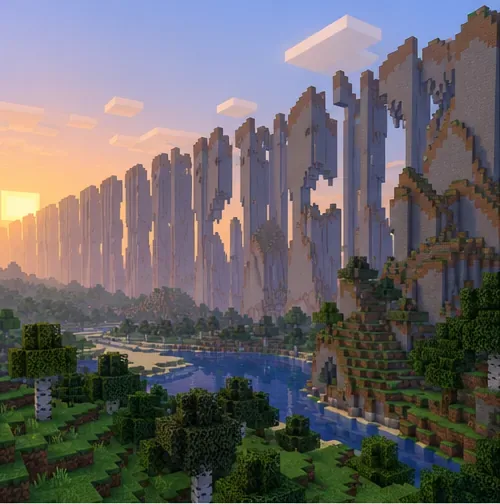
The Far Lands were a historical Java terrain-generation anomaly. This illustration is not a screenshot of a current release.
What a Minecraft “decimal disaster” actually means
Coordinates are numbers, and computers represent many numbers with finite precision. At very large distances, small rounding differences can become visible in rendering or calculations. That does not mean every Minecraft coordinate is stored as a decimal with the same limit: the game uses different representations for block positions, entity positions, and rendering. A symptom also may come from chunks not being loaded, server tick lag, a mod, or ordinary portal linking.
The classic Far Lands were a terrain-generation failure in old Java versions and are not the standard experience in current vanilla Java worlds. Separately, Mojang’s issue tracker has documented a report about objects jittering and appearing offset far from the origin. The report is evidence that this class of bug has existed; it does not prove that every listed symptom happens in every current build. In Java, the default world border sits at X/Z ±29,999,984 when centered at 0,0—just short of 30 million blocks. That is a boundary, not a shared error threshold for redstone, fluids, entities, and rendering; see Mojang’s world-border report MC-187668. The old page’s “Minecraft 1.21” update note is stale: Mojang’s release page lists Java Edition 26.3, published September 15, 2026. The release notes do not claim a blanket fix for every high-coordinate issue.
Java and Bedrock should not be assigned one shared distance threshold. To read your location, Mojang’s coordinates guide says to use the F3 debug screen in Java Edition or turn on Show Coordinates in Bedrock’s world settings.
10 high-coordinate symptoms—and what they do and don’t prove
1. The Far Lands wall
What it is: A genuine terrain-generation bug in historical Java versions, not a modern vanilla destination to reach by walking. What to do: Check the exact game version and whether the world uses a mod or custom generator. A current world showing odd terrain is not automatically the old Far Lands; back it up and investigate the generator or world data.
2. Blocks or objects that visibly jitter
What it is: A documented family of distance-related rendering symptoms. The Mojang tracker report MC-31653 describes objects randomly jittering and appearing away from their true locations when far from the origin. What to do: Record the edition, version, and coordinates; then compare the same area after returning closer to the origin. Treat that comparison as a clue, not a confirmed diagnosis.
3. A block outline that seems misaligned
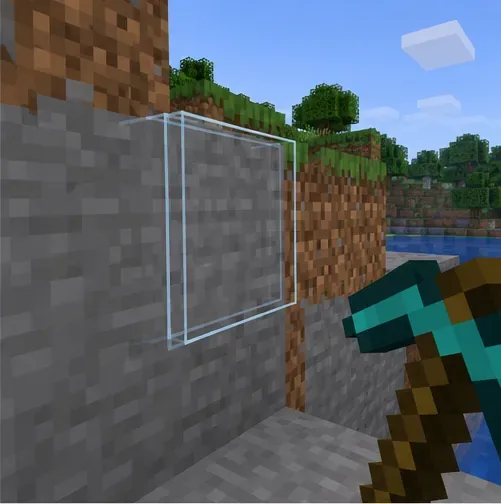
What it is: A selection outline can look wrong when rendering precision is involved, but a visual mismatch does not prove the block itself moved. What to do: Stop before mining, placing, or using commands on the affected block. Reopen the world after making a backup and see whether the outline issue reproduces in a copy.
A displaced selection outline is a visual symptom to document; it does not prove that the block moved.
4. Chests, signs, or translucent blocks that look offset
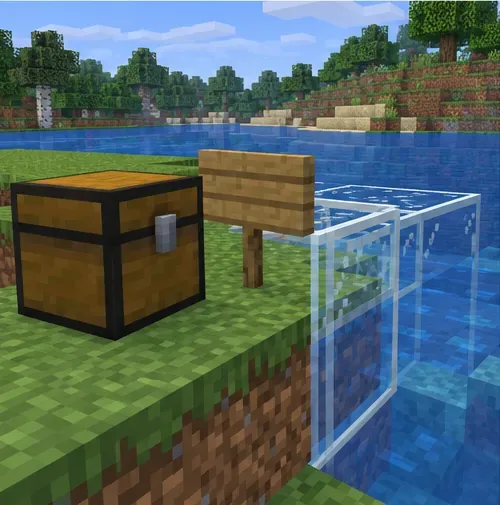
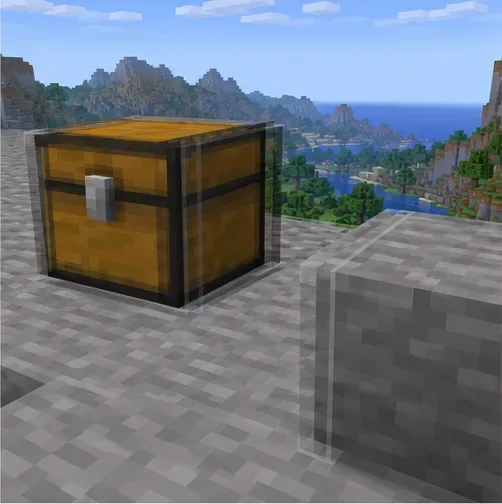
What it is: The same tracker report includes reports involving block entities and translucent rendering. This is not a list of separate coordinate thresholds. What to do: Test without shaders or resource packs in a copied world. If the effect remains in a clean setup, capture a short clip and exact reproduction steps for a bug report.
Block entities and translucent surfaces can look displaced in rendering glitches; this ordinary scene identifies examples, not a live bug.
5. A mob that appears to float or slide
What it is: A rendered model appearing displaced is different from the server actually moving an entity. On multiplayer, network delay or server performance can make those look similar. What to do: Check whether the mob’s position changes after reconnecting, and compare a local copy with the server. Avoid broad commands such as teleporting every mob; they can alter the world without fixing the cause.
A mob model that looks separated from its shadow can be a rendering clue; check whether its actual position changes.
6. Chunks that seem to vanish
What it is: A blank patch can be an unloaded or slowly rendered chunk, while permanently missing terrain can indicate a separate world-data problem. There is no reliable universal “29.5 million block chunk void” rule for ordinary play. What to do: Back up first, restart the client or server, and check the same area again. If it remains missing, inspect a copy or restore a known-good backup rather than filling the hole blindly.
A foggy or empty view can be an unloaded area rather than permanently missing terrain.
7. Bedrock behavior that does not match a Java guide
What it is: Bedrock and Java use different codebases and platform paths, so an old Java threshold or command is not a cross-edition fix. What to do: Record the platform and full version, enable coordinates in Bedrock’s world settings, and reproduce the issue in a copy of that edition. Do not apply Java-only border commands or mods to Bedrock.
Record the edition and coordinates before troubleshooting; Java and Bedrock expose location information differently.
8. A Nether portal that links to an unexpected spot
What it is: Portal travel uses an Overworld-to-Nether horizontal scale of 8:1, then searches for a suitable destination portal. That can produce a surprising landing without any floating-point failure. What to do: Compare the intended X/Z positions using the scale, check nearby portals and safe exit space, and rebuild only after saving the original locations. See the Nether portal mechanics reference.
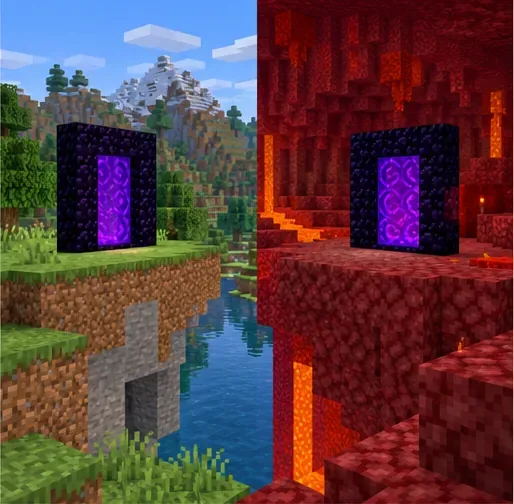
Unexpected portal destinations can come from coordinate scaling and portal search rather than decimal precision.
9. Redstone that runs late or seems inconsistent
What it is: Redstone operates through game ticks. Server lag, crowded machinery, and repeater delays are more useful first checks than a claim that signals weaken beyond a particular X/Z value. What to do: Test the circuit nearby in a copy and compare it with the original. If both are slow on a server, check server performance and the build’s tick timing before redesigning it.
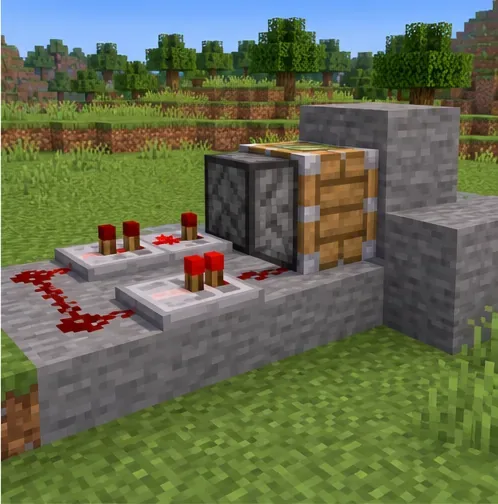
Redstone timing depends on game ticks; test the circuit separately before blaming coordinates.
10. Minecarts, fluids, item frames, armor stands, or a warped sky
What it is: These mechanics and visuals have different causes. The old article did not support its individual thresholds for 15M, 18M, 22M, or 25M blocks, nor did it establish a shared decimal bug behind them. What to do: Test one symptom at a time in a backed-up, unmodded copy. Check rail shape, fluid updates, entity data, resource packs, and graphics settings separately.
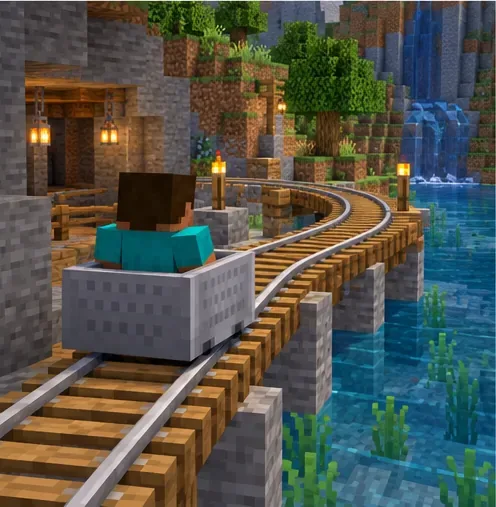
Rail layout and game performance are separate checks for minecart or fluid complaints.
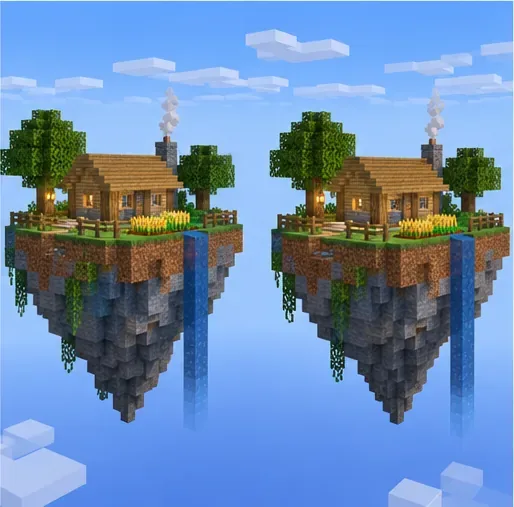
Doubled edges can illustrate coordinate-related rendering jitter; the image does not show a tested game build.
A safe way to diagnose a Minecraft coordinate glitch
Make a backup. Copy the world before updating it, running commands, changing mods, or testing an older version.The matching islands represent keeping a separate world copy before testing changes.
Write down the environment. Record Java or Bedrock, the exact version, device, single-player or server, mods or resource packs, and X/Y/Z coordinates. Java shows coordinates on F3; Bedrock has a Show Coordinates setting.
Compare locations in a copy. If safe, check whether the same visual issue appears near the origin and at the distant location. A change with distance supports a precision hypothesis but does not prove it.
Separate client visuals from saved terrain. Reopen the copied world, test without shaders and resource packs, and compare single-player with the server if possible. Do not use destructive block or entity commands as a first-line fix.
Report reproducible bugs with evidence. Include the version, edition, coordinates, steps, and a short clip or screenshot. The Mojang tracker report is a useful example of a specific distance-related rendering report.
Use a world border as a Java prevention measure
A border limits exploration; it does not repair damaged chunks or remove a rendering bug. In Java Edition, the /worldborder set value is the border’s diameter, not its radius. For example, with the center at 0,0, a 2,000,000-block diameter puts each horizontal edge about 1,000,000 blocks from the center:
/worldborder center 0 0
/worldborder set 2000000
Choose a diameter that fits your world rather than copying this example blindly. The command is Java-specific. Since Java 1.21.9, the world border is dimension-specific, so a border can have a different size and center in each dimension; see Mojang’s World Border release notes. The /worldborder command is Java-specific and should be tested on a copied world.
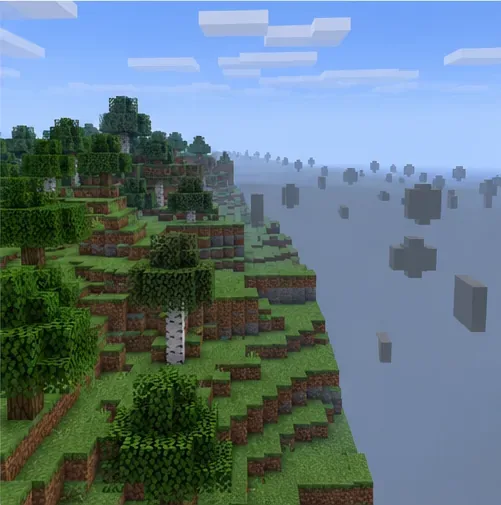
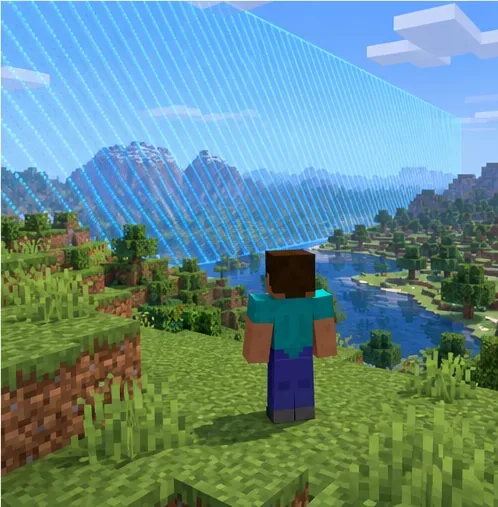
A deliberately sized Java world border can limit exploration; this is an illustrative scene, not a live screenshot.
The practical takeaway
Some Minecraft high-coordinate glitches are real, especially visual jitter documented in older reports, but the old page’s ten coordinate thresholds and quick fixes were not dependable. Identify your edition and version, protect the save, and test whether the problem follows distance before changing the world. Portals, redstone delays, missing chunks, and entity movement each need their own diagnosis.