🚨 Imagine launching into your epic Minecraft world, only for a black screen or glitchy mess to shatter the fun. Viewing Minecraft Errors: Display Disasters strike without warning, turning dream builds into nightmares. But don't rage-quit yet! This guide packs the latest fixes for Java and Bedrock Editions (up to 1.21.1), helping you conquer crashes, flickering textures, and more. Let's dive in and restore your pixel-perfect adventure! 🌟
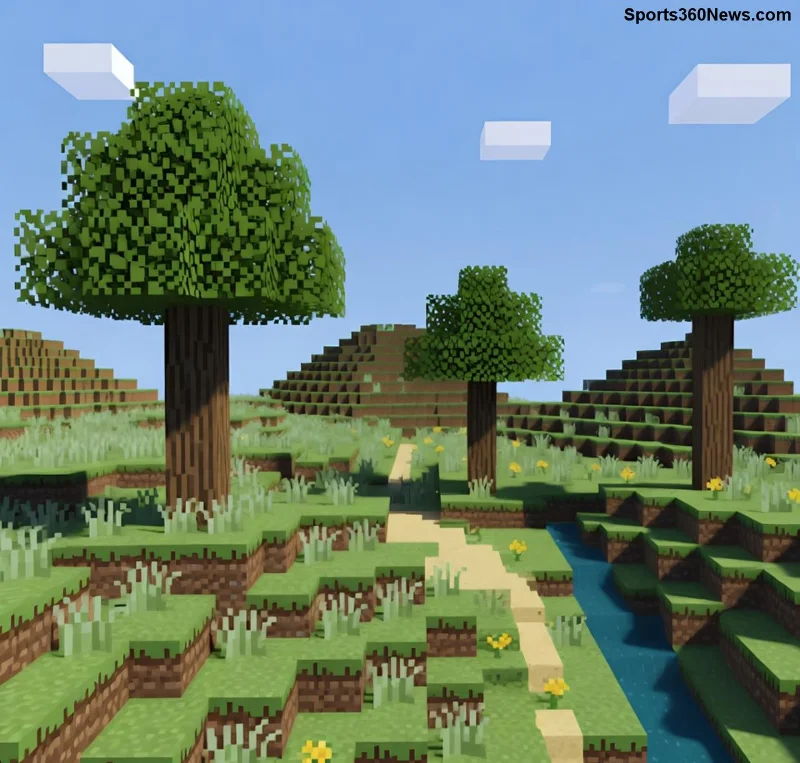
Common Minecraft Display Errors: Spot the Culprits
These display disasters often stem from graphics drivers, Java conflicts, or mod overload. Here's a quick rundown:
| Error Type |
Symptoms |
Common Causes |
| Black Screen |
Game launches but screen stays black; audio plays. |
Outdated GPU drivers, fullscreen issues. |
| OpenGL Error |
Crash with "OpenGL 2.1+ required" message. |
Incompatible graphics card or drivers. |
| Missing Textures/Glitches |
Purple-black blocks, flickering visuals. |
Corrupted resource packs or shader mods. |
| Exit Code 1 |
Immediate crash on launch. |
Java version mismatch, RAM allocation. |
Recognize your issue? Stick around – targeted fixes are next! 👍
Quick Fixes for Viewing Minecraft Errors: Display Disasters
1️⃣ Update Graphics Drivers: The #1 Savior
Outdated drivers cause 70% of Minecraft display issues. NVIDIA, AMD, or Intel users:
- Download from NVIDIA, AMD, or Intel.
- Run a clean install to wipe old files.
- Restart PC and relaunch Minecraft.
Pro tip: Enable "Game Ready" profiles for smoother 1.21 worlds.
2️⃣ Tweak Java Settings for Java Edition
For Exit Code 1 or laggy displays:
- Open Minecraft Launcher → Installations → Edit your profile.
- In JVM Arguments, add:
-Xmx4G -XX:+UnlockExperimentalVMOptions -XX:+UseG1GC (adjust RAM to your system).
- Ensure Java 21+ (bundled in 1.21.1 launcher).
This boosts performance and nixes memory-related display disasters.
![Fixing Minecraft OpenGL display error step-by-step]()
3️⃣ Bedrock Edition Display Hacks
Windows 10/11 users facing crashes:
- Go to Settings → Video → Turn off "Fancy Graphics" and "Beautiful Skies".
- Reset via Microsoft Store: Search Minecraft → Advanced Options → Reset.
- Disable fullscreen optimizations: Right-click launcher.exe → Properties → Compatibility → Check "Disable fullscreen optimizations".
4️⃣ Mod and Shader Troubleshooting
Mods amplify Minecraft errors. Sodium, Iris, or OptiFine culprits?
- Update via CurseForge or Modrinth (latest for 1.21).
- Test in vanilla: Create new profile without mods.
- For shaders: Lower render distance to 8 chunks max.
⭐ Bonus: Use Fabric Loader for lighter display loads over Forge.
Advanced Solutions: When Basics Fail
If crashes persist, check hardware:
| Diagnostic Tool |
Steps |
Expected Outcome |
| DirectX Diagnostic |
Win+R → dxdiag → Display tab. |
No errors in notes; OpenGL 3.2+ support. |
| Minecraft Debug |
F3 screen → Screenshot logs. |
Spot "GL error" codes for pinpoint fixes. |
| Reinstall Launcher |
Uninstall → Download from minecraft.net. |
Fresh files eliminate corruption. |
Still stuck? Share your crash log on Minecraft Forum – community fixes await!
Prevent Future Display Disasters in Minecraft
Stay ahead:
- ⭐ Allocate 4-8GB RAM based on mods.
- Update Windows and antivirus (disable real-time scanning during play).
- Use tools like MCPRE for performance monitoring.
- Backup worlds via Realms or external drives.
With these tweaks, your Minecraft sessions will be glitch-free epics. Fixed your issue? Drop a 👍 in comments and share your survival story! Ready for more? Check our guides on Minecraft 1.21 redstone hacks next. Game on! 🎮