Home
» 🎮 Esports
»
Xbox App Not Detecting Games? 7 Fixes to Restore Your Library
Xbox App Not Detecting Games? 7 Fixes to Restore Your Library
Xbox App Not Detecting Games? 7 Fixes to Restore Your Library
If the Xbox app is not detecting games, first check that the title is installed on this PC and that its source is visible in the app. Then verify the signed-in account, reconnect the game drive, update Xbox and Microsoft Store, and repair the Xbox app. These checks address the common reasons an eligible PC game disappears from My Library without deleting game folders or running risky cleanup commands.
The Xbox PC app can show Xbox and Game Pass titles alongside installed games from supported PC storefronts. Storefront titles can be hidden in Library & Extensions, and the app does not treat every game on every platform as an Xbox purchase. The steps below use current Windows 11 menu names; labels can vary slightly by app build.
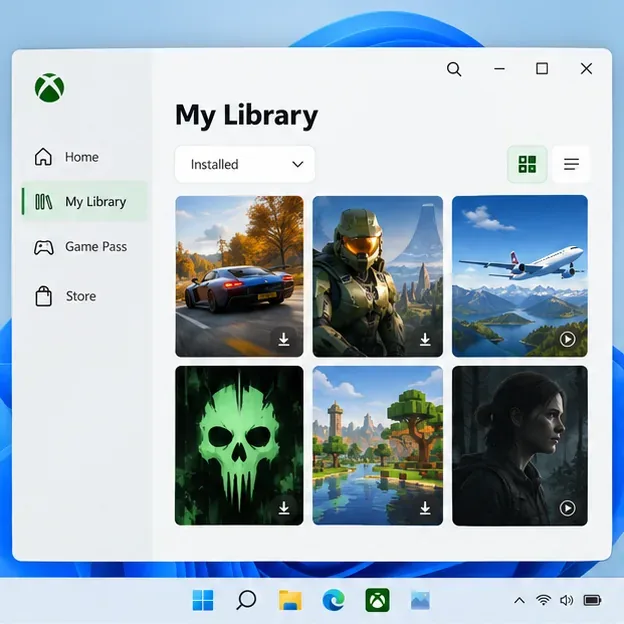
Illustrative Xbox PC app library view. Check the My Library section and the available game filters.
First, identify what is missing
Missing title
First place to check
Xbox or PC Game Pass game
My Library, the correct Microsoft account, and the game’s current purchase or subscription access.
Steam, Battle.net, or another PC storefront game
Library & Extensions: confirm that the storefront is listed and visible. Only supported sources are aggregated automatically.
Game installed on a second or external drive
Reconnect the drive and confirm Windows can open it. Check that the drive letter and game folder are still present.
A game from an unsupported launcher or a standalone installer
If your Xbox app build offers the “+” control, add the installed game manually as a library shortcut.
An entry in the Xbox app is not proof that the title is installed locally or that the Xbox account owns a third-party game. Microsoft describes the aggregated library as a way to view and launch installed games from supported storefronts. Read Xbox’s overview of the aggregated gaming library.
7 fixes for the Xbox app not detecting games
1. Check My Library and the selected view
Open My Library and look through the tabs and filters available in your app, such as My games, installed, owned, or recently played. A game may be present in the library but not in the view you are currently using. If you expect a title to be installed, compare it with the game’s listing in its original launcher or in the Xbox app’s install queue.
Close the Xbox app fully, reopen it, and restart Windows if the list still looks stale. This is a low-risk way to refresh the app’s account and library state. There is no need to delete local cache folders as a first step.
2. Turn on the storefront or add a game manually
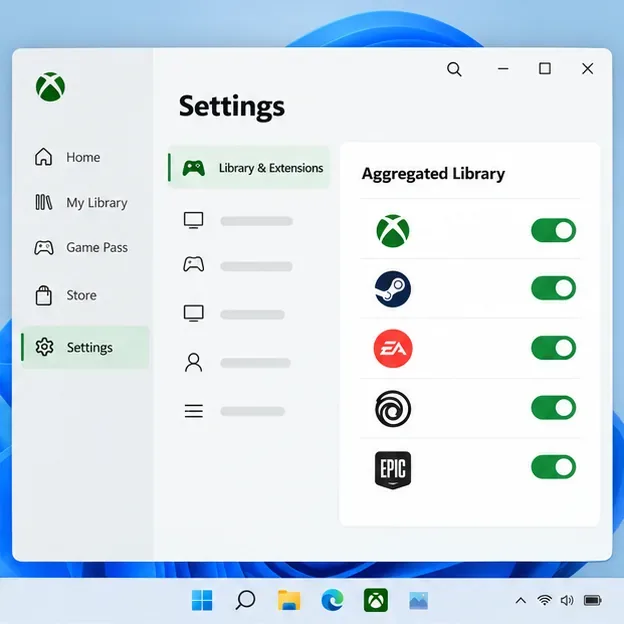
Illustrative Library & Extensions view with storefront visibility controls.
Select your profile picture, open Settings > Library & Extensions, and review the storefronts under Aggregated Library. If a source is hidden, enable it. Xbox says installed titles from supported PC storefronts appear in My Library when that source is included; disabling a storefront removes its titles from the library view.
If the game comes from a launcher that is not listed, or it was installed outside a supported store, check whether your app offers a + button. Xbox’s support guide places manual additions under My Library > My games or My apps. Adding a game this way creates a launch entry; it does not transfer the game’s license to Xbox or repair the original launcher. See Xbox’s storefront visibility instructions and official instructions for adding a game or app.
3. Confirm the Xbox and storefront accounts
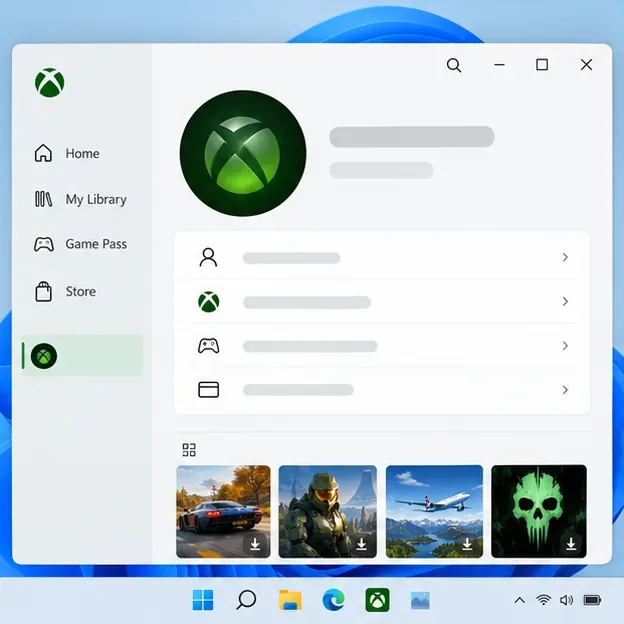
Illustrative profile panel: confirm the account used by the Xbox app.
Open the Xbox profile menu and verify that you are signed in with the Microsoft account that owns the Xbox or PC Game Pass entitlement. If the missing game belongs to Steam, Battle.net, or another launcher, open that launcher too and check its account and install status. The Xbox app can provide one place to launch supported titles, but it does not merge purchases or subscriptions across storefronts.
If you switched accounts recently, sign out of the Xbox app, close it, reopen it, and sign back in with the intended account. Then revisit My Library. Avoid changing your Windows region or family settings unless you have a specific reason; those settings are not a general library refresh.
4. Reconnect the drive that contains the game
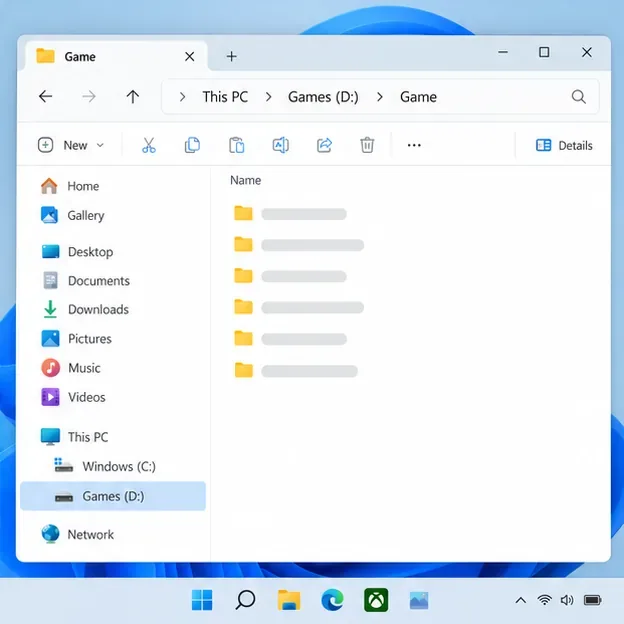
Illustrative File Explorer view showing a mounted secondary game drive.
For an external SSD or secondary internal drive, make sure the drive is online, mounted, and visible in File Explorer. Open the game folder to confirm it is readable and that the expected files are still there. If Windows assigned a different drive letter after a reinstall or reconnection, use the original launcher’s repair or locate option where available; do not move protected WindowsApps folders by hand.
Xbox’s PC install guidance also tells players with games on an external drive to reconnect it and check My Library > Install Queue. If the game remains absent, follow the app’s supported install or restore flow rather than deleting the existing folder. See Xbox’s PC game install and reinstall guidance.
5. Update Xbox, Gaming Services, Microsoft Store, and Windows
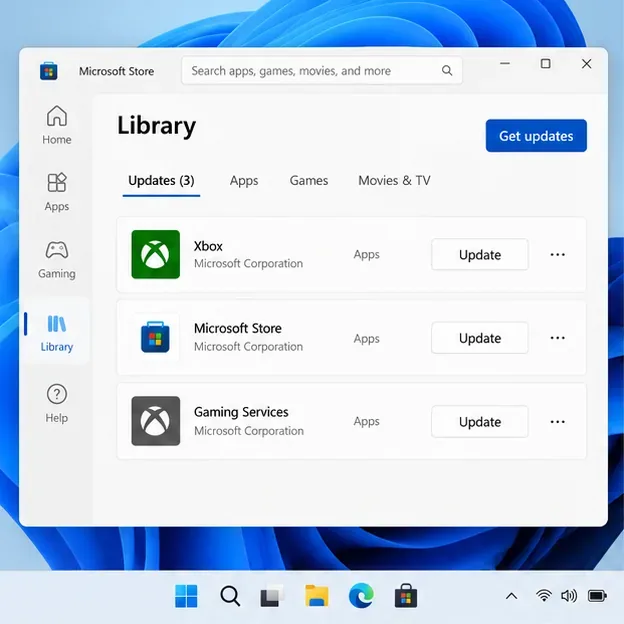
Illustrative Microsoft Store Library with update controls for Xbox-related apps.
Open Microsoft Store > Library, then choose Get updates or Check for updates, depending on the Store version. Install available updates for Xbox and Gaming Services. Also open Settings > Windows Update and install applicable updates, then restart the PC and check My Library again.
6. Repair the Xbox app, then reset only if repair fails
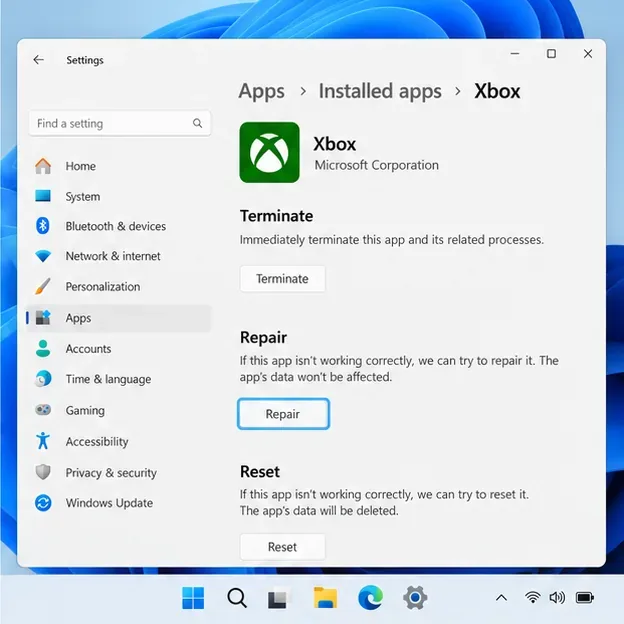
Illustrative Windows 11 Advanced options page with Repair highlighted.
In Windows 11, open Settings > Apps > Installed apps, find Xbox, open its more-options menu, and choose Advanced options. Select Repair first. This is intended to fix the app without affecting its data.
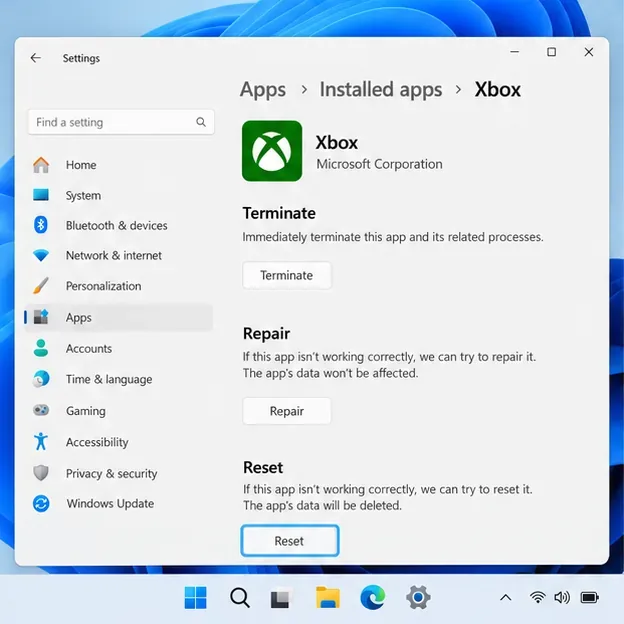
Illustrative Advanced options page showing the separate Reset control.
If Repair does not help, return to Advanced options and consider Reset. Reset clears the Xbox app’s local data and preferences, so you may need to sign in again and let the library reload. Read the confirmation text before proceeding. Microsoft documents Repair and Reset as separate recovery options; menu availability can vary by app. See Microsoft’s Windows repair and reset steps.
7. Reset the Microsoft Store cache if Store services are also failing
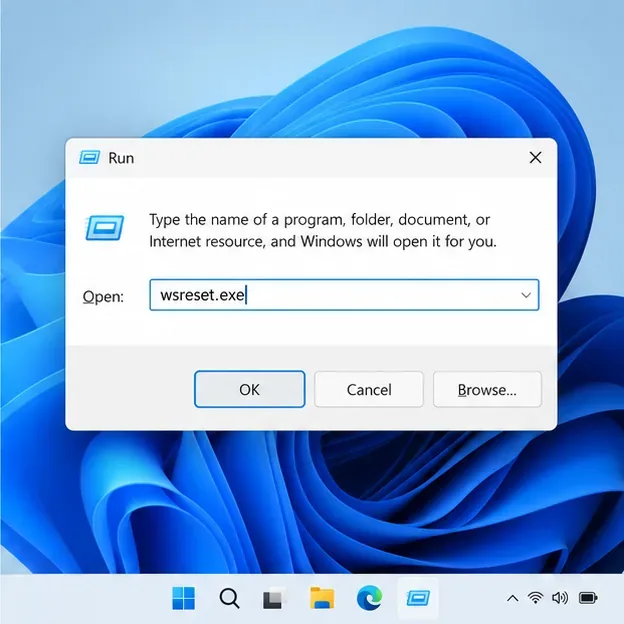
Illustrative Run dialog with the Microsoft-recommended wsreset.exe command.
Use this step when the Microsoft Store will not open, downloads or updates fail, or Xbox dependencies cannot update. Press Windows key + R, enter wsreset.exe, and select OK. A blank command window may appear briefly; wait for it to close and for Microsoft Store to reopen. This resets the Store cache. It is not a game-folder scanner, so use the first six fixes for titles missing only from the Xbox library.
Microsoft documents wsreset.exe as a Store cache reset. If the library is still empty after the Store and Xbox apps update, use Xbox’s current PC gaming troubleshooting guidance or reinstall the Xbox app from Microsoft Store as a last resort. Before uninstalling, note where your games are installed; the app may need to reconnect to those files afterward. Read Microsoft’s Store cache instructions.
What not to do
Do not delete Xbox or Gaming Services package folders from LocalAppData to force a scan. That is not the documented library recovery path.
Do not remove Gaming Services with an administrator PowerShell command unless Xbox Support specifically directs you to do so for a related install error.
Do not delete or reinstall a large game before confirming whether the issue is only a hidden storefront, a wrong account, or an offline drive.
Windows 10 note: The repair path uses Settings > Apps > Apps & features on Windows 10. Microsoft ended standard Windows 10 support on October 14, 2025; supported Windows versions and app menus can differ. Microsoft documents the Windows 10 and Windows 11 paths here.
When the games still do not appear
Write down which games are missing, the storefront they came from, whether the launcher sees them as installed, and whether the install drive is connected. That separates an Xbox library visibility issue from a missing entitlement or damaged game installation. If only one title is affected, use that title’s publisher or storefront repair options. If every Xbox or Game Pass game is missing after the account, updates, and app repair checks, contact Xbox Support with the app version and any error code shown.