Home
» 🎮 Esports
»
Ultimate Guide: How to Connect an Xbox Controller to a PC (Wired & Wireless)
Ultimate Guide: How to Connect an Xbox Controller to a PC (Wired & Wireless)
Ultimate Guide: How to Connect an Xbox Controller to a PC (Wired & Wireless)
To learn how to connect an Xbox controller to a PC, plug it in with a data-capable USB cable, pair it through Bluetooth if your controller supports Bluetooth, or use an Xbox Wireless Adapter for Windows. Windows usually recognizes a wired controller automatically. For wireless play, put the controller in pairing mode and add it from Windows settings. This guide covers current Windows 11 steps, the Windows 10 path, and fixes for common connection problems.
Choose the method that fits your setup:
Connection
What you need
Best for
USB cable
A compatible data cable: USB-C on many newer controllers or micro-USB on some older Xbox One models
The simplest setup, or a controller that does not support Bluetooth
Bluetooth
A Bluetooth-capable Xbox controller and Bluetooth on the PC
A cable-free connection without a dedicated Xbox adapter
Xbox Wireless Adapter
A compatible Xbox Wireless Adapter for Windows
Using Xbox Wireless without relying on the PC’s Bluetooth connection
Connect an Xbox controller to a PC with USB
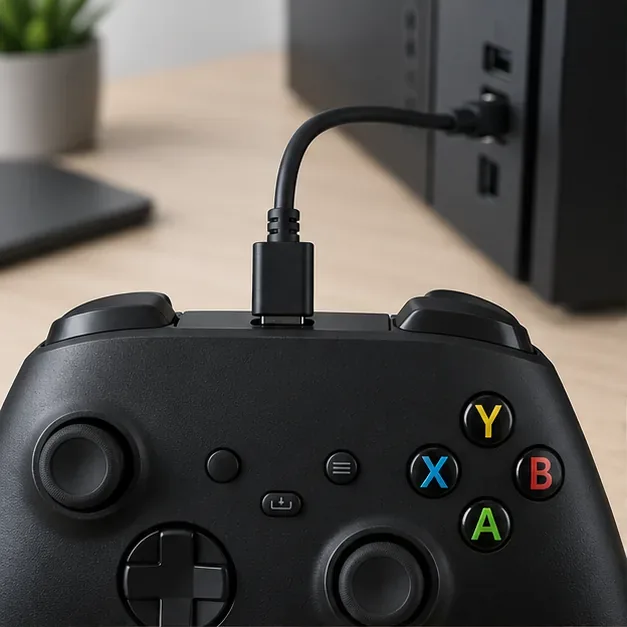
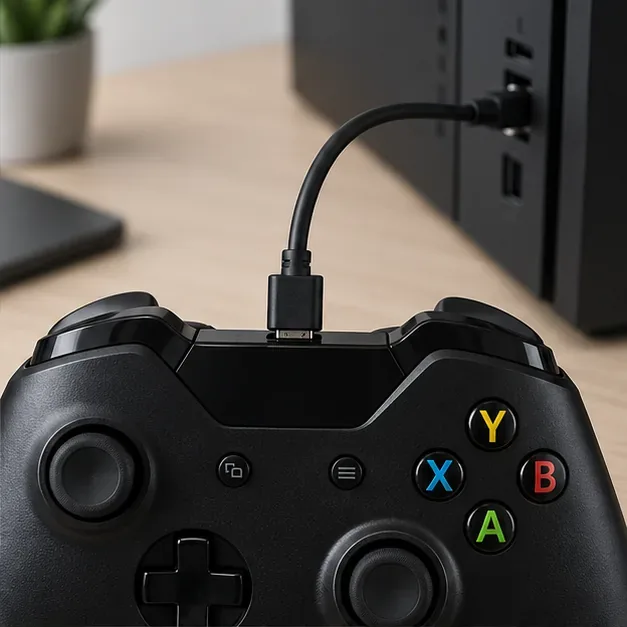
A wired Xbox controller connection is usually the quickest way to start. Check the port on top of your controller first: many Xbox Series X|S controllers use USB-C, while some Xbox One controllers use micro-USB. Use a cable that transfers data; a charge-only cable may power the controller without providing a usable connection to Windows.
For many newer Xbox Wireless Controllers, use a USB-C data cable.Some older Xbox One controllers use micro-USB instead of USB-C.
Turn on the PC and connect the cable to the controller.
Plug the other end directly into a USB port on the PC. If Windows does not detect it, try another port and a different data cable.
Wait for Windows to finish setting up the device, then open a game that supports controllers and test the sticks and buttons.
You generally do not need to install a controller driver manually. USB does not recharge standard AA batteries inside the controller; charging depends on a compatible rechargeable battery pack or accessory.
Pair an Xbox controller to a PC with Bluetooth
Connecting an Xbox controller to a PC with Bluetooth is convenient, but not every Xbox One controller has Bluetooth. Your PC also needs Bluetooth hardware; if it does not, add a USB Bluetooth adapter or use a compatible Xbox Wireless Adapter. Keep the controller close to the PC while pairing.
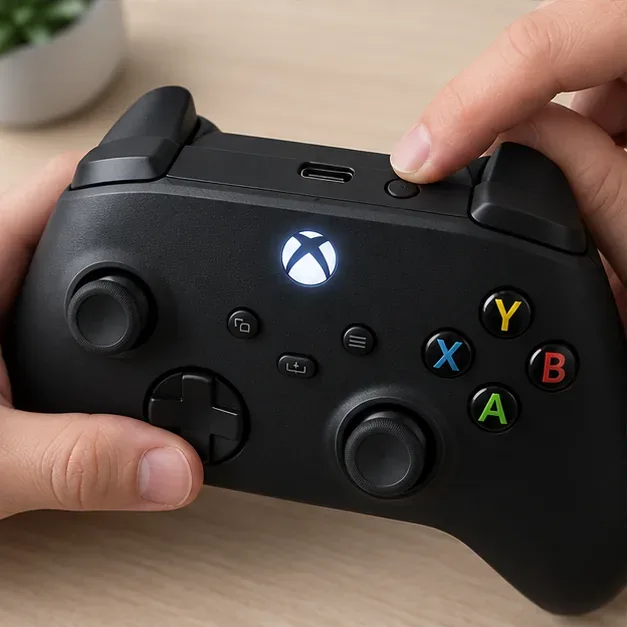
Hold the controller’s Pair button until the Xbox button begins flashing rapidly.
Windows 11 steps
Press the Xbox button to turn on the controller.
Press and hold the small Pair button near the USB port until the Xbox button flashes rapidly. This means the controller is discoverable.
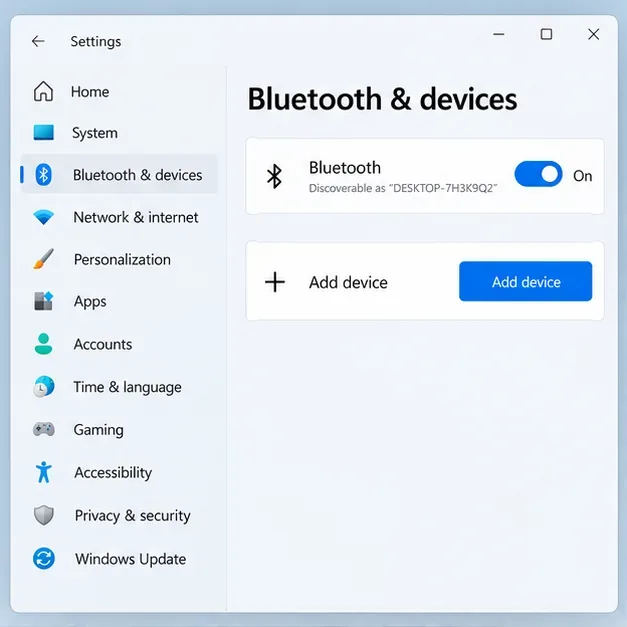
On the PC, open Start > Settings > Bluetooth & devices and turn Bluetooth on.
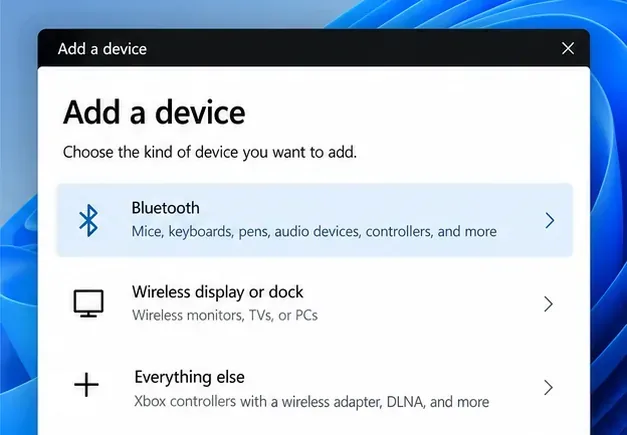
Open Devices, select Add device, choose Bluetooth, then select Xbox Wireless Controller when it appears. Follow any confirmation prompt.
Windows 11 may also show nearby devices from the Bluetooth control in Quick Settings. After the first pairing, the controller should reconnect when it is on and in range. If the controller does not appear, confirm it supports Bluetooth, then exit pairing mode and try again.
Turn Bluetooth on in Windows before adding the controller. The exact layout can vary by Windows update.Choose Bluetooth for a Bluetooth controller. The Everything else category is for devices such as an Xbox controller paired through a wireless adapter.
Windows 10 steps
On Windows 10, open Start > Settings > Devices > Bluetooth & other devices, choose Add Bluetooth or other device, select Bluetooth, and pick the controller from the list. Microsoft ended Windows 10 support on October 14, 2025, so the PC may still connect to a controller, but Windows 10 no longer receives standard free security updates.
Connect with an Xbox Wireless Adapter for Windows
The Xbox Wireless Adapter for Windows is a separate USB accessory. It uses Xbox Wireless rather than your PC’s Bluetooth connection, so it is a useful option when the controller or computer cannot use Bluetooth. A generic wireless USB dongle is not a substitute; the controller and adapter must use a compatible connection.
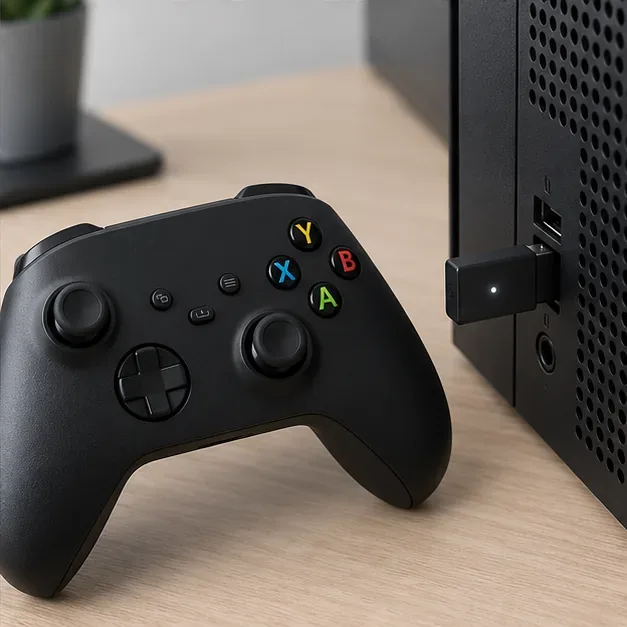
Connect the Xbox Wireless Adapter directly to a USB port on the PC.
Plug the Xbox Wireless Adapter into a USB port and let Windows set it up.
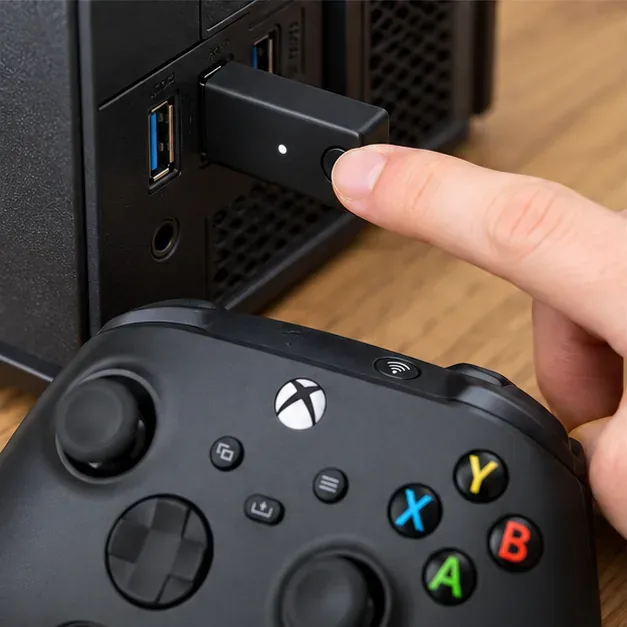
Press the adapter’s Pair button. The adapter’s indicator should show it is ready to connect.
Turn on the controller, then press and hold its Pair button until the Xbox button flashes. Keep the devices close while they connect.
When the Xbox button stays lit, open a game that supports controllers and check the controls.
Button locations vary by adapter and controller revision. If the devices do not pair, use the setup instructions for your specific adapter and controller model.
Pair the controller after putting the adapter into pairing mode.
Test the controller and update firmware if needed
Once connected, test the controller in a game that supports gamepads. If the game does not respond, check its input or controller settings; a game may need controller support enabled separately. Steam users can also review the game’s controller configuration in Steam Input.
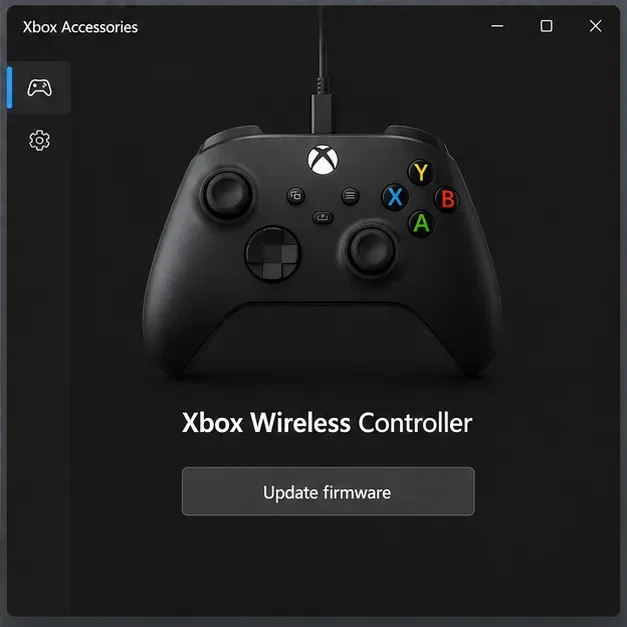
If buttons behave unexpectedly or you are troubleshooting compatibility, install or open the Xbox Accessories app from Microsoft Store. Follow Xbox Support’s instructions to connect the controller to a Windows 10 or Windows 11 PC and check for a firmware update. Use USB for the update when the app or support instructions request it.
The Xbox Accessories app is the official place to check for supported controller firmware updates.
Fix common Xbox controller connection problems
Problem
What to try
Controller is not detected over USB
Try a data-capable cable, another USB port, and a direct connection instead of a hub. Disconnect and reconnect the controller, then give Windows a moment to recognize it.
Controller does not appear in Bluetooth
Check that the controller model supports Bluetooth, turn Bluetooth on, and hold the Pair button until the Xbox button flashes quickly. Keep the controller near the PC.
It was paired before but will not reconnect
In Windows Bluetooth settings, remove the old controller entry, restart the controller, and pair it again. If Bluetooth itself is not working, use Microsoft’s Windows Bluetooth troubleshooter.
It connects, but a game ignores it
Confirm the game supports controllers, reconnect before launching the game, and review the game’s input settings. For a Steam game, check its Steam Input configuration.
Connection drops or feels unstable
Move closer to the PC or adapter, remove obstacles, and test another USB port for the adapter. If Bluetooth remains unreliable, try USB or a compatible Xbox Wireless Adapter.
Do not start by forcing a driver from Device Manager. First try Windows Update, a different port or cable, and the official Xbox Accessories app if a firmware update is relevant.
Frequently asked questions
Can I connect an Xbox controller to a PC without Bluetooth?
Yes. Use a USB data cable or a compatible Xbox Wireless Adapter for Windows. Bluetooth is only needed for the Bluetooth method.
Why does my Xbox controller connect by cable but not Bluetooth?
The controller may be an older model without Bluetooth, the PC’s Bluetooth may be off, or the controller may not be in pairing mode. Confirm the model’s supported connection methods in Xbox’s compatibility guide.
Does a wired Xbox controller charge its batteries?
A USB connection does not recharge standard AA batteries. Rechargeable battery packs and charging accessories have their own compatibility and charging requirements.