Fixing Packet Loss in VALORANT: 8 Practical Steps (2026)
To fix packet loss in VALORANT, start by turning on the incoming and outgoing packet-loss stats, then test a wired connection, pause network-heavy apps, and restart your modem and router. If the loss continues, compare available game servers, try VALORANT’s Network Buffering setting, and collect evidence for your internet service provider (ISP) or Riot Support. Change one thing at a time and check the same in-game graph after each test.
Packet loss means some data sent between your device and the game server fails to arrive in time. It can cause rubber-banding, delayed actions, erratic enemy movement, or a Network Problem indicator even when your frame rate looks fine. It is not the same as high ping: ping measures delay, while packet loss measures missing data. Riot recommends a connection with near-zero packet loss, rather than a universal percentage threshold that guarantees a particular gameplay outcome.
Before you begin: check that packet loss is the problem
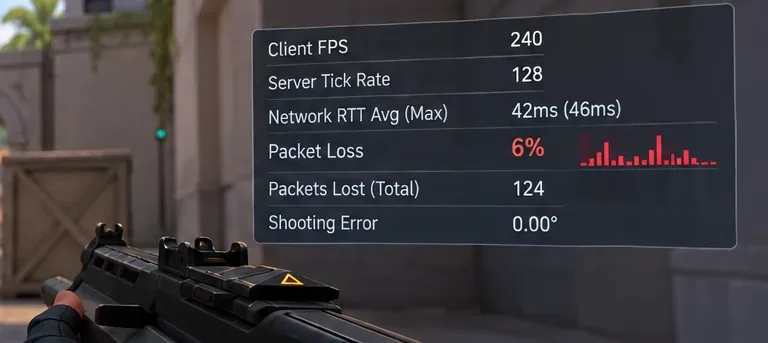
On PC, open Settings > Video > Stats in VALORANT and enable the available Packet Loss measurements or incoming/outgoing packet-loss graphs. Look at both directions over several minutes in the Practice Range or an unranked session, preferably while the symptoms happen. You can also keep Network RTT (ping) and Client FPS visible so you do not confuse network problems with frame-rate drops.
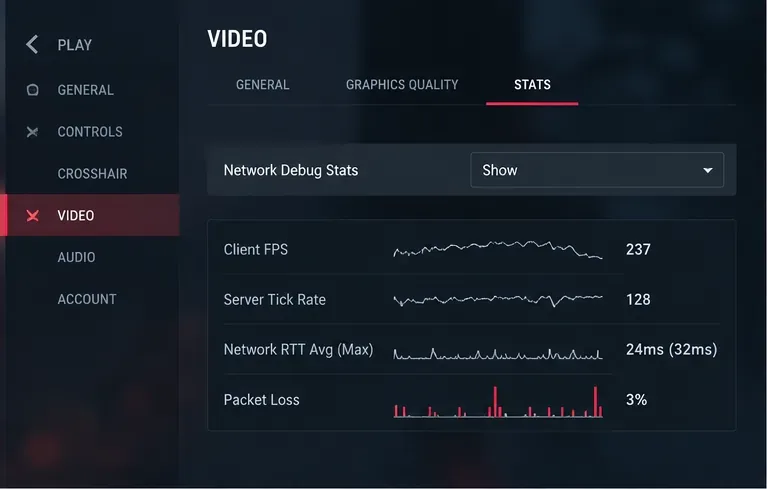
Short, isolated spikes are less useful than repeated or sustained loss. Note when the graph jumps, whether it affects incoming or outgoing traffic, and whether other people in the match report similar behavior. Riot’s own documentation explains that the Network Problem warning can reflect consistent packet loss or brief disconnects; see Riot’s game and network instability guide.
How to fix packet loss in VALORANT
1. Check Riot’s service status before changing your PC
Open Riot Games Service Status and select the VALORANT region relevant to your account. An incident affecting game servers or networking may be outside your home connection. If several teammates experience problems at the same time, check the status page and compare reports before reinstalling the game or changing router settings. A service notice is useful context, but the absence of a notice does not prove that every route to the servers is healthy.
2. Test a wired Ethernet connection
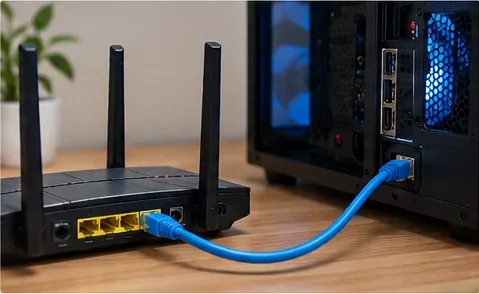
Ethernet is the most useful first local test for unstable Wi-Fi. Connect your gaming PC directly to a LAN port on your router, make sure Windows is using that wired adapter, and repeat your packet-loss test. Wi-Fi interference, crowded channels, walls, and weak signal can introduce delay and retransmissions. A wired link removes the wireless segment, but cannot repair an ISP outage or a bad upstream route.
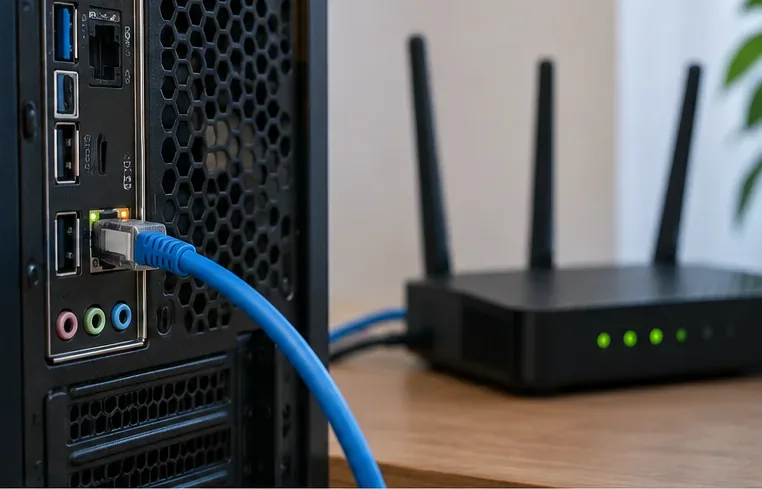
If loss improves only when wired, investigate router placement, Wi-Fi congestion, or the wireless adapter rather than changing VALORANT settings. If wired Ethernet also shows loss, inspect both cable ends and try another LAN port or known-good cable. Powerline adapters are not necessarily equivalent to direct Ethernet and may be inconsistent on noisy electrical wiring.
3. Pause downloads, streaming, and cloud syncing
VALORANT does not require enormous bandwidth, but a saturated home connection can create queues and drops. Pause game updates and large uploads, stop cloud backup or sync temporarily, and ask other household devices to avoid heavy streaming during the test. On Windows, open Task Manager and inspect the processes using network resources; Resource Monitor can provide a more detailed process view. Retest while the connection is quiet.
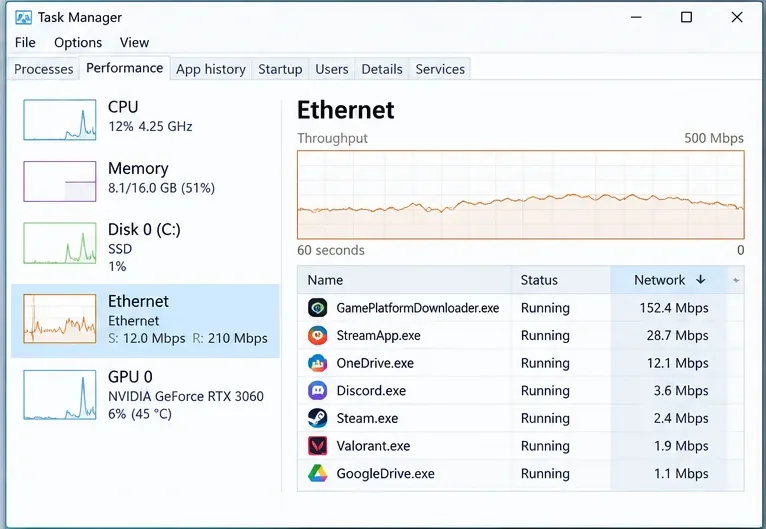
If the problem happens only when someone uploads a video or downloads a large file, the bottleneck is likely local congestion or queue management. Router Quality of Service (QoS) or Smart Queue Management may help on supported hardware, but the best setting depends on your router and real connection speed. Avoid blindly entering priority or bandwidth values from unrelated guides.
4. Restart your modem and router, then check the cabling
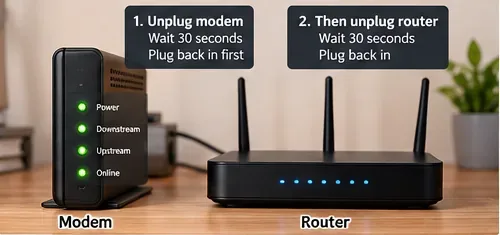
When convenient, unplug power from both devices for about 30 seconds. Restore power to the modem or fiber terminal first and wait for its internet connection to stabilize; then power on the separate router. If both functions are in one gateway, restart that one device according to the manufacturer’s instructions. Finally, restart VALORANT and repeat your test. Do this outside an active match to avoid an avoidable disconnect.
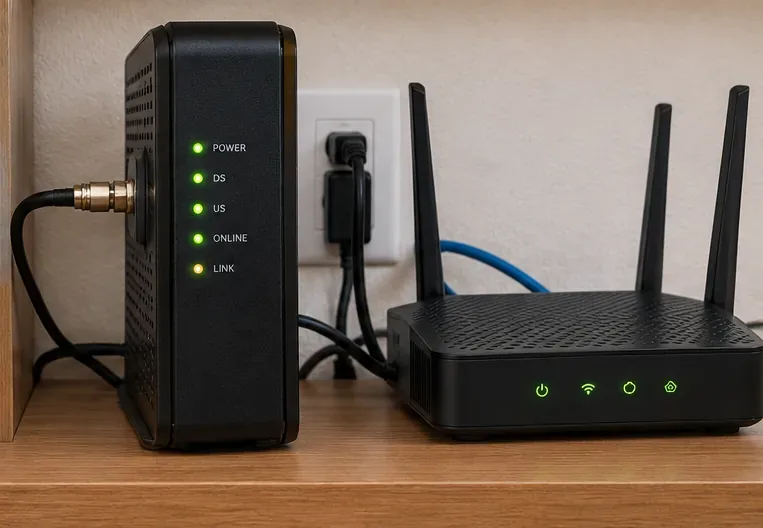
Check for loose Ethernet connectors, damaged cables, and poor connections to the modem. If the connection drops across multiple devices, an equipment fault or the ISP’s line may be more likely than a VALORANT-only setting.
5. Compare available VALORANT servers in the Play lobby
Before matchmaking, use the Server Select control in the Play lobby if it is available for your queue. Solo players and party leaders can select from the servers offered within their existing shard. Prefer a low, stable displayed ping, and compare packet-loss behavior across a couple of eligible servers. Low ping is helpful, but the lowest ping is not a guarantee of zero packet loss; internet routing to one data center can differ from another.
Do not try to change your account region in Settings > Account just to fix packet loss. Riot distinguishes selecting an available game server from transferring your account to a different shard. See Riot’s Server Select guide for the official distinction and availability.
6. Test the Network Buffering setting
VALORANT includes Network Buffering to help smooth inconsistent packet arrival. Find it in the game settings, record the current option, and try the next available buffering level during a noncompetitive test. Compare movement consistency and responsiveness, then revert if it feels worse. Buffering can mask some effects of jitter or intermittent loss, but it does not repair missing packets or an unstable ISP line. Additional buffering may also add input delay. Riot explains this tradeoff in Riot’s explanation of buffering and jitter.
7. Update Windows and your network adapter driver
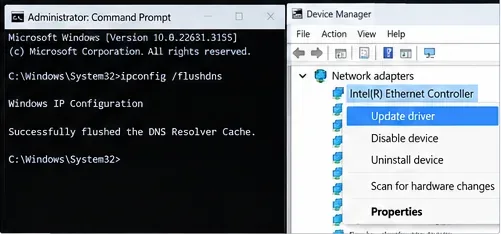
Run Windows Update and restart when prompted. For the Ethernet or Wi-Fi adapter, open Device Manager > Network adapters, identify the correct model, and check for a current driver through the PC or adapter manufacturer. Reboot if the installer requests it. Temporarily disable unnecessary VPNs or proxies while testing, since they change the route to the server; this recommendation also appears in Riot’s network troubleshooting guide.
Some older troubleshooting lists put ipconfig /flushdns at the top. Flushing DNS only clears cached name lookups; it is not a direct fix for ongoing UDP packet loss once a match is connected. It can be worth trying if you also have name-resolution or connection-startup problems, but it should not replace Ethernet and router diagnostics.
8. Test where packets are being lost and escalate with evidence
If the in-game graphs still show recurring loss over Ethernet, check whether the issue is confined to VALORANT or appears in other internet activities. In Windows Command Prompt, run ipconfig to find your default gateway. Then use ping -n 50 YOUR_GATEWAY_IP, substituting that local address. Loss or extreme variation to your own gateway suggests a local cabling, router, or adapter issue. If the gateway test looks healthy but VALORANT is affected, the fault may be farther along the route or game-specific.
Riot offers Riot’s Tracert instructions for collecting path information. Remember that a single timed-out intermediary hop does not prove actual end-to-end game packet loss, because some routers de-prioritize trace probes. Keep your in-game packet-loss graphs, timestamps, server selected, connection type, and comparisons from other devices. Provide them to your ISP if multiple services are affected. If VALORANT alone is affected, submit a Riot Support ticket and use the Riot Repair Tool guide to attach logs when requested.
Quick diagnosis: what each result suggests
| What you observe | Most useful next check |
|---|---|
| Loss on Wi-Fi, but not on Ethernet | Investigate signal quality, interference, and the wireless adapter. |
| Loss only while downloads or uploads are active | Pause background transfers and review router queue management. |
| Loss on several wired devices and unrelated services | Inspect modem/ISP line and report times and tests to your ISP. |
| Loss mostly on one available game server | Compare other eligible servers and share the result with Riot. |
| High ping but no packet loss | Investigate distance, routing, congestion, and jitter instead. |
| Low FPS with stable network metrics | Troubleshoot CPU, GPU, or game performance rather than the network. |
Frequently asked questions
Is 1% packet loss bad in VALORANT?
It depends on how often it occurs and whether it coincides with visible gameplay problems. Riot advises aiming for near-zero packet loss on a healthy connection and does not publish a single percentage that predicts the same outcome for every player and network. Repeated spikes during combat deserve investigation even if the average looks small.
Can changing DNS fix packet loss?
Usually not during an established match. DNS translates service names into addresses; it does not control whether ongoing gameplay packets traverse a congested or faulty route. Changing DNS may help separate name-resolution issues from broader connectivity trouble, but it should be treated as a secondary test, not a guaranteed packet-loss fix.
Can a VPN help with VALORANT packet loss?
Occasionally a different route might avoid an ISP peering problem, but a VPN can also add latency, jitter, or more packet loss. Follow Riot’s recommendation to test without VPN or proxy software first. Do not assume that paid VPNs are automatically better for VALORANT.
Why do I get packet loss when my ping is low?
Ping reports round-trip delay for packets that successfully return; it does not mean every gameplay update arrived. Loss and jitter can appear while average ping remains low. Watch the incoming and outgoing loss graphs alongside RTT and FPS rather than relying on the scoreboard alone.
For additional official checks, consult Riot’s PC connection checklist and Riot’s game and network instability guide. Work from the simplest reproducible test toward ISP or Riot escalation; changing several unrelated settings at once makes it harder to identify the actual cause.









