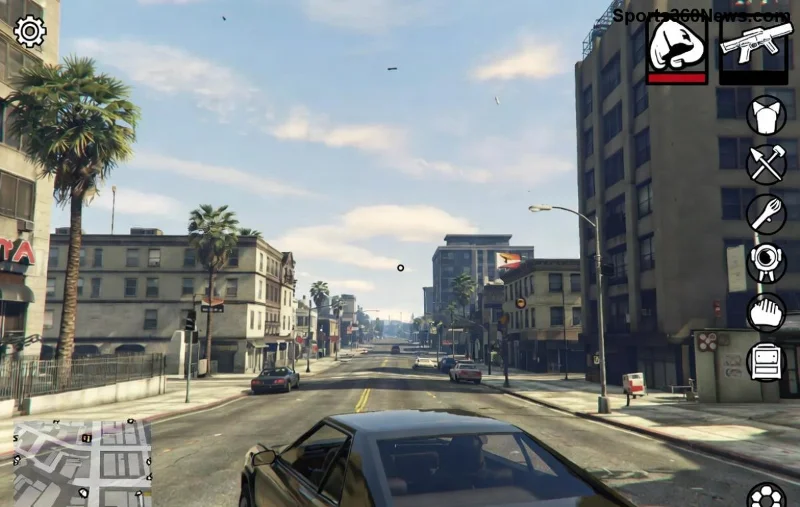
Nothing kills the vibe like trying to squad up in GTA Online only to hit that dreaded "Error Joining Session" message. 😩 You've geared up for heists, races, or just chaos in Los Santos, but your friends can't join—or worse, you're stuck solo. Don't rage quit yet! This guide delivers proven fixes to smash this issue fast, so you can get back to owning the streets together. We've tested these on the latest updates across PC, PS5, and Xbox. Let's dive in and turn frustration into epic wins! 🎮
🕵️♂️ Why Does "Error Joining Session" Happen in GTA Online?
Understanding the root causes empowers you to fix it quicker. Common triggers include:
- Network glitches: High ping, strict NAT types, or temporary server hiccups from Rockstar.
- Session mismatches: Friends in different sessions, regions, or platforms without cross-play enabled.
- Game file corruption: Outdated patches or damaged installs on PC/Steam.
- Platform-specific blocks: Console NAT restrictions or router firewalls.
- Overloaded servers: Peak hours when GTA Online is buzzing.
Spot on? Good—now arm yourself with solutions. Start simple and escalate. Your crew awaits! 👊
⚡ Quick Fixes: Resolve "GTA Online Error Joining Session" in Under 5 Minutes
These no-brainer steps fix 80% of cases. Follow in order for best results.
- 🔄 Restart Everything: Close GTA Online, launcher (Rockstar/Steam/Epic), and router. Wait 30 seconds, reboot PC/console, relaunch. Invite via Social Club or in-game menu.
- 📱 Check Invite Method: Use Rockstar Social Club invites over in-game. Go to Pause > Online > Friends > Invite to Session. Avoid quick joins during high traffic.
- 🌐 Verify Cross-Play: Ensure all friends have cross-play enabled (Settings > Online). PS5/Xbox/PC must match generations.
- ⏱️ Switch Sessions: Host creates Invite Only or Closed Friends session. Join from pause menu, not notification pop-up.
Still stuck? Level up to advanced troubleshooting. You've got this! 💪
![GTA Online friends joining session successfully]()
🔧 Advanced Troubleshooting: Deep Dives for Stubborn "Error Joining Session"
If basics fail, target network and files. These steps are game-changers.
1. Fix NAT Type Issues (Console Kings)
Strict NAT blocks joins. Aim for Open/Moderate.
| Platform | Steps |
|---|
| PS5/PS4 | Settings > Network > Test Connection. Enable UPnP in router or set DMZ. Open ports 6672, 61455-61458 UDP. |
| Xbox Series/S | Network Settings > Test NAT. Forward ports 3074 UDP/TCP. Teredo fix via command prompt: netsh interface teredo set state disabled. |
| PC | Router: Enable UPnP. Windows Firewall: Allow GTA5.exe. |
2. Verify & Repair Game Files (PC Priority)
- Steam: Right-click GTA V > Properties > Installed Files > Verify Integrity.
- Rockstar Launcher: Settings > GTA V > Verify.
- Epic: Library > GTA V > Three dots > Manage > Verify.
Patches download automatically—relaunch and test joins.
3. Network Optimization Tricks
- Wired over WiFi: Ethernet crushes lag.
- Flush DNS: Run CMD as admin:
ipconfig /flushdns.
- VPN Caution: Use only free trials like ExitLag for GTA (ExitLag)—avoid free VPNs causing more errors.
- Region Match: All friends same server region via launcher settings.
Pro Tip: Test with one friend first. Success? Scale to full squad. 🚀
![GTA Online squad dominating after fixing error]()
🛡️ Prevent Future "GTA Online Error Joining Session" Nightmares
Stay ahead:
- Update GTA V/Online weekly via launcher.
- Schedule sessions in off-peak hours (early mornings).
- Use voice chat apps like Discord for coordination.
- Monitor Rockstar Support for outages.
- Backup Social Club friends list.
🎉 Victory Lap: You're Back in Action!
Congrats, heist master! These fixes have saved countless sessions. If errors persist, submit a ticket at Rockstar Support with error code/screenshot. Drop your success story in comments—share the wins! Now, queue up that Cayo Perico heist with the crew. Los Santos calls. 👑✨
Ready for more GTA domination? Bookmark this and level up your game!