Home
» 🎮 Esports
»
Minecraft Account Already Linked Error: Safe Fixes for PC and Console
Minecraft Account Already Linked Error: Safe Fixes for PC and Console
Minecraft Account Already Linked Error: Safe Fixes for PC and Console
The Minecraft account already linked error usually means the platform profile is already associated with a Microsoft account, or Minecraft is signing in with a different Microsoft account than the one you intended. Start by identifying the platform and the account you used before. Then refresh the sign-in or use the platform’s official unlink option where one exists. Do not delete game files or try an old Mojang migration page as a first fix.
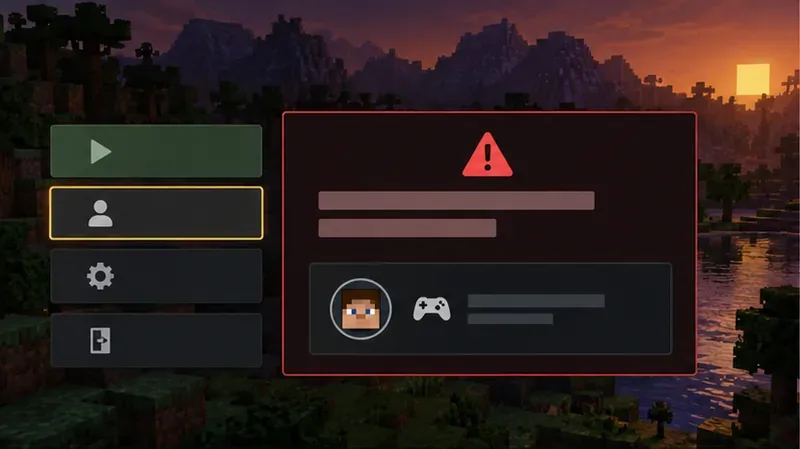
Illustration: note the platform profile and the exact error before changing account links.
The steps differ by platform. PlayStation has a documented in-game unlink control; Nintendo Switch uses Minecraft’s Account settings and a device sign-in code; PC and Xbox primarily need the correct Microsoft/Xbox profile. The interface illustrations below explain the documented paths; screen labels may vary by version.
Before you change a link
Write down the device and edition: Java Edition, Bedrock on Windows, Xbox, PlayStation, Switch, or mobile.
Copy the error wording exactly and note which player profile or gamertag is active.
Do not share your password, verification code, or one-time device-link code in a public post or support screenshot.
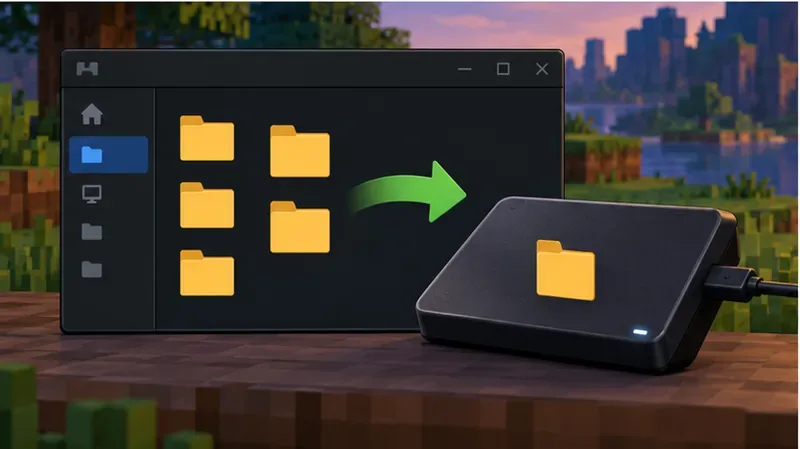
Back up local worlds before reinstalling Minecraft or resetting app data. A sign-out is different from deleting a save, but storage and backup options vary by device.
Choose the Microsoft account you have already used with this platform or that owns your game.
How to fix the Minecraft “Account Already Linked” error
Step 1: Confirm which account the error refers to
Check the active console profile, PlayStation Network account, Nintendo profile, or Xbox gamertag, then compare it with the Microsoft account you expect to use. A family may have several Microsoft accounts with similar email addresses, and the person who bought the game may not be the same person currently signed in.
Step 2: Refresh the Minecraft sign-in on PC or Xbox
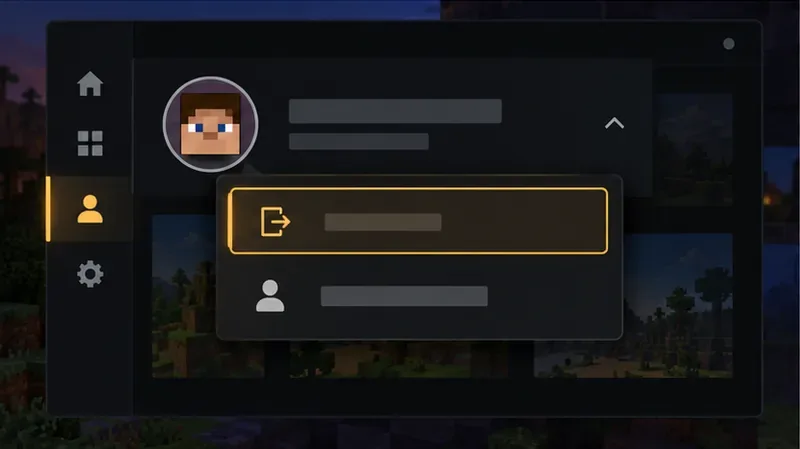
On the Minecraft Launcher, open the profile menu, choose Log out, then select Microsoft Login and sign in with the account you just confirmed. If the wrong account appears automatically, choose the option to use a different account. Do not remove files from the .minecraft folder to change an account association.
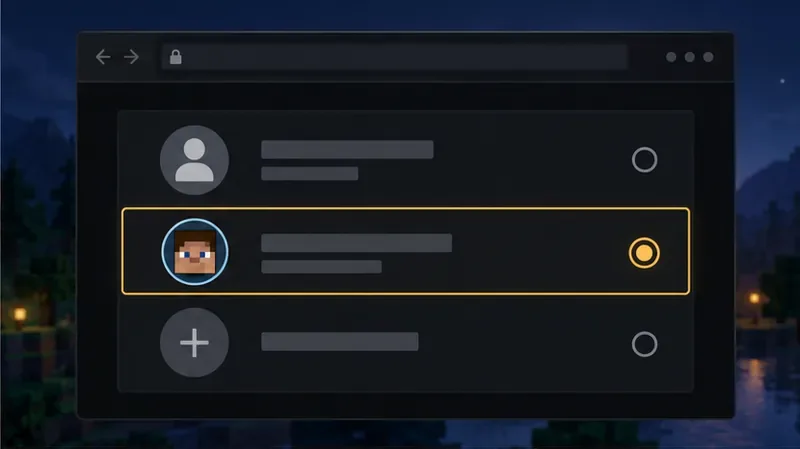
On PC, signing out and choosing the intended Microsoft account can clear a stale launcher session.
On Xbox, close Minecraft first. Open the Xbox guide, go to Profile & system, select the signed-in profile, and sign out. Sign back into the Xbox profile that owns the game or subscription, then reopen Minecraft. Minecraft’s official sign-in reset instructions cover the Launcher and Xbox flow.
Step 3: Unlink and relink on PlayStation only when needed
If the error appears on PlayStation after choosing a different Microsoft account, use the in-game control rather than looking for a universal web unlink page:
Start Minecraft on PlayStation and open Settings.
Choose the Account tab.
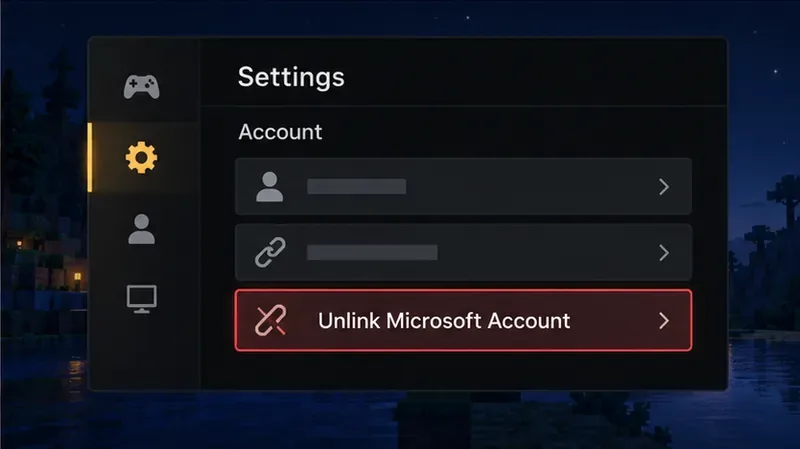
Select Unlink Microsoft account, review the confirmation, and confirm only if you want to remove that connection.
Return to the title screen and sign in with the Microsoft account you intend to use.
PlayStation has an in-game unlink option; review what access changes before confirming.
Unlinking can remove access to cross-platform play, Realms, and Marketplace content from other platforms until you sign in again. Purchases and unspent Tokens made on PlayStation remain on the PlayStation account. Read Minecraft’s current PlayStation unlink instructions before confirming. The PlayStation account-linking guide explains the sign-in and code flow.
Step 4: Sign out and reconnect on Nintendo Switch
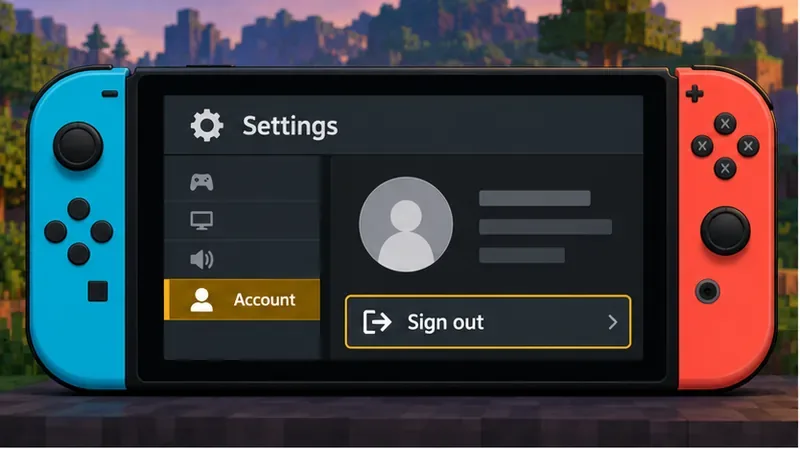
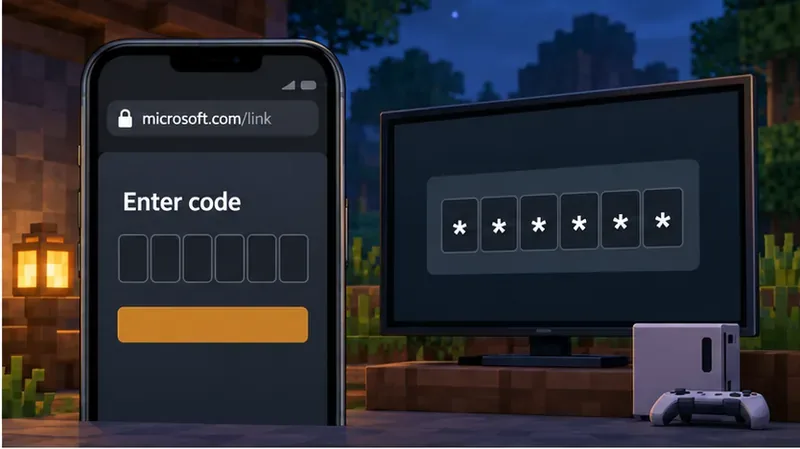
On Switch, start Minecraft with the Nintendo profile you mean to use. Open Settings > Account and select Sign out of your Microsoft account. Close and reopen Minecraft, start the Microsoft sign-in flow, and use the account you verified in Step 1. When the game displays a code, enter it only on the Microsoft link page shown by Minecraft or at microsoft.com/link.
On Switch, sign out from Minecraft’s Account tab before starting a new sign-in.Enter the code shown by your game only on Microsoft’s official link page.
Step 5: Protect local worlds before reinstalling or resetting
Reinstalling the game, clearing application data, or resetting a device is not an account-unlink method and may affect locally stored data. Back up worlds using the platform’s supported save or export options before trying those actions. Avoid deleting .minecraft, launcher profile files, or saved-data folders as a generic account fix.
Back up local worlds before reinstalling Minecraft or resetting app data.
Step 6: Escalate a genuine account-link conflict
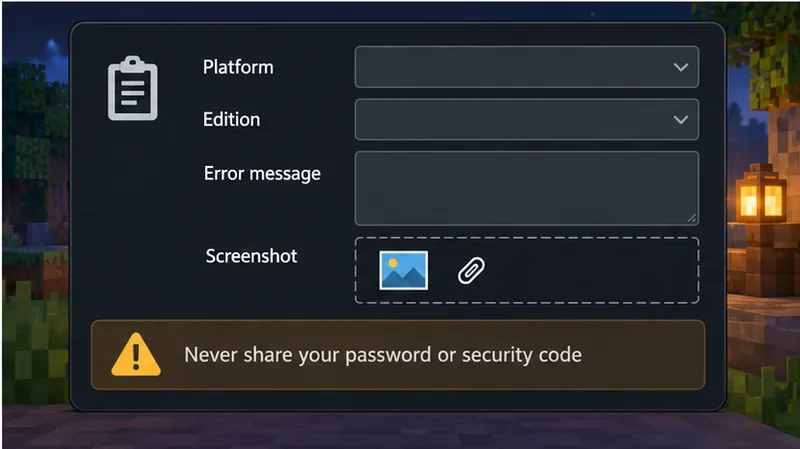
If the correct account is confirmed and the platform’s supported sign-out or unlink flow still returns the same error, contact Minecraft Support through the official Minecraft Help Center. Include the device and edition, the exact error text, the gamertag or platform profile name, and a screenshot with security codes hidden. Use the email address associated with the account only in the official support form; never send a password or active verification code. Do not rely on a promised response time.
Give support the exact platform and message; keep passwords and active security codes private.
Important: Mojang account migration is over
If this is a Java Edition login problem on PC, use the Microsoft account that received the game during the migration. Mojang-to-Microsoft migration ended on December 18, 2023; Minecraft says the migration period is closed and support no longer handles migration-related requests. A migration page cannot transfer an unmigrated Mojang account now. Local Java worlds may still be stored on the computer, but the account needs a valid Java Edition entitlement to play them. See Minecraft’s current Mojang and Microsoft migration information.
Frequently asked questions
Can I use a different Microsoft account on PlayStation?
Minecraft’s current PlayStation instructions provide an in-game unlink flow. Review the effects first, then sign in with the Microsoft account you want to use. The PlayStation profile and Microsoft account are separate identities, so switching one does not merge purchases or progress between accounts.
Will unlinking delete my Minecraft worlds?
Unlinking is an account action, not a world-delete command. However, local-save behavior depends on the platform. Back up worlds before reinstalling the game, resetting storage, or removing app data.
Can I still migrate an old Mojang account?
No. The migration deadline passed on December 18, 2023. Use the Microsoft account that completed migration, or contact Minecraft Support for a separate current account or purchase issue; the support team does not reopen the retired migration process.
Quick checklist
Confirm the platform profile and Microsoft account you actually need.
Refresh the Launcher or Xbox sign-in before changing account links.
Use PlayStation’s in-game unlink control only if you intend to change that connection.
On Switch, sign out in Minecraft’s Account settings and reconnect with the intended account.
Back up local worlds before resetting or reinstalling.
Use official Minecraft or Microsoft support for unresolved account ownership or sign-in problems.