Home
» 🎮 Esports
»
Factory Reset Xbox One With a USB Drive: The Safe, Correct Steps
Factory Reset Xbox One With a USB Drive: The Safe, Correct Steps
Quick answer: A USB drive does not directly perform an Xbox One factory reset. It is used for Microsoft’s Offline System Update (OSU1), which can repair or update system software when the console cannot update normally. To erase the console, use the reset option in Settings or the Xbox Startup Troubleshooter. If your Xbox still starts, you can reset it without a USB drive.
For the Offline System Update, Xbox Support specifies an NTFS-formatted USB flash drive with at least 4 GB of space.
What a USB factory reset can—and cannot—do
People often search for a factory reset Xbox One using USB because their console is stuck during startup or an update. The accurate process has two separate jobs:
Offline System Update: installs system software from a USB flash drive. Use this when an online update fails or the console cannot start normally.
Factory reset: removes the console’s accounts, settings, and, if you select Reset and remove everything, installed games and apps. Start it from Settings or the Startup Troubleshooter.
An update is not a backup and does not promise a performance boost. A reset can help with software problems, but it cannot repair a failing hard drive or other hardware fault. If your Xbox boots and you are troubleshooting, try Reset and keep my games & apps first; choose a full erase only when needed or when preparing the console for someone else.
Protect your saves before resetting
Your USB update drive will not copy Xbox game saves. When the console is connected to the Xbox network, saved games are stored in the cloud automatically. Before a reset, reconnect the console to the internet and let your games sync if you can. Afterward, sign in with the same Microsoft account and give the console time to download its cloud saves. Any progress that existed only on the console because it was offline may be lost if you erase it before it syncs.
Games and apps can generally be downloaded again from your library. If you use an Xbox-formatted external game drive, keep it separate from the small OSU1 flash drive and disconnect it before resetting. For game and app storage, Xbox lists different requirements—USB 3.0 and at least 128 GB—so those specifications should not be confused with the 4 GB minimum for an update flash drive.
Prepare the Xbox One USB update drive
1. Format a compatible flash drive as NTFS
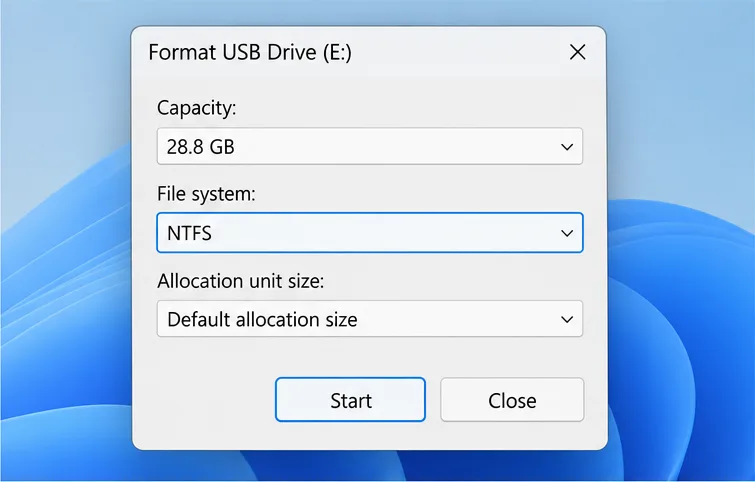
Use a USB flash drive with at least 4 GB of space. Formatting erases everything already on it, so copy any personal files elsewhere first. On a Windows PC, open File Explorer, right-click the USB drive, choose Format, select NTFS, and start formatting. Do not use this drive as your only copy of important files.
2. Download and extract the official OSU1 file
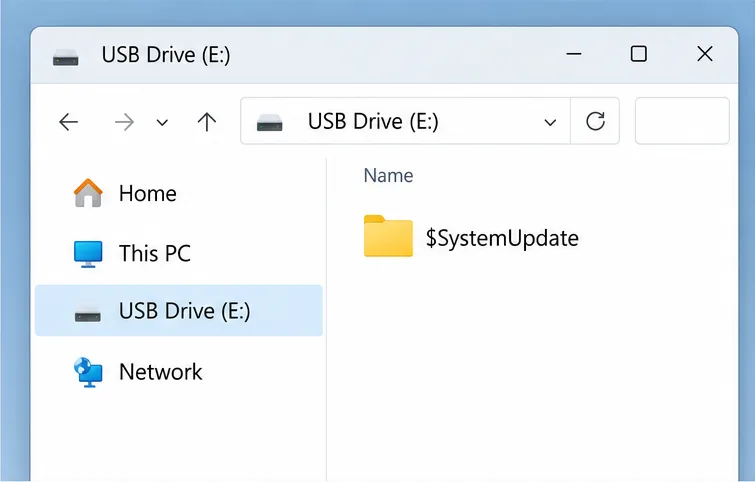
Download the Offline System Update package from Xbox Support’s Offline System Update page. Extract the downloaded ZIP file on your PC. Copy the extracted $SystemUpdate folder directly to the root of the USB drive—not inside another folder. When you open the drive, you should see $SystemUpdate at the top level.
Place the extracted $SystemUpdate folder at the USB drive’s top level.
Run an Offline System Update if the console needs repair
Skip this section if your Xbox starts normally and you only want to reset it. If it is stuck on a startup or update error, use the USB drive for the offline update before trying the reset again.
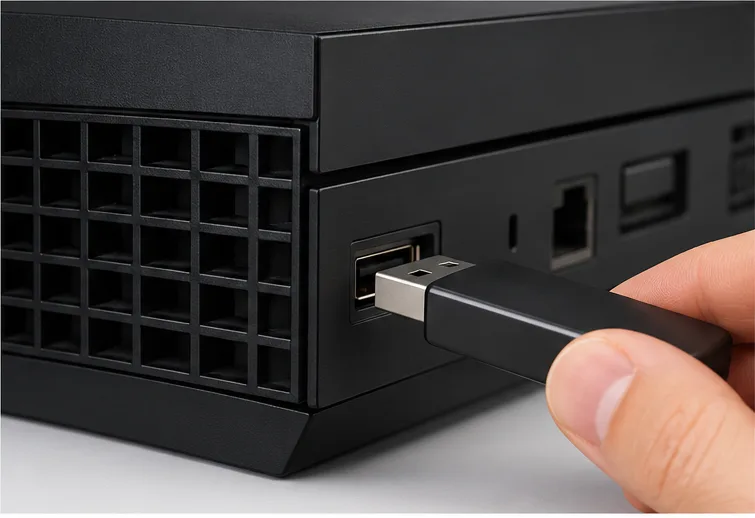
With the console off, insert the prepared USB flash drive into a USB port on the Xbox One.
Power the console off completely. Unplug it for about 30 seconds, then reconnect power.
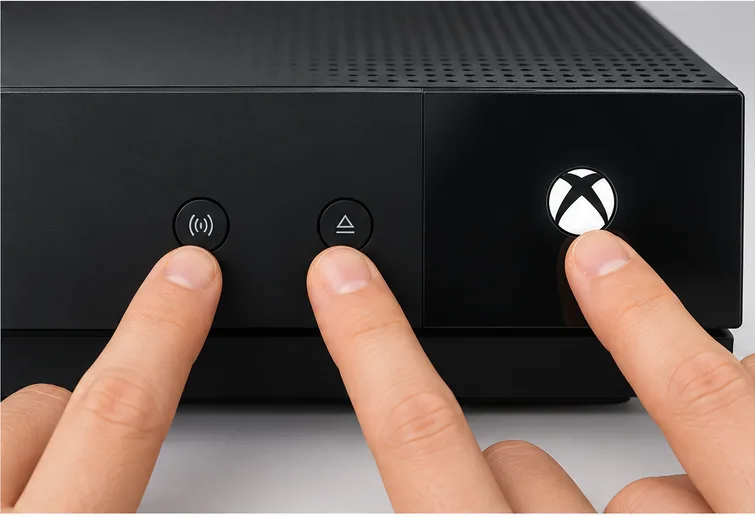
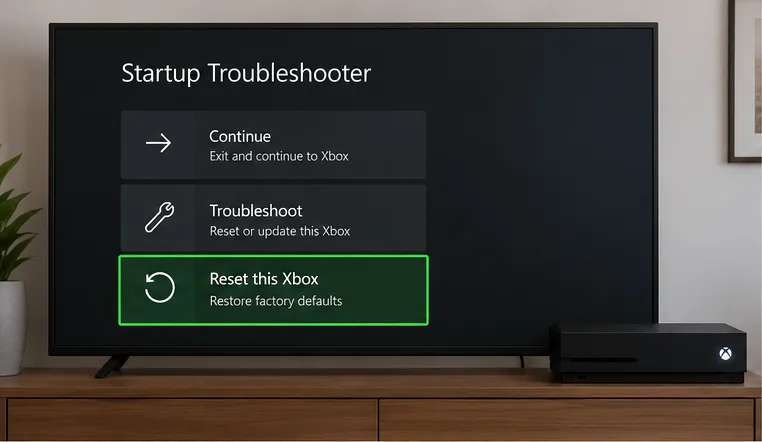
Open the Startup Troubleshooter. On Xbox One models with an Eject button, hold Pair and Eject, then press the console’s Xbox power button. Keep holding the two buttons until the second startup tone, then release. On Xbox One S All-Digital Edition, which has no Eject button, hold Pair while pressing the Xbox power button. Keep holding Pair until the second startup tone, then release. Follow Xbox Support’s model-specific guidance if the menu does not appear.
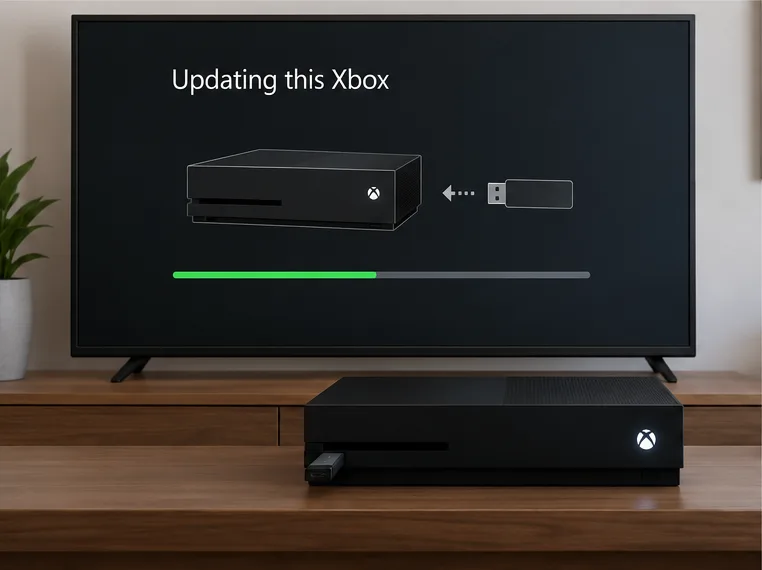
In the recovery menu, choose Offline System Update and let the process finish. Do not unplug the flash drive or power cable while the update is running. The console will restart when it is done.
Insert the update flash drive into a console USB port before opening the Startup Troubleshooter.Most Xbox One models with a disc drive use Pair and Eject to open the Startup Troubleshooter.A simplified view of the recovery menu; options and their order can vary by model or system version.Leave the console connected to power while the offline update completes.
If the USB drive is not detected, check that it is NTFS-formatted and that $SystemUpdate is at its root. Use the official Xbox startup-error troubleshooting guide if the recovery menu or update continues to fail.
Factory reset the Xbox One
If the console boots to the dashboard
Press the Xbox button and open Profile & system > Settings > System > Console info.
Select Reset console.
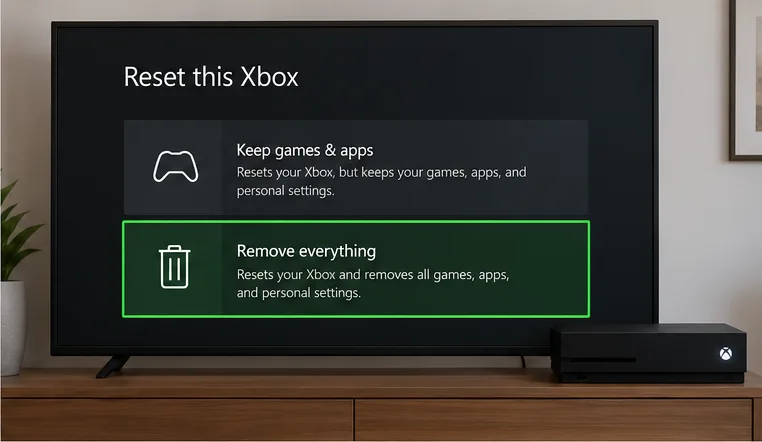
Choose Reset and keep my games & apps for a less destructive reset, or Reset and remove everything for a full factory reset. Read the selection carefully; the full reset removes local accounts, settings, games, and apps.
If the console will not boot
Open the Startup Troubleshooter using the button sequence for your Xbox One model, then select Reset this Xbox. Choose Remove everything for a full wipe. The USB drive is not required for this reset step; it is only needed if you are also running the Offline System Update.
Choose Remove everything only when you intend to erase the console’s local content and settings.
These menu names are based on Xbox’s published factory-default reset instructions. The console may restart more than once. Keep it plugged in and do not interrupt the reset.
Set up the console and restore access
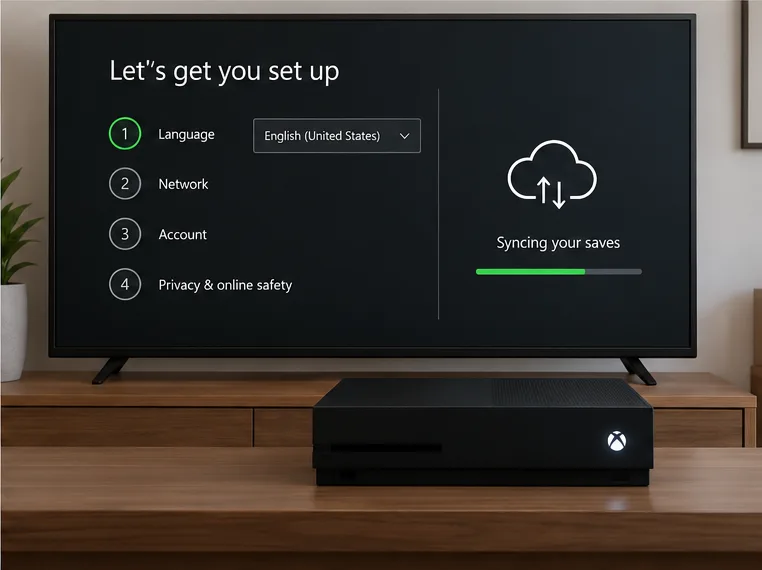
Complete the first-run setup, connect to the internet, and sign in with the Microsoft account that owns your games and synced saves.
Allow cloud saves to synchronize before launching a game. If a game asks which save to use, avoid choosing a newer local save unless you are sure it contains the latest progress.
Reinstall digital games and apps from your library, or reconnect your separate Xbox-formatted game drive. Disc games still require the disc to play.
Install any available system updates, then test the console before adding accessories or changing multiple settings.
Reconnect to the network and sign in with the same account so cloud saves can sync.
Common questions
Does factory resetting an Xbox One from USB erase everything?
The USB Offline System Update and the factory reset are separate actions. The update installs system software; selecting Reset and remove everything or Remove everything performs the full erase.
Can I use exFAT or a 256 GB game drive for OSU1?
Xbox Support specifies NTFS for the update flash drive. You do not need a 256 GB drive for OSU1; use the official minimum and keep update media separate from game storage. Xbox’s requirements for an external drive used to store games and apps are different.
Will a reset make the console faster?
It may resolve a software issue, but there is no guaranteed speed increase. If the same crashes, slowdowns, or startup errors return after the reset and update, consult Xbox troubleshooting or service support rather than repeatedly erasing the console.