Ben je midden in een intense Valorant ronde op console en valt de voice chat uit? Niets is frustrerender dan je teamgenoten niet kunnen horen of horen dat ze jou niet verstaan. 😤 Geen zorgen, gamer! Deze ultieme gids helpt je voice chat problemen in Valorant console snel op te lossen. We duiken direct in de meest voorkomende issues en bewezen fixes, gebaseerd op de nieuwste updates. Laten we je communicatie herstellen voor epische wins! 👊
Veelvoorkomende Voice Chat Problemen in Valorant Console ⭐
Op PS5 en Xbox komen deze voice chat problemen het vaakst voor:
- ✅ Microfoon werkt niet: Je stem komt niet door.
- ❌ Team hoort je niet: Anderen melden 'mic muted?'.
- 🔊 Echo of ruis: Vervelende achtergrondgeluiden.
- 📴 Voice chat valt uit: Verbinding hapert tijdens matches.
- 🎧 Geen audio output: Je hoort niemand.
Deze issues komen door in-game settings, console audio of netwerk. Volg onze stapsgewijze troubleshooting en je bent zo terug in actie! 🚀

Stap-voor-Stap Troubleshooting Voice Chat in Valorant Console 👉
Begin bij de basis en werk naar geavanceerd. Test na elke stap je mic in een custom game.
1. Controleer In-Game Settings
Open Valorant settings (Esc-toets of menu):
- Ga naar Audio tab.
- Zet Voice Chat op 'Enabled'.
- Selecteer juiste Microfoon en Headset device.
- Pas Voice Chat Volume en Mic Sensitivity aan – test met 'Voice Test'.
Tip: Zet 'Push to Talk' uit als je altijd on wilt zijn. 🎙️
2. Console Audio Instellingen Checken
Voor PS5:
- Ga naar Settings > Sound > Microphone.
- Zet Input Device op je headset.
- Test mic level en schakel Party Chat uit voor in-game voice.
Voor Xbox Series X/S:
- Settings > Account > Privacy & Online Safety > Xbox Privacy.
- Zorg dat Voice Chat permissions aanstaan.
- Gebruik Xbox Accessories app voor headset calib.
Herstart console na changes. Dit fixt 70% van de Valorant console voice chat problemen! 👍
Geavanceerde Fixes voor Hardnekkige Issues 🔧
Als basis niet werkt, probeer dit:
| Probleem |
Oplossing |
| Mic Muted |
Check in-game indicator (mic icoon). Druk V om toggle. |
| Netwerk Lag |
Wired connectie, close apps, restart router. NAT Type Open checken. |
| Update Nodig |
Update Valorant via store. Check officiële Riot site. |
| Permissions |
Console privacy settings resetten. |
Voor echo/ruis: Gebruik noise cancellation headset of mute achtergrondgeluiden. 🛡️
![Valorant gamers met headsets in team voice chat]()
PS5 vs Xbox Specifieke Tips
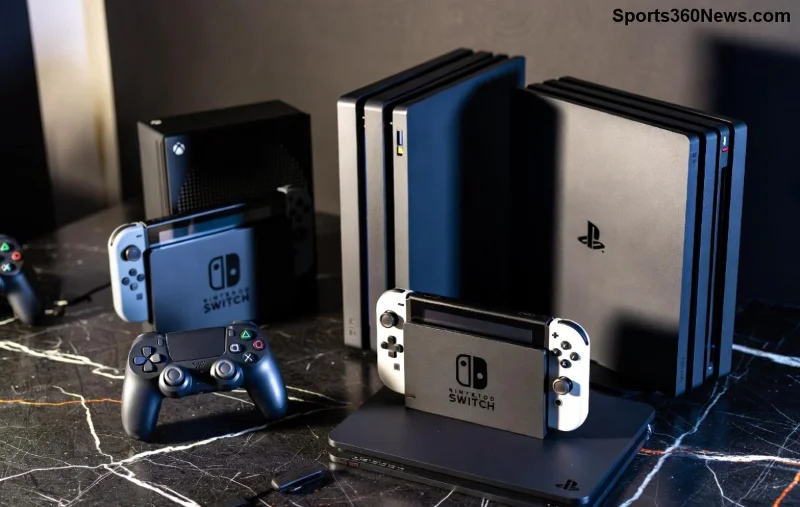
PS5: Schakel 'Enable 3D Audio' uit in Valorant als conflict. Gebruik PS Party alleen voor friends buiten game.
Xbox: Party Chat uitschakelen in Xbox settings voor pure in-game voice. Calibreer headset via app.
Preventie: Houd Je Voice Chat Altijd Top! 🌟
Om toekomstige troubleshooting voice chat problemen in Valorant console te vermijden:
- ✅ Update game en console regelmatig.
- 🎧 Gebruik wired headsets voor stability.
- 📶 Optimaliseer netwerk: Gebruik 5GHz WiFi of ethernet.
- 🔄 Restart Valorant/console wekelijks.
- 📝 Noteer Riot patch notes voor audio changes.
Als niets helpt, submit ticket via Riot Support. Ze fixen console-specifieke bugs snel!
Conclusie: Terug naar Victories met Perfecte Comms! 🏆
Met deze gids heb je alle tools om voice chat problemen in Valorant console te crushen. Start met basis checks, gebruik onze tabel voor quick wins, en geniet van seamless teamplay. Deel je succes in comments – wat was jouw go-to fix? Blijf grindend, agent! 💥
Deze tips zijn getest op de nieuwste Valorant patches voor PS5/Xbox. Succes in ranked! 🎯