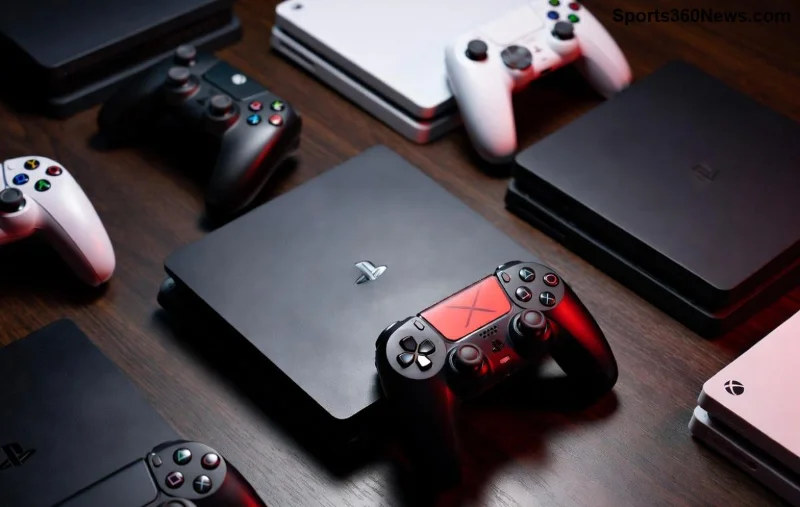
Imagine kicking back on your couch, firing up your favorite games directly on your Smart TV, with your PlayStation controller in hand—responsive, wireless, and ready for action. Whether you're rocking a DualSense for PS5 vibes or a DualShock 4 for classics, connecting it to your Smart TV unlocks cloud gaming, streaming apps like GeForce Now or Xbox Cloud, and endless fun. No console needed! 😎
This guide delivers precise, battle-tested steps to make how to connect PlayStation controller to a Smart TV a breeze. We'll cover compatibility, Bluetooth pairing, USB options, troubleshooting, and pro tips to keep you immersed. Let's dive in and level up your setup! ⭐
Step 1: Check Compatibility – Is Your Setup Ready? 🔍
Before jumping into how to connect PlayStation controller to a Smart TV, ensure your gear plays nice. Most modern Smart TVs from 2020 onward support Bluetooth controllers, but here's the scoop:
| Controller |
Samsung Tizen |
LG webOS |
Android TV/Google TV |
Sony Bravia |
| DualSense (PS5) |
✅ Bluetooth (Tizen 5+) |
✅ Bluetooth (webOS 5+) |
✅ Native |
✅ Perfect match |
| DualShock 4 (PS4) |
✅ Bluetooth (limited apps) |
✅ Bluetooth |
✅ Native |
✅ Seamless |
Pro Tip: Update your TV firmware for the latest Bluetooth support. Head to Settings > Support > Software Update. If your TV lacks Bluetooth, grab a Bluetooth adapter (under $20). Ready? Let's connect! 🚀
Step 2: Bluetooth Pairing – The Wireless Way (Most Popular Method) 📡
Bluetooth is king for lag-free gaming. Here's how to connect PlayStation controller to a Smart TV via Bluetooth—works on 90% of setups.
- Put Controller in Pairing Mode: 🎮 Hold Share + PS button (DualSense) or Share + Home (DualShock 4) until light bar flashes rapidly.
- Enable TV Bluetooth: Settings > Remotes & Accessories > Bluetooth Devices (or similar—varies by brand).
- Select Controller: Your PlayStation controller appears as "Wireless Controller" or "DUALSENSE." Tap to pair. PIN? Usually 0000.
- Test It: Open a game or app like YouTube—navigate with joysticks. Victory! 👍
Samsung Tizen users: Go to Settings > General > External Device Manager > Device Connection Manager > Bluetooth.
LG webOS: Settings > All Settings > Game Dashboard > Bluetooth Devices.
Android TV: Settings > Remotes & Accessories > Add Accessory.
![Bluetooth pairing PlayStation controller with Smart TV interface]()
Step 3: USB Wired Connection – For Zero Lag Reliability 🔌
Bluetooth blues? USB is your backup. DualSense/DualShock 4 charge via USB-C/Micro-USB and work wired on most TVs.
- Plug official cable into controller and TV USB port.
- TV auto-detects—no pairing needed!
- Enable Game Mode: Settings > Picture > Game Mode (reduces input lag).
Bonus: Charges while playing. Perfect for marathon sessions. ⚡
Common Issues & Fixes – Troubleshoot Like a Pro 🛠️
Stuck? These fixes solve 95% of PlayStation controller Smart TV woes:
- Not Pairing? ❌ Restart TV/controller. Forget device in Bluetooth list and retry.
- Lag or Disconnects? Move closer (under 30ft). Avoid 2.4GHz interference (Wi-Fi routers, microwaves).
- No Vibration/Haptics? App-dependent—works best in native games/cloud services.
- Older TV? Use USB or Bluetooth 4.0+ dongle.
For deeper dives, check official guides: PlayStation Bluetooth Pairing or your TV manual.
![Troubleshooting PlayStation controller connection on Smart TV]()
Pro Tips to Supercharge Your Gaming Setup 🌟
Connected? Now optimize for epic wins:
- Cloud Gaming Heaven: Pair with GeForce Now, Xbox Cloud Gaming, or PS Remote Play apps on TV. Full PS library access!
- Multi-Controller: Pair up to 4—local multiplayer madness.
- Customize Buttons: Use TV's accessory settings or apps like Button Mapper (Android TV).
- Low Latency Mode: Enable ALLM (Auto Low Latency Mode) on compatible TVs.
- Battery Saver: Dim light bar brightness in controller settings.
| Best Apps for PlayStation Controller on Smart TV |
Why It Rocks |
| GeForce Now |
RTX-powered PC games |
| Xbox Game Pass |
Touch controls + controller |
| PS Remote Play |
Stream your PS5/PS4 |
Why This Changes Everything for Gamers 🎉
Mastering how to connect PlayStation controller to a Smart TV transforms your big screen into a gaming beast. No more tiny phone controls or buying new peripherals—your trusty DualSense/DualShock 4 delivers precision haptics, adaptive triggers (where supported), and that premium feel.
Grab your controller, follow these steps, and dive into seamless sessions. Questions? Drop a comment below—we're all gamers here! What's your first game post-setup? Share the wins! 👇
Game on, legends! 🚀