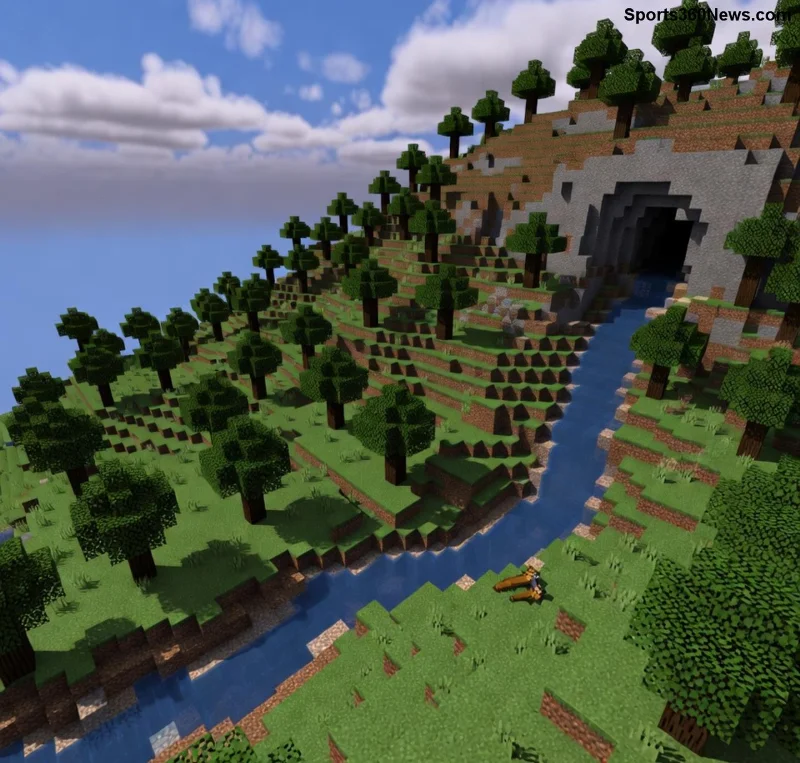
🚀 Imagine diving into your favorite Minecraft world, only for graphics glitches to shatter the fun—missing textures, flickering blocks, or crashes screaming "The driver does not appear to support OpenGL." This notorious Minecraft OpenGL error hits players on outdated hardware or drivers, but don't rage-quit yet! We've got your back with proven, up-to-date fixes for 2026, ensuring OpenGL support returns and your blocks render perfectly. Stick around—these steps will have you mining diamonds glitch-free in no time.
What is the 'Driver Does Not Appear to Support OpenGL' Minecraft Error?
The Minecraft OpenGL error occurs because Minecraft relies on OpenGL—an API for rendering 3D graphics—to draw your cubic universe. When your GPU driver lacks proper OpenGL support (typically needing version 2.1+, but 3.3+ for modern features), the game throws this error. Result? Graphics glitches like black screens, corrupted chunks, or outright crashes.
✅ Common in Minecraft Java Edition 1.20+ (including 1.21 Tricky Trials update), especially on integrated Intel GPUs or older laptops. No worries—it's fixable without buying new hardware!
Top Causes of OpenGL Support Issues in Minecraft
- Outdated GPU Drivers: Most frequent culprit. NVIDIA, AMD, or Intel drivers from 2023 or earlier often lack full OpenGL support for recent Minecraft patches.
- Incompatible Java Version: Minecraft uses LWJGL (Lightweight Java Game Library) bundled with OpenGL. Mismatched Java can trigger errors.
- Hardware Limitations: Very old GPUs (pre-2010) may not support required OpenGL levels.
- Mod Conflicts or Launchers: Third-party launchers like TLauncher or heavy modpacks overload weak OpenGL support.
- Windows Updates or Corrupted Installs: Recent Windows 11 tweaks can interfere.
Ready to banish those graphics glitches? Let's jump into fixes, starting with the easiest. Follow sequentially for best results.
Step-by-Step Fixes for 'Driver Does Not Support OpenGL' Error
1️⃣ Update Your GPU Drivers – The #1 Fix!
First, refresh your graphics drivers. This resolves 80% of Minecraft OpenGL errors.
- Identify your GPU: Right-click Desktop > Display Settings > Advanced > Adapter.
- Download and install the latest driver (clean install recommended).
- Restart PC, launch Minecraft, and test.
Pro Tip: Use DDU (Display Driver Uninstaller) for stubborn cases—grab it from Guru3D.
2️⃣ Switch to the Right Java Version
Minecraft 1.17+ bundles Java 17/21, but mismatches cause OpenGL support fails.
- Open official Minecraft Launcher.
- Installations > New > Select Java 21 (for 1.21+).
- Launch and verify—no more graphics glitches!
3️⃣ Install OptiFine or Performance Mods
Boost OpenGL support with OptiFine (classic) or Sodium (Fabric/Quilt for 1.21).
- OptiFine: Download from optifine.net. Improves rendering, fixes glitches.
- Sodium + Iris: For Fabric—massive FPS gains, better OpenGL handling. Install via Prism Launcher.
![Smooth Minecraft gameplay after fixing OpenGL error]()
4️⃣ Tweak Minecraft Settings for Weak Hardware
Lower demands on OpenGL:
- Video Settings: Render Distance 8-12, Graphics: Fast, Smooth Lighting: Off.
- Options.txt (in .minecraft folder):
gfx_ui_paper:0 and openGLVersion:3.
5️⃣ Advanced Fixes for Persistent Graphics Glitches
- Reinstall Minecraft: Use official launcher, delete .minecraft folder.
- Run as Admin: Right-click launcher > Properties > Compatibility > Run as admin.
- Disable Integrated GPU: Force discrete GPU in BIOS or NVIDIA Control Panel.
- Check OpenGL Version: Download OpenGL Extensions Viewer—aim for 3.3+.
⭐ If on Linux/Mac, update Mesa drivers for AMD/Intel—sudo apt update && sudo apt install mesa-utils.
Prevent Future OpenGL Errors & Graphics Glitches
Keep drivers auto-updating via GeForce Experience or AMD Software. Use MultiMC/Prism Launchers for isolated instances. For modded play, stick to Fabric 1.21.1 with Sodium—it's a game-changer for OpenGL support.
Bonus: Minecraft Bedrock Edition sidesteps OpenGL entirely (uses DirectX)—perfect if Java woes persist!
Final Thoughts: Reclaim Your Minecraft World! 🎮
Congrats—you've conquered the "Driver does not appear to support OpenGL" beast! Your Minecraft graphics glitches are history, paving the way for epic builds in 1.21+. Test in a new world, share your success in comments, and explore our guides on Minecraft shaders next. Happy crafting! 👏