Imagine capturing that flawless Victory Royale or jaw-dropping snipe in stunning slow-motion glory, with Hollywood-level camera angles. That's the magic of Fortnite Replay Mode! Whether you're a budding content creator or just want to relive epic moments, this feature turns your gameplay into professional cinematic clips Fortnite style. Ready to level up your editing game? Let's dive in and transform your replays into shareable masterpieces. 🌟
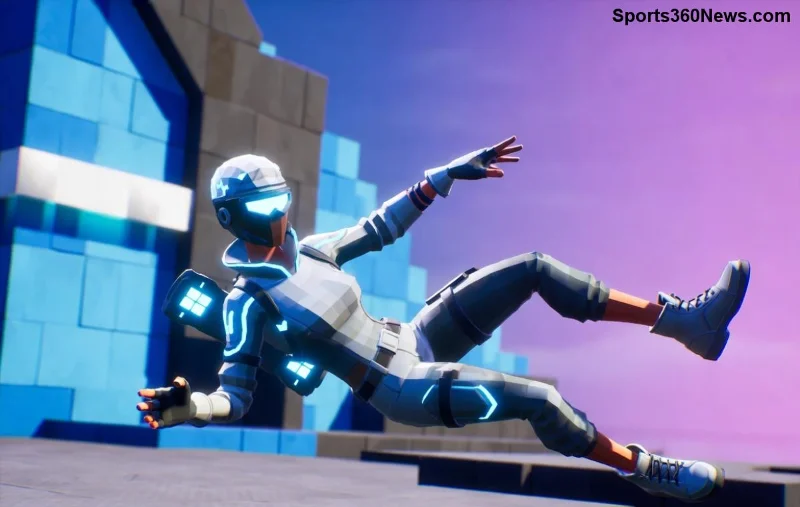
Why Fortnite Replay Mode is a Game-Changer for Cinematic Clips
Fortnite Replay Mode lets you rewind matches, tweak camera paths, and export clips that rival top streamers. No extra software needed—just pure in-game power. Pro players and YouTubers swear by it for highlights that rack up views. Stick around to discover pro secrets that make your clips pop! 👆
Step 1: Enable and Access Fortnite Replay Mode ⭐
First things first—ensure replays are recording. Head to Settings > Game tab > Replays section. Toggle Record Replays to ON. Pro tip: Set Max Replay Length to 30 minutes for full matches.
- ✅ Finish a match (Solo, Duos, Squads, or Creative).
- 🔙 From the lobby, select the Replay tab (film reel icon).
- 🎥 Pick your match from the timeline—replays auto-save the last 10-20 games.
You're now in the replay viewer. Hit Play to watch from your POV, or switch to director mode for cinematic magic. Excited? The real fun starts next! 😎
Step 2: Master Camera Controls for Killer Cinematic Clips Fortnite
The heart of Fortnite Replay Mode is its free camera system. Switch via the toolbar:
- 📹 Free Cam: Full 360° control—your cinematic powerhouse.
- 👤 Player Cam: Lock to any player for chase shots.
- 🎯 Spectator Cam: Follow action dynamically.
- 🌍 Timeline Cam: Scrub time like a video editor.
Keybinds (customizable in Settings):
| Action | PC Key | Console | Pro Tip |
|---|---|---|---|
| Free Cam Toggle | Scroll Wheel | Right Stick Click | Smooth pans only! |
| Speed Control | +/- Keys | L1/R1 | 0.1x for slo-mo epics |
| FOV Slider | Toolbar | Toolbar | 120+ for dramatic wide shots |
| Path Tool | P Key | Toolbar | Keyframe magic! |
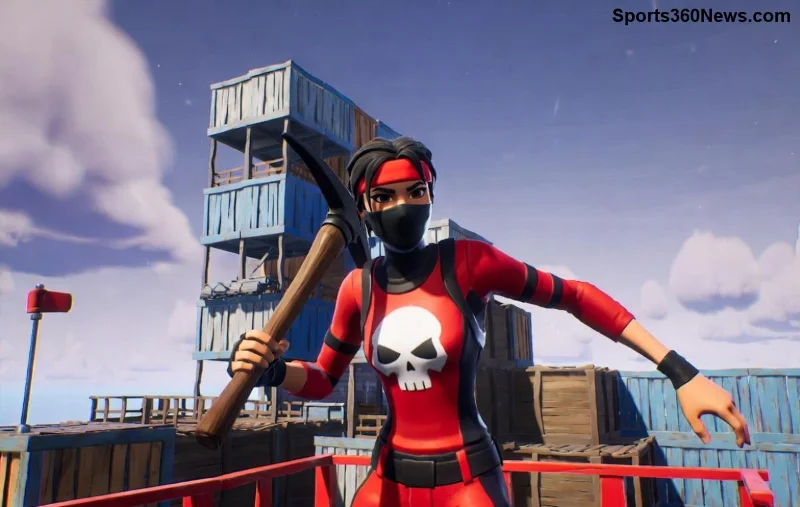
Step 3: Craft Pro Cinematic Clips with Keyframe Paths
1️⃣ Pause at a key moment (e.g., your build battle peak).
2️⃣ Activate Path Tool—add keyframes by clicking points in space/time.
3️⃣ Drag to curve paths: Orbit enemies, boom shots over POI, or drone follows.
Adjust Playback Speed (0.25x for tension, 2x for hype montages). Layer with Timeline Scrub for multi-angle edits. Your first clip will feel like a movie trailer! 🎬
"Fortnite Replay Mode changed my content game—clips went from meh to viral overnight!" – Top Fortnite Creator
Pro Tips for Stunning Fortnite Replay Cinematic Clips 🔥
- ⭐ Lighting & Weather: Replay from stormy drops for moody vibes.
- ⚡ Shake Effect: Toggle for explosions—feels alive!
- 🎨 Filters: In replay settings, boost saturation for vibrant Battle Bus intros.
- 📱 Mobile? Use touch gestures for precise cam—surprisingly smooth.
- 💾 Export at 60FPS/4K: Settings > Video > High Quality.
Combine with Fortnite's Creative mode for custom arenas—replay those 1v1s into montage gold. Want more? Check Epic's official guide for the latest tweaks: Fortnite News.
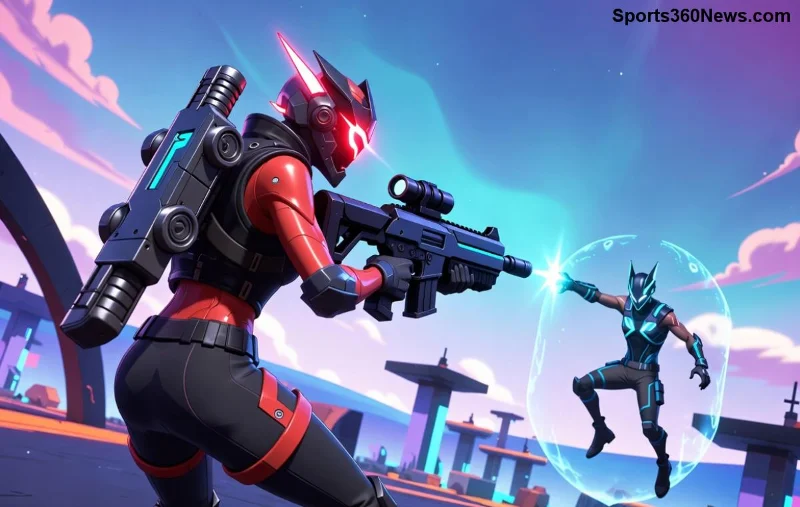
Common Mistakes to Avoid & Quick Fixes ❌
🚫 Forgot to record? Enable auto-replays now.
🚫 Jerky cams? Practice smooth mouse drags—lower sensitivity helps.
🚫 Low quality? Close background apps before exporting.
Master these, and your TikTok/Reels will explode with likes. Share your first clip in comments—we'd love to see! 👏
Take Your Clips to the Next Level
Now that you've got Fortnite Replay Mode down, experiment with UEFN for custom cinematics or pair exports with free editors like CapCut. Your journey to pro-level cinematic clips Fortnite starts here—drop into a match, record, and create! What's your dream clip? Victory Crown fly-by? Quad elim orbit? You've got the tools. Game on! 🏆







