Home
» 🎮 Esports
»
Minecraft NoSuchMethodError: How to Fix the Missing Java Method
Minecraft NoSuchMethodError: How to Fix the Missing Java Method
Minecraft NoSuchMethodError: How to Fix the Missing Java Method
A Minecraft NoSuchMethodError usually means that a mod or library was built to call a method that is absent from the class Minecraft loaded at runtime. In modded Java Edition, the most useful first fix is to identify the first mod or library named in the crash report, then match that file to your exact Minecraft release, mod loader, and Java runtime. The phrase java.lang is Java’s package name; it does not point to a special Minecraft “Lang Java” bug.
Work through the steps below on a copy or separate instance. Don’t delete your world, configs, or crash logs while diagnosing the problem.
What a NoSuchMethodError means
Java throws NoSuchMethodError when code tries to call a method that the class loaded in memory does not define. Oracle defines this as a linkage error: compiled code and the class available at runtime do not agree (Java API reference). In Minecraft, that often comes from a mod or bundled library built for a different Minecraft version, loader API, or dependency version.
If the message names a Java method such as java.lang.String.isBlank(), check the Java version too. Oracle’s Java 11 String API documents String.isBlank() as available since Java 11. That example can indicate an old runtime, but it is only a clue: the full error and the first relevant stack-trace frames determine what to check next.
Use the Caused by line and the class or method named in the error. A frame containing a mod’s package or ID is a lead, not automatic proof that the mod itself is the only cause; it may be calling a method supplied by another mod or library.
8 steps to fix Minecraft NoSuchMethodError
Back up the world and preserve the error
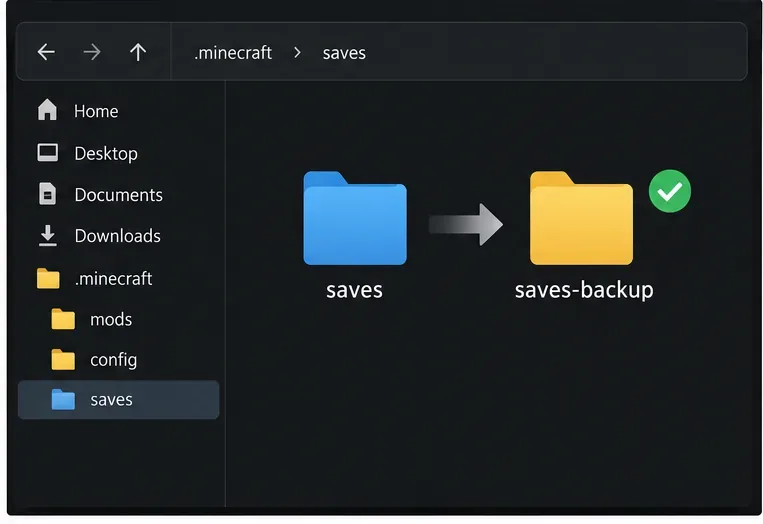
Close the game and copy the affected world before changing mods or loader files. For a server, ask its owner to back up the world before maintenance. Save the crash report and the current latest.log; they help compare what changed after each test.
Back up the world before changing an instance or server. The folder names are illustrative.
Check whether a clean profile also crashes
Launch the same Minecraft release in a separate vanilla profile with no mods. In a third-party launcher, create a fresh instance rather than editing your only modpack. If vanilla starts, the error is likely in the modded profile or its dependencies. If vanilla also fails, continue to the runtime and game-install checks below.
Use a separate test profile to isolate files; this example folder is not a real player installation.
Read the exact method and the first useful stack frame
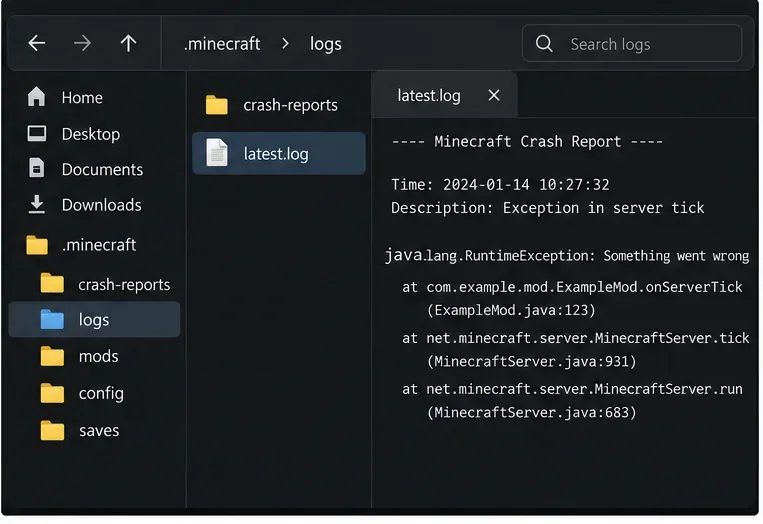
Open the newest crash report and find java.lang.NoSuchMethodError. Note the complete method signature after it, then inspect the lines below and any Caused by section. A frame under a mod package often identifies the caller to investigate. If the error is present only in latest.log, search there for the same method and the earliest related exception.
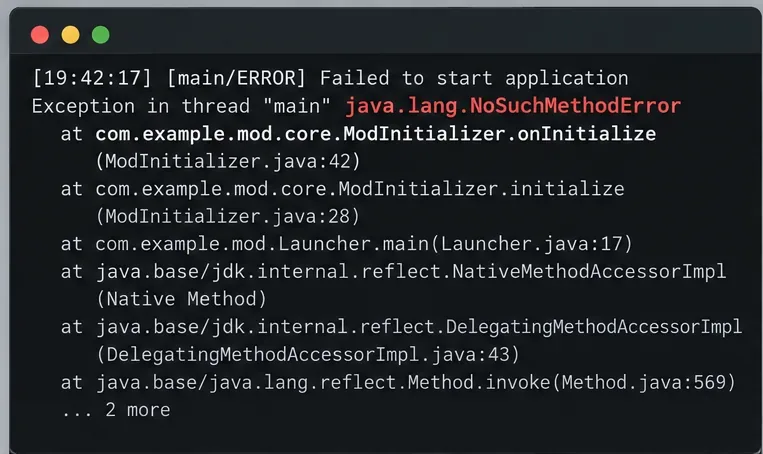
Example stack trace: capture the complete error and the first mod-related frame, not just the headline.
Match Minecraft, loader, and mod versions
Check that every mod is for Minecraft Java Edition, the exact game release, and the loader installed in that profile—such as Fabric, Forge, or NeoForge. A mod built for another loader or nearby game release can compile successfully yet fail when a different API is loaded. Check its required libraries as well, including the exact version range. Fabric’s mod installation guide likewise tells players to select mods for the intended Minecraft version and Fabric, and notes that some mods require Fabric API.
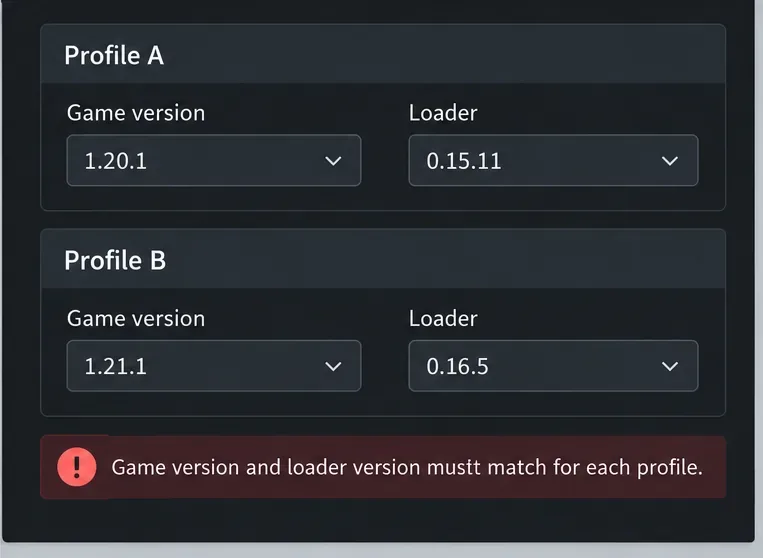
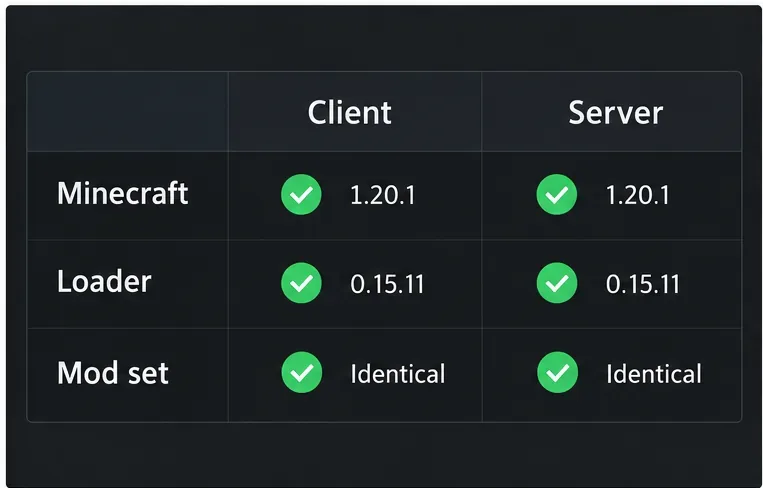
Compare the profile’s Minecraft version and loader build with the download page for each suspect mod. Do not install a newer loader or library blindly: first confirm that the mod supports it. The version values in this illustration are examples only.
Example comparison: each profile needs a loader build intended for its own Minecraft release; displayed version numbers are illustrative.
Verify the Java runtime used by that profile
The command java -version in a terminal shows the system’s default Java, which may not be the runtime the launcher uses. The official Minecraft Launcher normally manages a bundled runtime; custom launcher profiles and standalone servers can point to another Java executable. Check the runtime configured for the affected profile before changing system-wide Java settings.
Use the Java requirement for the exact Minecraft release. For example, the official Minecraft 26.1 release notes say that version requires Java 25. That requirement is not a universal rule for every older release. Fabric’s Java installation guide also explains that the Minecraft Launcher includes its own Java installation.
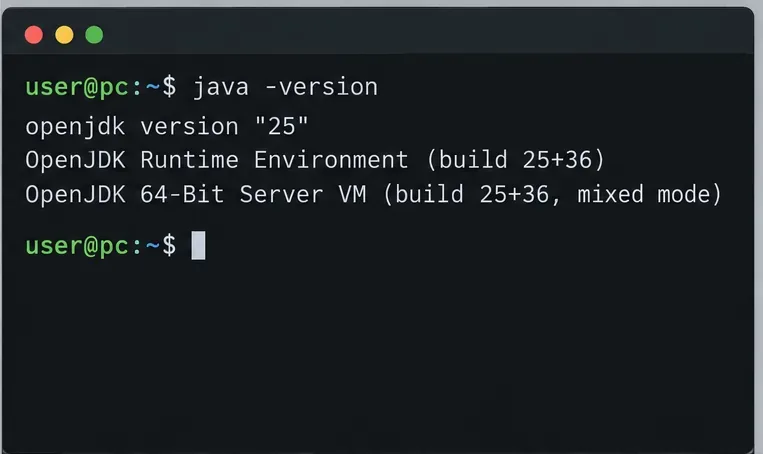
Illustrative terminal output only. Confirm the runtime selected by your Minecraft launcher or server, not just the computer’s default Java.
Isolate the suspect mod and its dependencies
In a copied test instance, move the suspected mod out of the active mods folder and launch again. If the crash stops, check that mod’s supported game and loader versions, update it to a compatible release, or leave it out. If the log points to a shared library, test that dependency and the mods that require it together. For a large pack, disable half the optional mods at a time, then narrow the group that reproduces the error.
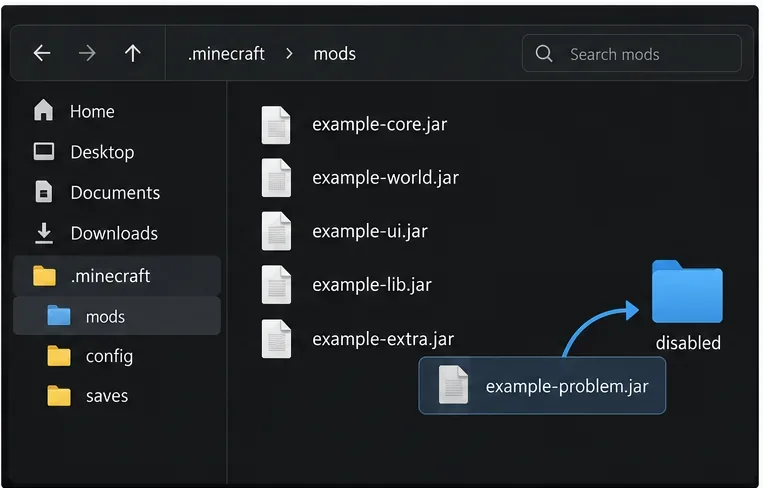
Keep required dependencies installed and change one group at a time. Put disabled files outside the active mods directory; don’t rename a JAR in place and assume the loader will ignore it.
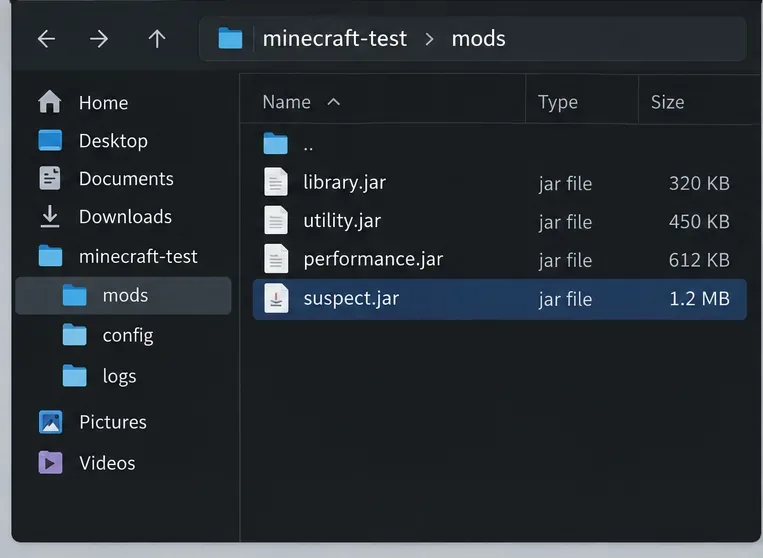
Move a suspect JAR outside the active mods folder in a test copy, then retest before changing other files.
For multiplayer, check the side that actually crashes
If single-player works but joining or starting a server triggers the error, inspect the server log as well as the client log. Confirm the server’s Minecraft and loader versions, and check its mod requirements against the client. Some mods are client-only or server-only, so do not copy every JAR to both sides unless the mod or pack documentation requires it. If the server itself throws the error, its administrator needs to update or remove the incompatible server-side mod or dependency.
Use the modpack or server’s documented compatibility requirements; this checklist is an example, not a universal rule that every mod must be installed on both sides.
Rebuild only the affected profile, then share the right log
After identifying the mismatch, install a compatible mod or dependency—or recreate the affected loader profile for the same game release using the loader’s official instructions. Test before restoring optional mods. If a clean vanilla profile also crashes, use a fresh game profile and the correct runtime to distinguish a damaged installation from a mod problem; reinstalling Java or adding JVM flags is not the first fix for a missing method.
For the official launcher, Fabric’s guides to crash reports and uploading logs identify crash-reports and logs/latest.log in the game directory. On Windows, the default directory is %appdata%\.minecraft; macOS uses ~/Library/Application Support/minecraft; Linux uses ~/.minecraft. Third-party launchers usually keep logs inside each instance. Share the complete report through a trusted paste service or the loader’s support channel, and remove private tokens or other secrets before posting.
Example log layout: include the full crash report or latest.log around the error; filenames and timestamp shown are illustrative.
Will adding --add-opens or more RAM fix it?
Usually, no. --add-opens changes reflective access to Java modules; it does not add a missing method to a class. Extra memory also does not repair a binary version mismatch. Only change JVM arguments when the mod or loader documentation for your exact release specifically calls for them and the reported error matches that advice.
If the stack trace still does not identify a compatible update, include your Minecraft release, loader and build, Java runtime used by the profile, mod list, full crash report, and the steps that reproduce the error. That gives mod maintainers enough context to identify an API or dependency mismatch without guessing.