Home
» 🎮 Esports
»
Minecraft 1x0 Code Error: What It Means and How to Fix Missing Chunks
Minecraft 1x0 Code Error: What It Means and How to Fix Missing Chunks
Searching for a Minecraft 1x0 code error usually means you have seen a short “1x0” string or a patch of terrain that did not load. Mojang’s support pages reviewed for this guide do not document “1x0 Code Error” or “Zeroed Zones” as an official Minecraft diagnosis. Treat those labels as unverified, and troubleshoot the symptom you can actually observe: missing terrain, a loading freeze, a crash, or a world that will not open.
Do not delete a world’s db folder, edit Java region files, or reinstall the game as a first step. Those actions can make recovery harder. The safe order is to record what happened, exit cleanly, make a separate backup, test likely causes on a copy, and restore only from a known-good save.
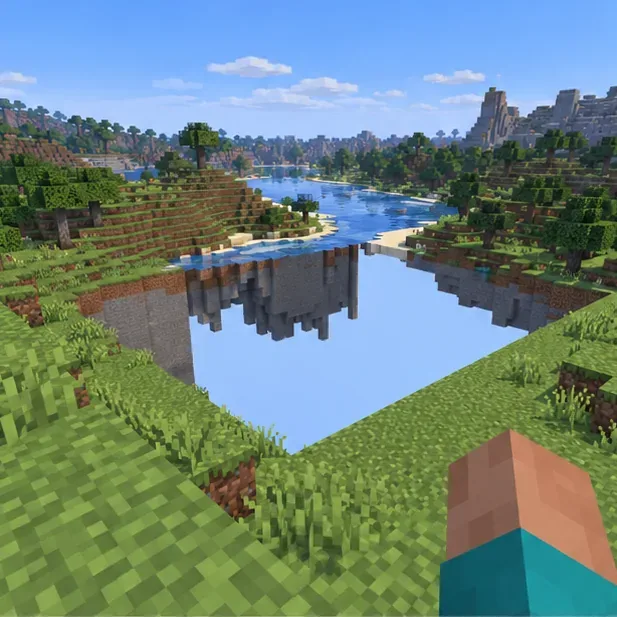
A terrain gap is a symptom to investigate, not proof of a named 1x0 error.
What “Minecraft 1x0 code error” can—and cannot—tell you
A string such as 1x0 by itself does not identify a Minecraft error, a corrupted chunk, or a cause. It could be a fragment copied from coordinates, a log, a mod message, or a third-party description. Keep the complete message and the surrounding log lines. “Zeroed Zones” is not a documented Minecraft feature or official corruption label in the support material checked for this rewrite.
A blank area can come from several different problems: delayed rendering, a client or add-on issue, a server-side problem, a version mismatch, or damaged save data. The visible symptom alone cannot distinguish them. If only one world is affected, protect that save before testing. If every world has the same visual issue, investigate the client, graphics setup, or current game installation as well.
Write down Java or Bedrock, the game version, device, whether the world is local, a Realm, or a server, and the exact text from any error or crash report. Note whether a newly created test world loads normally. A screenshot can help show the gap, but it cannot establish that the save file is corrupted.
2. Exit the world and stop changing the save
Leave the world through the game menu and close Minecraft normally. Avoid repeatedly reloading an affected area or running repair utilities against the only copy. For a server, ask the owner to stop or safely back up the world before maintenance.
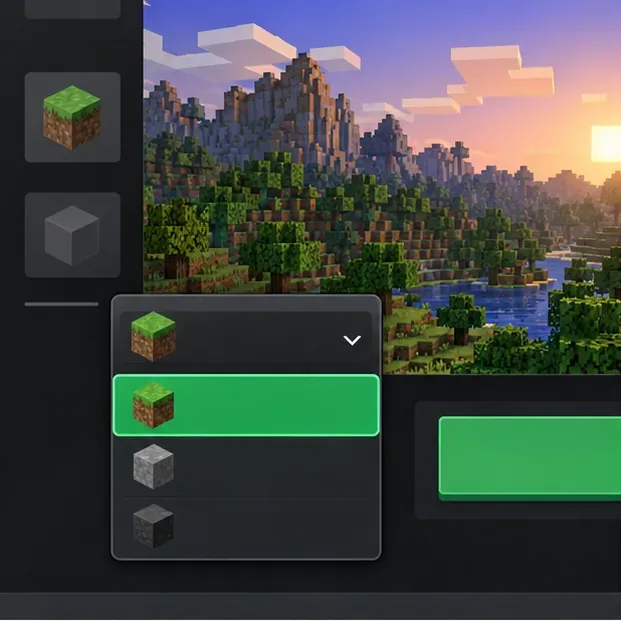
Close the session cleanly before copying or recovering a save. Menu details are illustrative.
3. Make a separate Java Edition backup
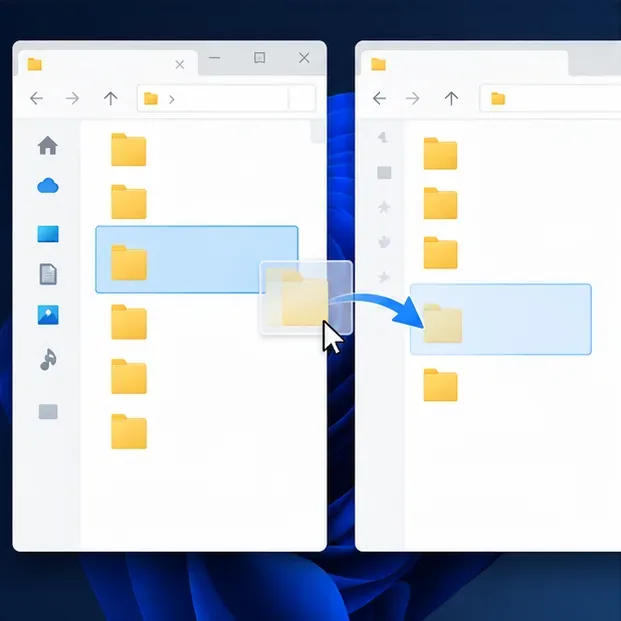
In Minecraft: Java Edition, open Singleplayer, select the world, choose Edit, then select Make Backup. Minecraft saves a dated ZIP backup; use Open Backups Folder on the Edit World screen to locate it. Keep that ZIP and the original world unchanged. For a manually managed world folder, copy the entire folder only after the game has closed, and store the copy outside the active saves folder.
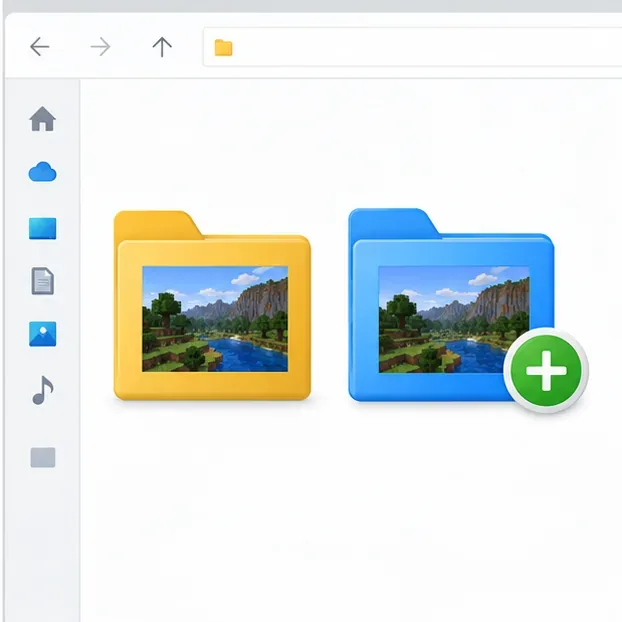
Keep troubleshooting work on a duplicate so the original save stays untouched.
4. Export or back up a Bedrock Edition world
On Bedrock for Windows, open Play, select the pencil icon beside the world, find Export World under File Management, and save the exported file somewhere separate. Minecraft Help documents this export path in its Bedrock Windows backup instructions. On consoles and mobile, use the platform-specific backup or cloud-save method; storage access differs by device, so do not copy a folder path from another platform.
For Realms, download a world copy before testing. Realms also keeps automatic backups, but restoring one returns the world to the point captured by that save. See the official Bedrock Realm download instructions.
Label and preserve the original and backup separately until the restored copy is verified.
5. Compare with a clean test world and supported game version
Open a new disposable world in the same edition and current stable release. If the test world renders normally but the original copy does not, the issue may be specific to that world or its content. If both show the same visual fault, follow Minecraft’s Java graphics troubleshooting or general crash and lag guidance.
Do not downgrade a valuable world or open it in a snapshot as a diagnostic shortcut. If you need to compare versions, do it with a duplicate that you can afford to lose.
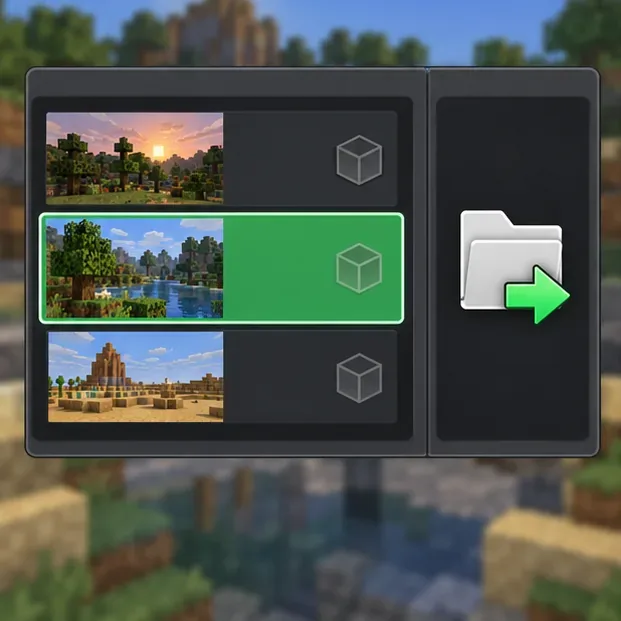
Use a supported stable profile for a controlled comparison; launcher layouts differ by platform.
6. Isolate mods, resource packs, and add-ons on a copy
For Java, try a separate vanilla profile without mods and test a duplicate or disposable world. For Bedrock, disable one optional pack at a time on a copy. Mojang warns that disabling add-ons can remove add-on mobs and replace add-on blocks, so do not experiment on the only save you care about. Follow the official Bedrock add-on troubleshooting steps.
7. Restore only from a verified pre-incident backup
If a dated backup opens normally, restore it as a separate copy first and inspect the affected area before replacing anything. For Java Realms, open the Realm configuration and choose a save under World Backups; the restore process rolls progress back to that save. For a Bedrock Realm, use the Realm Hub’s World tab, choose the Manual or Automatic backup, open its three-dot menu, then choose Restore save. Review the official Java Realm restore guide and Bedrock Realm restore guide before confirming.
A world seed can recreate terrain, but it does not restore builds or progress. If you have no backup and the world matters, preserve every copy and contact Minecraft Support before trying file-level repair tools.
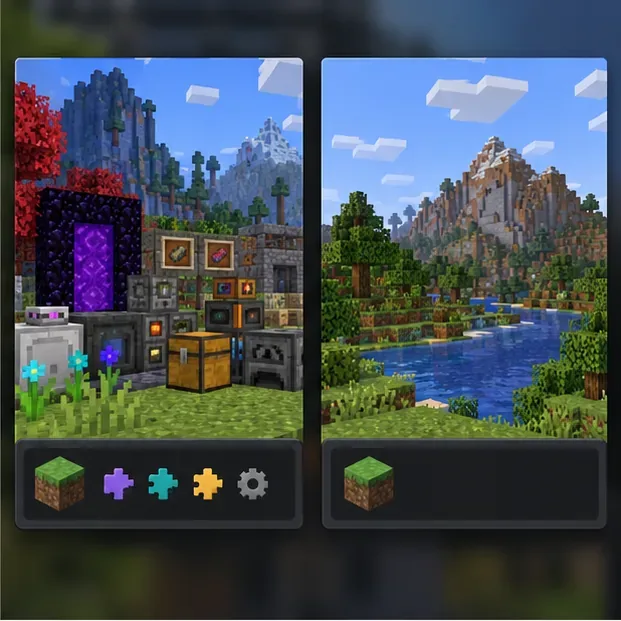
Testing a copy without add-ons can help isolate a pack or mod conflict.
8. Verify the recovered copy before retiring anything
Launch the recovered copy, revisit the affected location, and check other important areas. If the issue persists, keep the original, exported copy, backup ZIP, and complete crash log. On a multiplayer server, share the exact edition, version, time of the issue, and log with the owner or host. Do not replace the live world until the restored copy has been checked.
On Bedrock for Windows, export a world copy before deeper troubleshooting.Confirm the recovered copy opens before replacing any other save.
Quick diagnosis guide
What you observe
Safer next move
One world has a terrain gap; a new test world is fine
Back up the affected world and test a copy without optional content.
Several worlds have the same rendering issue
Check graphics troubleshooting and the game installation before altering saves.
The world crashes or will not open
Keep the full crash report and restore from a dated backup if available.
The problem appears only on a server or Realm
Ask the owner to inspect logs and backups; do not edit the server save yourself.
Prevent future Minecraft world loss
Keep periodic copies outside the active world folder and verify that at least one can be opened.
Back up before changing editions, adding packs or mods, or testing snapshots.
Keep enough free storage for the world and its export; avoid interrupting a save or update.
Use the backup and restore method documented for the device that hosts the world.
Preserve the original save until a recovered copy has been checked in game.
Bottom line: there is no verified one-click “1x0 code error fix” in Minecraft Help. If “1x0” appears near missing terrain, treat it as an unconfirmed label, protect the world, and diagnose the actual loading or rendering problem on a copy. Guidance checked October 17, 2026.