Home
» 🎮 Esports
»
Minecraft Kelp Farm Problems: Fix Growth and Harvest Issues
Minecraft Kelp Farm Problems: Fix Growth and Harvest Issues
Minecraft Kelp Farm Problems: Fix Growth and Harvest Issues
If your Minecraft kelp farm will not place, grow, or reach its collection chest, check the water, the block under the stalk, and whether the farm is in an actively simulated area. There is no single vanilla error code called “Kelping Minecraft Errors”; kelp trouble is usually a placement, timing, collection, version, or server-performance issue. This guide gives you a small setup to diagnose first, then explains how to expand it without assuming Java and Bedrock farms behave identically.
What a Minecraft kelp farm needs
Kelp is an underwater plant. Place it in a valid water block on a supporting block; sand or stone makes a straightforward starter base for kelp growth. Kelp grows upward over time when conditions allow, and you can use bone meal to speed growth. If a stalk appears frozen, do not immediately rebuild the entire farm: first check that the growing tip has water and open space above it, then wait while the area is being simulated. Mojang’s Java update notes document bone meal as a way to grow kelp, while the official dried-kelp guide describes harvesting, cooking, and fuel uses.
For a dependable first test, build one column in an ocean or a small underwater tank. Avoid fences as a support choice in Bedrock: the 1.21.30 changelog says kelp can no longer be placed on fences in that edition. A solid natural block is simpler and easier to troubleshoot.
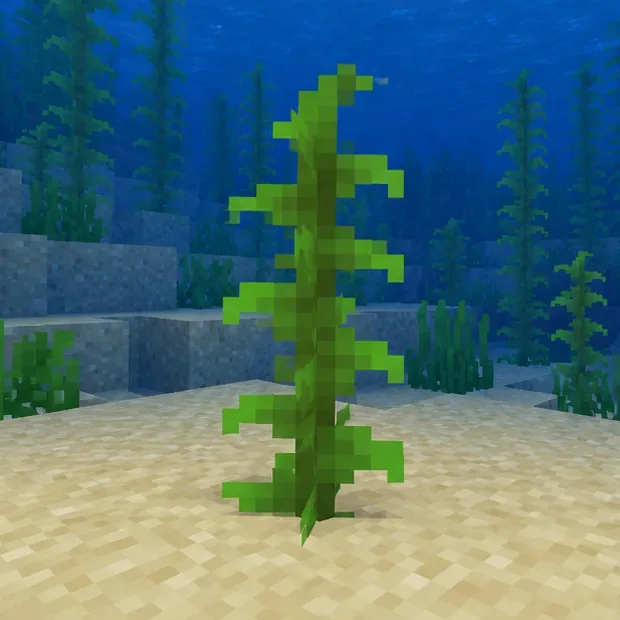
A single stalk on a sandy seabed is an easy way to confirm placement before expanding a Minecraft kelp farm.
Quick fixes for common kelp farm problems
What you see
Check first
Practical fix
Kelp will not place
Is the target block underwater, and does the base support kelp?
Try a sand or stone floor in a full water block. In Bedrock 1.21.30 and later, do not use a fence as the planting block.
Kelp not growing
Is water directly above the tip? Is there room for another kelp block?
Clear obstructions, keep the area active, allow time for natural growth, or test with bone meal.
Harvest gives few items
Are you breaking only the top, or cutting the stalk at its base?
For repeat harvesting, break a section above the bottom block so the base can remain planted. Break the base when you want to clear the whole plant.
Items miss the chest
Does the water path actually carry drops over the hopper?
Test the collection path with one stalk and adjust the channel or hopper position before building more rows.
Lag or a crash near the farm
Does it happen in a small vanilla test world, or only with this build, add-ons, or mods?
Temporarily test without resource/behavior packs or mods, reduce the farm to one column, and check the game or server log for the first reported error.
These checks are diagnostic, not a claim that every kelp problem has the same cause. A rendering issue, a redstone design that does not trigger, or a server crash needs its own evidence; kelp disappearing from view does not by itself prove the item was deleted.
Build and test a simple kelp farm
1. Start with one underwater planting spot
Choose a reachable patch of ocean floor or make a small enclosed tank near your base. Place a solid block at the bottom if the natural seabed is uneven, then plant one kelp item while underwater. If the game refuses the placement, change the base block and water cell rather than using a command to fill a large area. Check that the kelp is actually placed before adding glass walls, pistons, or collection channels.
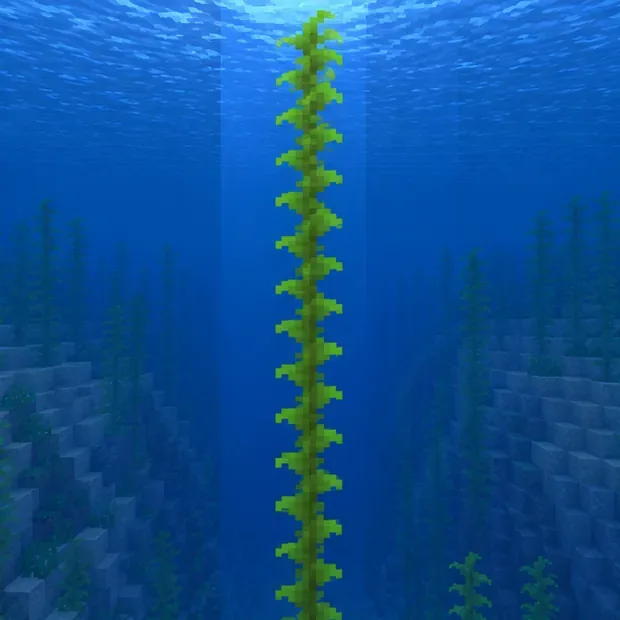
Keep the space above the growing tip clear; let this single column confirm the water and growth conditions.
2. Let the stalk grow before automating it
Keep the plant’s upper end underwater and leave room above it. Natural growth is not an instant process, so stay close enough for the farm area to be simulated and give it time. Bone meal offers a quick way to check whether growth can be triggered; if you are using a dispenser or a modded farm, verify that exact setup in the same edition and game version you play. Java and Bedrock redstone details differ, so a tutorial built for one edition may not behave the same in the other.
3. Harvest without removing the base
For a repeatable manual harvest, break a block near the top of the stalk and collect the kelp pieces that detach above it. Leave the lowest block planted; it can continue growing. If you want to clear the column completely, break the bottom block instead. This distinction prevents a common “my kelp farm stopped” moment: the entire stalk was harvested, so there is nothing left to regrow.
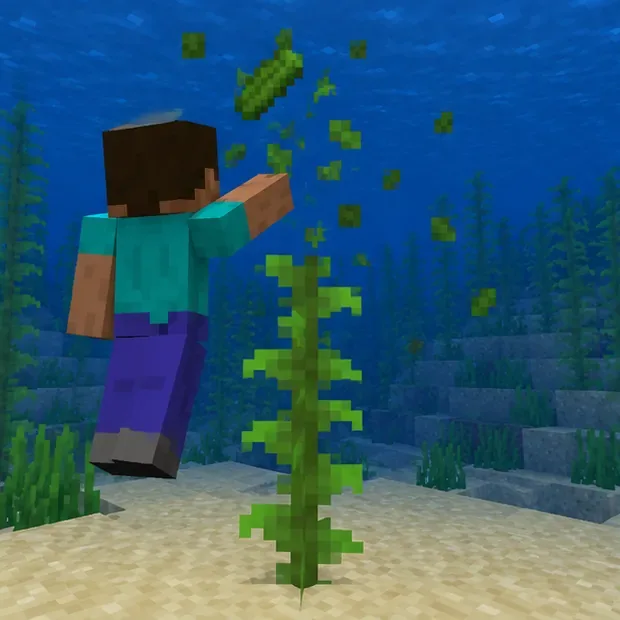
Breaking above the base collects the upper stalk while preserving the planted kelp for another growth cycle.
4. Add collection only after the manual test works
A compact automatic kelp farm commonly uses a growth detector, a piston to break the stalk above its base, and a water channel leading toward a hopper. The precise layout depends on edition and version, so build one module in Creative mode or a copied world before attaching it to a large survival base. Confirm that the detector fires, the base stays planted, drops travel to the hopper, and the container is not blocked. Expand in small sections rather than stacking a large farm around an unverified redstone clock.
Turn harvested kelp into food or furnace fuel
Cook kelp into dried kelp in a furnace, smoker, or campfire. Dried kelp can be eaten or composted. To craft a dried kelp block, combine nine dried kelp items; Mojang notes that the block can fuel furnaces, blast furnaces, and smokers for 200 seconds, enough to smelt 20 items. Treat the block as a convenient renewable fuel option, not as a guarantee that a small farm will produce fuel faster than it consumes it. Processing speed depends on the number of plants, how long the farm runs, and how much fuel you use to dry the raw kelp.
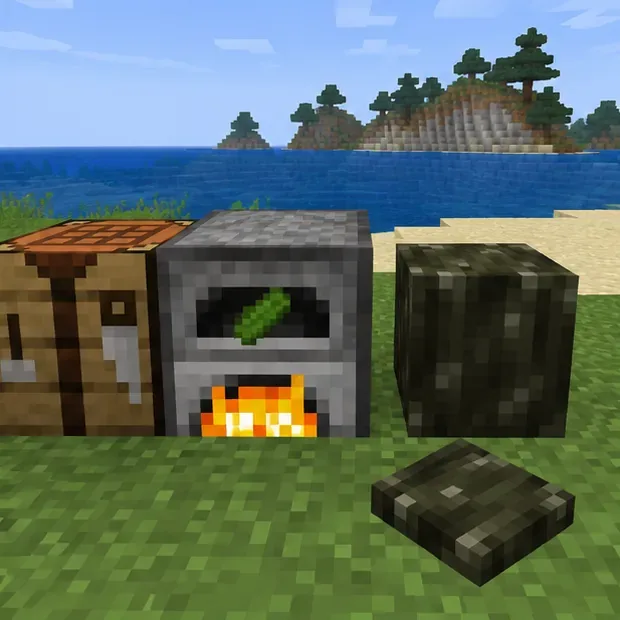
Cook kelp into dried kelp, then craft nine dried pieces into a fuel block.
If Minecraft crashes or lags around the farm
First make a copy of the world before changing files or removing add-ons. Reproduce the issue with one kelp column and no optional packs. If the small test works, re-enable packs or modules one at a time and rebuild only a small piece of the farm. On a server, ask the owner to check the server log and simulation-distance settings; use the same Minecraft edition and compatible mod-loader and mod versions when testing. Do not change randomTickSpeed as a generic repair: it changes random block updates broadly and can affect other crops and world behavior.
If the game still crashes in a small vanilla test, follow the official Minecraft crash-and-lag troubleshooting guidance and report a reproducible bug with your edition, version, platform, steps, and log details. That evidence helps distinguish a game defect from a farm design or add-on conflict.