Frustrated with choppy gameplay in your favorite Roblox experiences? Low FPS can ruin epic battles in Adopt Me or intense races in Vehicle Legends. But here's the good news: you can increase your FPS in Roblox games dramatically with simple tweaks. This guide delivers actionable steps to unlock buttery-smooth performance, so you stay ahead of the competition. Ready to dominate? Let's dive in! 😀
Understand FPS: Why It Matters in Roblox
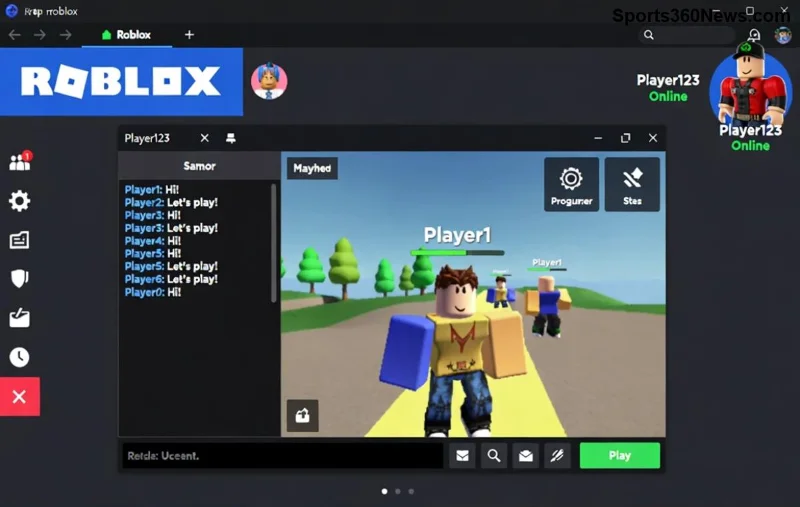
FPS (Frames Per Second) measures how many images your screen displays per second. In Roblox, the default cap is 60 FPS, but dropping below 30 feels like slideshow hell. Higher FPS means responsive controls, clearer visuals, and that competitive edge. Pro tip: Aim for 60+ FPS on mid-range PCs or 144+ on beasts. Now, let's boost it! ⭐
1️⃣ Quick Wins: Instant Roblox FPS Boosts
Start with these no-brainer fixes for immediate gains.
- Enable FPS Unlocker: Roblox caps FPS, but tools like RBX FPS Unlocker remove it safely. Download from official GitHub, run as admin, and watch FPS soar to your monitor's refresh rate. Users report 2x gains!
- Switch to Direct3D11: In Roblox settings, go to Rendering Mode > Automatic > Direct3D11. It's more efficient than Vulkan on most rigs.
- Lower Graphics Quality: Set to Manual > 1-3. This slashes lag in crowded games like Brookhaven.
Optimize Roblox Settings for Maximum FPS
Tweak in-game options first—they're game-changers.
| Setting |
High FPS Choice |
Expected FPS Gain |
| Graphics Mode |
Manual (Level 1) |
+20-50 FPS |
| Shadows |
Off |
+10-30 FPS |
| Textures |
Low |
+15 FPS |
| Effects |
Off |
+25 FPS |
| Geometrics |
Low |
+10-20 FPS |
Apply these, restart Roblox, and test in a lightweight game like Obby. Feel the difference? But don't stop—hardware awaits!
2️⃣ PC Tweaks: Supercharge Your System
![PC optimization dashboard for Roblox FPS increase]()
Your rig powers Roblox FPS boosts. Follow these:
- Update Graphics Drivers: NVIDIA/AMD/Intel—grab the latest via GeForce Experience or Adrenaline. Outdated drivers kill 30% performance. 📝
- Close Background Apps: Task Manager (Ctrl+Shift+Esc) > End Discord overlays, browsers, antivirus scans. Free up 2-4GB RAM instantly.
- Power Plan to High Performance: Windows Settings > Power & Sleep > High Performance. Laptops: Plug in!
- Clean Windows: Run Disk Cleanup, disable startup apps. Tools like CCleaner help, but stick to basics.
"Switching to High Performance mode alone gave me 40 FPS in Arsenal!" - Roblox Pro Gamer
3️⃣ Advanced Hacks: Pro-Level FPS Unlocks
Want elite status? Go deeper.
- Overclock GPU/CPU: Use MSI Afterburner cautiously. +10% clock = +15 FPS, but monitor temps below 80°C.
- Enable Game Mode + HAGS: Windows Settings > Gaming > Game Mode ON, Hardware-Accelerated GPU Scheduling ON. Roblox loves it.
- Registry Tweak for FPS Cap: Advanced users: Edit via Regedit (HKEY_CURRENT_USER\Software\Roblox\FPS) for uncapped rates. Backup first! ❗
- SSD Upgrade: Move Roblox to SSD for faster loads, indirectly boosting FPS stability.
Hardware Upgrades: Long-Term FPS Kings
If software maxes out, invest wisely:
- GPU Priority: GTX 1650 or RTX 3050 handles 100+ FPS easily.
- RAM Boost: 16GB minimum; 32GB crushes multitasking.
- Monitor Refresh Rate: 144Hz panels make unlocked FPS shine. Pair with FPS unlocker for glory!
Budget tip: Start with RAM—easiest win for Roblox lag fix.
Common Pitfalls to Avoid ⛔
Steer clear:
- VPNs throttling speed.
- Outdated Roblox client—always update!
- Overheating: Clean dust, use pads.
- Full HDD: Keep 20% free space.
Test Your Gains: FPS Monitoring Tools
Track progress with Roblox's built-in FPS counter (Shift+F5) or external like FRAPS. Before/after screenshots motivate! Share your boosts in comments below. 👏
Final Boost: Join the Smooth Squad
Implementing these Roblox FPS boost strategies can triple your frames, turning frustration into triumphs. Start with settings and drivers today—your next win streak awaits! Got a tip we missed? Drop it below and help fellow gamers. Game on! 🚀🏦
Pro Tip: Bookmark this for your next session. Consistent tweaks = consistent victories.