Home
» 🎮 Esports
»
DualSense vs Remote Play Mobile: Which PS5 Controls Fit Your Play?
DualSense vs Remote Play Mobile: Which PS5 Controls Fit Your Play?
DualSense vs Remote Play Mobile: Which PS5 Controls Fit Your Play?
DualSense vs Remote Play Mobile is not quite a controller-versus-controller matchup: DualSense is a physical controller, while PS Remote Play is an app that streams a PS5 game to a phone or tablet. You can play through Remote Play with on-screen controls or pair a supported controller, including DualSense. For the most consistent local control and full controller feedback, use DualSense with the PS5. For playing away from the TV, use Remote Play; pair DualSense when you want physical sticks and buttons.
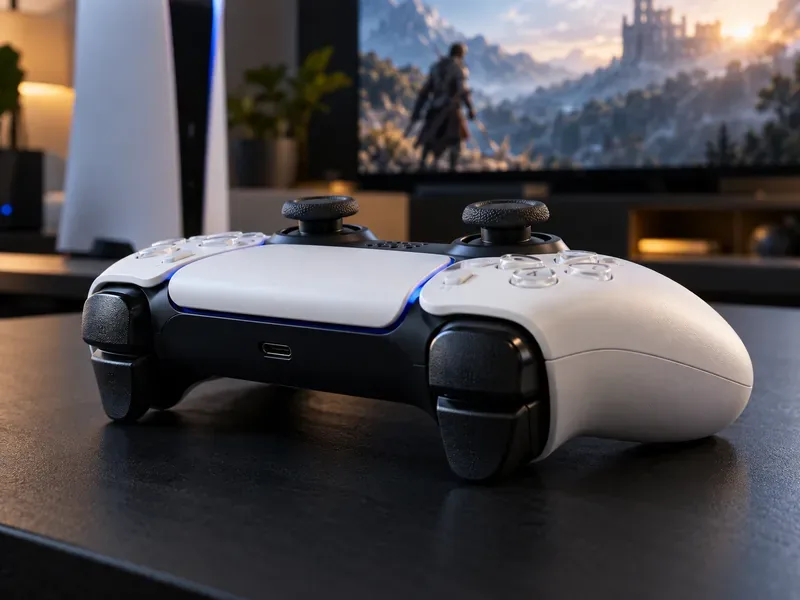
The DualSense provides physical sticks, buttons, and triggers for playing directly on a PS5.
What Are You Comparing?
With local play, the PS5 runs the game and a DualSense sends inputs to the console. With PS5 Remote Play, the game still runs on your console, but the app sends your inputs over a network and streams the picture and sound to your mobile device. That extra stream is the key tradeoff: Remote Play adds flexibility, while local play avoids the phone-and-network route.
The mobile app also gives you two ways to control a session. Tap the screen to show virtual controls, or connect a compatible Bluetooth controller to your phone or tablet. A DualSense paired to a phone is still controlling a streamed game; it does not turn Remote Play into local console play.
DualSense vs Remote Play Mobile: Feature Comparison
Feature
DualSense connected to PS5
Remote Play with touch controls
Remote Play with paired DualSense
Where the game runs
On the PS5, with local display and input
On the PS5; video streams to a phone
On the PS5; video streams to a phone
How you control it
Physical sticks, buttons, and triggers
Virtual buttons shown on the touchscreen
Physical DualSense sticks and buttons connected to the mobile device
Haptics and triggers
Available when supported by the game
No physical controller feedback
Mobile feature support is limited; see the notes below
Responsiveness
Usually the more direct option for play at home
Depends on the stream, network, and touchscreen input
Physical controls help, but network streaming still affects responsiveness
Best fit
Action, racing, fighting, and precision play at the console
Convenience and slower-paced sessions when a controller is unavailable
Playing away from the TV while keeping familiar controls
Why DualSense Wins for Local Precision and Feedback
A DualSense gives you real analog sticks, shoulder buttons, and triggers with a familiar grip. That physical layout makes small directional adjustments and repeated inputs easier to control than tapping flat areas of a phone screen. It is the better choice for competitive matches, fast camera movement, driving, and games that depend on precise timing.
On PS5, supported games can use the controller’s haptic feedback and adaptive triggers to add physical sensations and variable trigger resistance. These features are game-dependent, so they are not guaranteed in every title. The key difference is that connecting the same controller to a mobile device does not preserve the full native PS5 experience: PlayStation lists haptic feedback as incompatible with mobile devices and adaptive triggers as incompatible with Android-based mobile devices. Device and app support can vary.
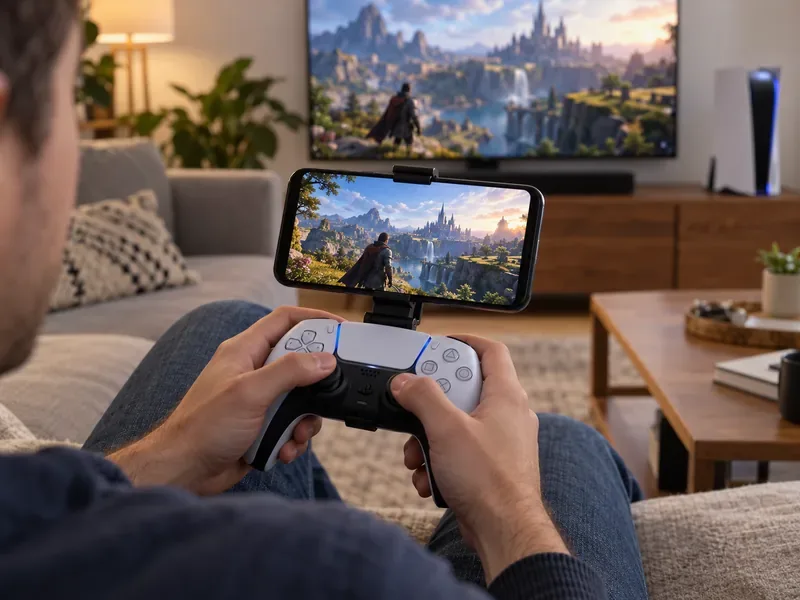
Pairing a DualSense with a phone keeps physical controls available during a Remote Play session.
What Remote Play Mobile Adds—and What It Costs
Remote Play Mobile is useful when you want to continue a PS5 session away from the television. The mobile screen becomes your display, and the app lets you use touch controls without carrying a controller. You can also pair a supported DualSense, DualSense Edge, or DUALSHOCK 4 controller with a compatible mobile device.
Touch input is the lightest setup, but it puts virtual buttons on the same screen as the game. Your thumbs can cover part of the picture, and you do not get the tactile separation or travel of physical sticks and buttons. The exact control presentation can vary by device. For a short, relaxed session, touch can be convenient; for sustained aiming or precise movement, a paired controller is usually easier to manage.
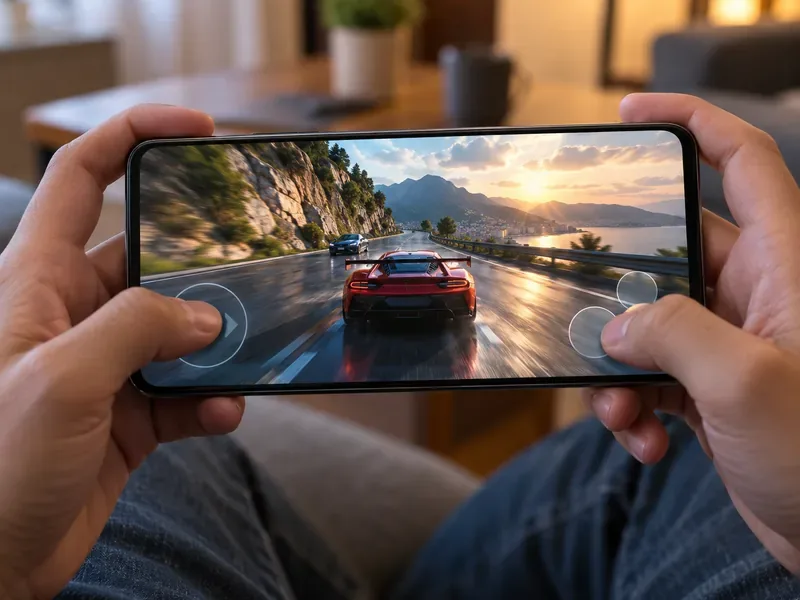
Touch controls keep the setup simple, though the actual PS Remote Play layout varies by mobile device.
Streaming Delay Depends on the Connection
Remote Play sends your input from the mobile device to the console and returns a live video stream. That creates more points where delay or interruptions can occur than when you play directly on the PS5. The result depends on the connection between the phone and console, network conditions, and the mobile device’s display and processing. There is no single latency number that applies to every setup.
PlayStation recommends upload and download speeds of at least 5 Mbps, and recommends at least 15 Mbps for best performance. Those are connection recommendations, not a promise of a specific response time. If you use mobile data, Remote Play can consume substantially more data than most video-streaming services, so check your plan before a long session.
Which Setup Should You Choose?
Choose DualSense connected to your PS5 when you are playing at home and want the most direct controls, supported haptics, and adaptive triggers.
Choose Remote Play with touch controls when portability and a no-extra-controller setup matter more than tactile precision.
Choose Remote Play with a paired DualSense when you are away from the TV but still want physical sticks and buttons. This is the strongest mobile-control option, although it remains a streamed session and does not restore all controller features.
In short, DualSense is the better local PS5 controller, while Remote Play is the better way to take a PS5 session to a phone or tablet. For many players the best combination is Remote Play with a paired DualSense: you get mobility and physical controls, with network quality as the main variable.
Set Up the Hybrid Option
On PS5, open Settings > System > Remote Play and turn on Enable Remote Play.
Install the official PS Remote Play app on a compatible phone or tablet, then sign in with the same PlayStation account used on the console.
Pair DualSense to the mobile device over Bluetooth. With the controller off and disconnected from USB, hold the create button and PS button until the light bar flashes; then select the controller in the device’s Bluetooth settings.
Open Remote Play and connect to the PS5. Test the connection near the console before relying on it away from home.
PlayStation lists Android 12 or later and iOS 14.5 or later among the operating systems that support DualSense Bluetooth connections; confirm the current requirements for your specific phone and app. For official setup steps and compatibility details, use the PlayStation support pages below.