How to Fix PUBG Stuck on “Initializing” on Steam

Fix PUBG stuck on Initializing on Steam with a focused checklist for PC service notices, launch options, game files, downloads, and connection issues.
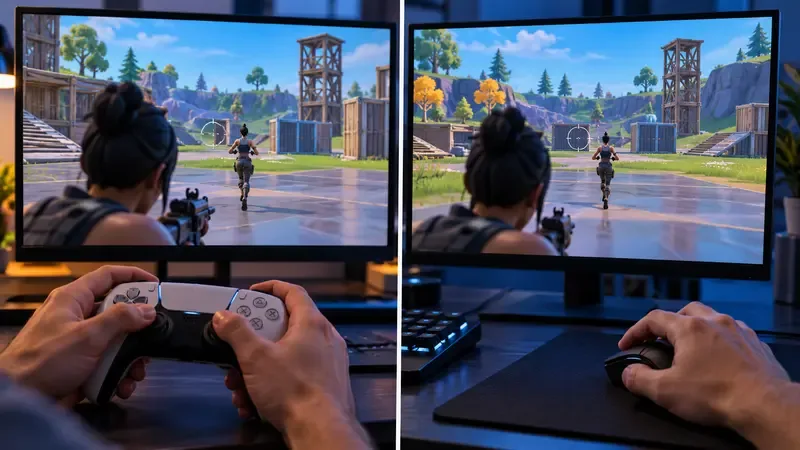
Fortnite controller aim assist can feel overpowered because it helps steady thumbstick aim while opponents move, especially in close fights where small corrections are visible. It is not an automatic headshot button: Epic’s published notes describe a human-like controller aim-assist update that models human reaction time, and the game lets players adjust Aim Assist Strength. The simplest explanation is that controller input and target tracking feel different from mouse aim, not that every controller player receives perfect accuracy.
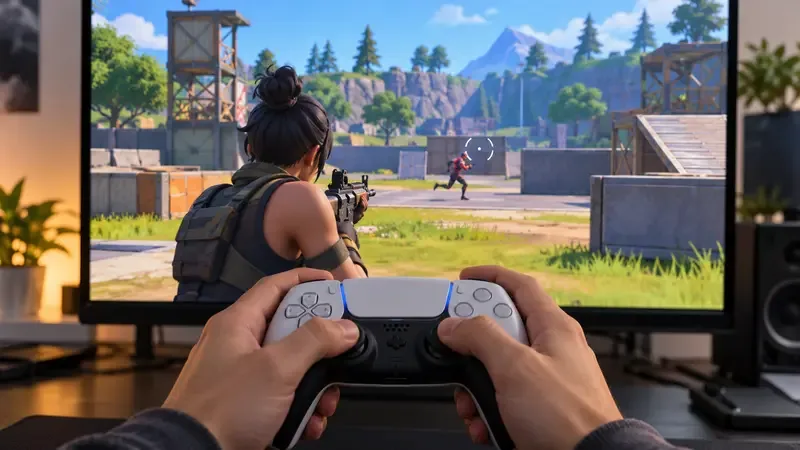
A controller’s right stick has a short physical range, so precise camera movement depends on small thumb motions, sensitivity, and the game’s input curve. Aim assist is designed to help controller players target opponents. Epic’s support page explains how to adjust its strength, while warning that settings vary by platform. That does not mean the game takes over aiming or guarantees a hit; players still need to place the reticle, manage recoil, choose a weapon, and time their shots.
In September 2024, Epic said Fortnite v31.20 introduced “human-like” aim assist for controller players on console, PC, and mobile. Epic described the change as modeling human reaction time when tracking moving targets, with the goal of allowing more balanced tuning. That description matters: current public notes do not present aim assist as an instant lock-on. They also do not publish a universal percentage showing how much more accurately controller players hit.
Epic’s older v10.40 notes from 2019 described target assistance that varied with reticle distance, considered multiple targets, and removed target snapping. Those notes help explain why people can experience aim assist as a gentle slowdown or correction near an opponent, but they are historical notes—not a complete technical specification of the current system.
Read Epic’s v31.20 aim-assist update and its controller aim and sensitivity notes for the official descriptions.
These are reasons the mechanic may feel strong, not evidence that one input wins every duel. Accuracy depends on the player, weapon, range, settings, platform, and situation. The article’s old hit-rate and 1v1 percentages were not backed by a reproducible study, so they should not be treated as Fortnite statistics.
| Question | What the official sources say | What not to assume |
|---|---|---|
| Can players change aim assist? | The support guide shows an Aim Assist setting under Controller Options and Sensitivity after enabling Advanced Options; settings vary by platform. | Aim Assist Strength at 100% does not guarantee hits or mean every platform behaves identically. |
| Does it automatically lock on? | Epic described the 2024 controller update as modeling human reaction time while tracking moving targets. | The public description does not claim a perfect lock, auto-fire, or guaranteed headshots. |
| Are there verified controller-versus-mouse accuracy rates? | The official notes reviewed here do not publish a universal hit-rate or duel-win-rate comparison. | Unattributed community percentages should not be presented as measured facts. |
To inspect the setting, open Fortnite’s in-game Settings, choose Controller Options, go to Sensitivity, turn Use Advanced Options on, adjust Aim Assist Strength, and select Apply. Epic notes that not every setting is available on every platform. Use the official Fortnite aim-assist settings guide for the current menu path.
Tune one setting at a time in a practice mode, then keep the value that lets you track targets comfortably. Aim-assist strength is separate from look sensitivity: if turning feels too fast or too slow, change sensitivity rather than expecting aim assist to fix camera movement. If the Advanced Options toggle is missing, Epic says to check that the selected mode is Battle Royale before opening controller settings. Epic’s support page also says aim assist is disabled whenever gyro is active, so check motion controls if the setting appears ineffective.
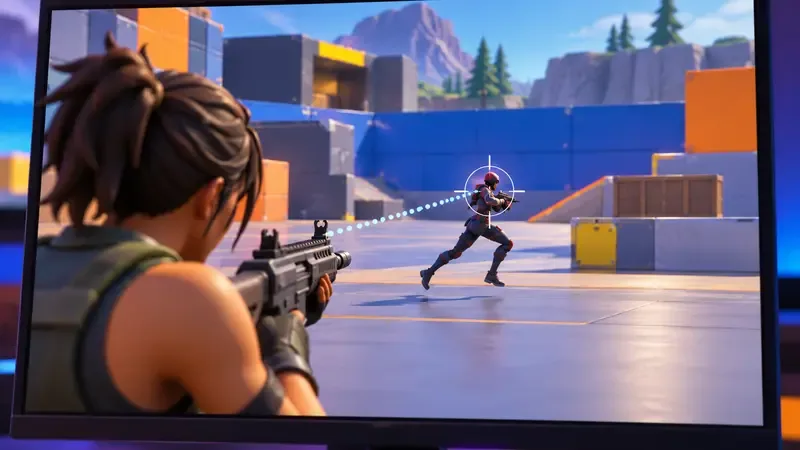
There is no movement trick that reliably switches off another player’s aim assist. Focus on reducing the time you spend exposed and making your next position harder to predict:
If you use a controller, practice keeping the reticle on a moving target while strafing, and tune sensitivity and aim-assist strength together without changing several settings at once. If you use a mouse, emphasize cover, crosshair placement, and repositioning rather than trying to out-spray every close-range controller fight.
Fortnite controller aim assist feels OP when close-range movement, thumbstick corrections, and visible target tracking combine in a fast fight. Epic’s public explanation is narrower than the old claims: the v31.20 update models human reaction time, and controller players can adjust assistance where their platform exposes the setting. There is no official hit-rate table proving a fixed controller advantage. Check the setting that applies to your device, then build your fights around cover, timing, and positioning instead of treating aim assist as an unbeatable lock.
Fix PUBG stuck on Initializing on Steam with a focused checklist for PC service notices, launch options, game files, downloads, and connection issues.
Fix Brawl Stars stuck at 92% loading with an ordered checklist for service notices, network tests, safe updates, Android cache, and account-safe reinstalling.
Best Dead by Daylight visual filter settings start with a small Gamma lift, neutral color and contrast, and a quick check for dark corners, fog, and bright lights.
Find the Steam and EA app fields for Apex Legends launch options, use EA’s documented FPS command, and see why +exec autoexec.cfg remains unverified.
Reduce input lag on a Nintendo Switch dock for Smash Ultimate with TV Game Mode, a direct HDMI test, controller checks, and online-latency troubleshooting.
Find the best EA SPORTS FC audio settings for a clearer referee whistle: tune Stadium Ambience and Commentary, then troubleshoot output or timing issues.
Compare the best Attack Move Click keybinds in League of Legends—A, Shift + right-click, mouse side buttons, and left-click—with setup and kiting tips.
Find the best tablet aspect ratio setup for Clash Royale, compare Android display-fit choices, and check iPad full-screen framing without cropping the arena.
Fix Warzone Dev Error 6068 on startup with safe PC checks for updates, overlays, graphics drivers, game-file repair, and clean boot troubleshooting.
Check your Overwatch 2 overall match win rate with Career Stats, matching game totals, and the right filters—without mistaking hero percentages for match results.