Ultimate Guide: How to Update Roblox on Android & iOS in Minutes! ๐Ÿš€

Hey, fellow Roblox adventurer! ๐Ÿ˜Ž Tired of lagging games, missing out on epic new worlds, or facing pesky bugs? Updating your Roblox app is your ticket to non-stop fun. Whether you're battling in Adopt Me or building in Brookhaven, the latest Roblox update brings smoother performance, fresh features, and ironclad security. Stick aroundโ€”this quick guide will have you updated and back in action faster than a speed potion! Let's dive in.
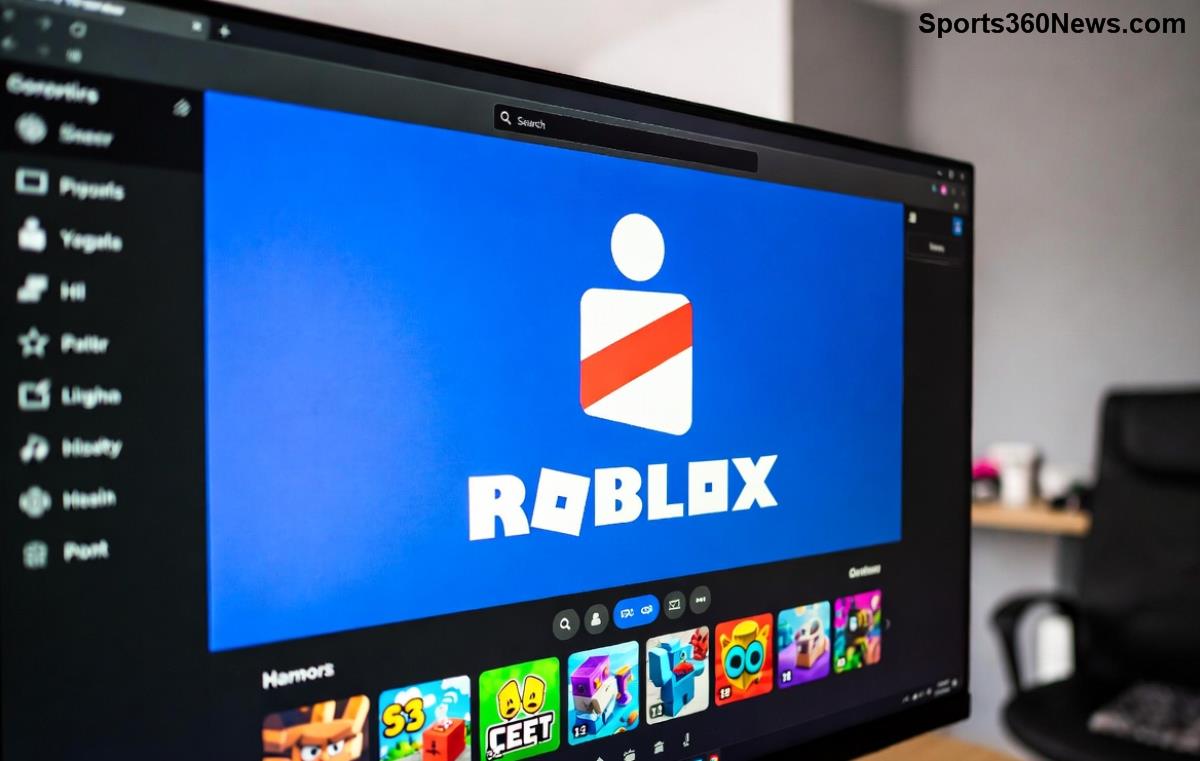
Roblox mobile app update screen on Android device

Why Bother Updating Roblox? Game-Changing Perks Await! โญ

Skipping updates means missing out big time. Here's why every gamer needs the newest Roblox version:

  • ๐Ÿ†• New features like enhanced avatars, exclusive events, and better multiplayer sync.
  • ๐Ÿ”ง Bug fixes for crashes and glitchesโ€”say goodbye to frustrating disconnects!
  • ๐Ÿ›ก๏ธ Improved security to protect your account from threats.
  • โšก Optimized performance for buttery-smooth gameplay on your device.

Ready to level up? We'll cover how to update Roblox on Android first, then iOS. Pro tip: Enable auto-updates to stay ahead effortlessly!

How to Update Roblox on Android: Super Simple Steps ๐Ÿ“ฑ

Android users, rejoice! Updating via Google Play Store is a breeze. Follow these foolproof steps for the Roblox Android update:

  1. ๐Ÿ‘† Open the Google Play Store app on your phone or tablet.
  2. ๐Ÿ” Tap your profile icon (top right) and select "Manage apps & device".
  3. ๐Ÿ“‹ Switch to the "Updates available" tabโ€”look for Roblox!
  4. โœ… Hit "Update" next to Roblox. If it's not listed, search for "Roblox" and tap Update from the app page.
  5. โณ Wait for the download (grab a snackโ€”it's quick on Wi-Fi!). Launch and log in to enjoy!

Bonus: Inside the Roblox app, go to Settings > About to check your version and prompt an update if needed.

Stuck? Clear Play Store cache: Settings > Apps > Google Play Store > Storage > Clear Cache. Boomโ€”fixed!

Step-by-step Roblox update on Android via Play Store

How to Update Roblox on iOS: Apple Users, You're Covered! ๐Ÿ

iPhone and iPad owners, the App Store makes updating Roblox on iOS effortless. Here's your go-to method:

  1. ๐Ÿ‘† Launch the App Store app.
  2. ๐Ÿง‘โ€๐Ÿ’ป Tap your profile picture at the top.
  3. ๐Ÿ“ฑ Scroll to "Upcoming Automatic Updates" or "Available Updates".
  4. โœ… Find Roblox and tap "Update". For all apps, hit "Update All".
  5. โณ Download complete? Relaunch Roblox and dive back into your favorites!

Quick check: Open Roblox > More tab > Settings > Scroll to version info. Outdated? App Store has you sorted.

Enable auto-updates in App Store > Profile > App Updates > Toggle on. Never miss a beat again!

Troubleshooting Common Update Glitches: Fix It Fast! โš ๏ธ

Updates not working? Don't rage quitโ€”here's a handy table of fixes:

Issue Solution
Not Seeing Update Force refresh: Pull down in Play Store/App Store. Check internet connection.
Download Stuck Free up storage (delete junk apps). Switch to Wi-Fi. Restart device.
App Crashes Post-Update Clear app cache/data (Android) or offload/reinstall (iOS). Roblox Help Center for more.
Compatibility Error Ensure OS is latest: Android 8.0+ or iOS 12+. Update your device first.

These tweaks resolve 99% of issues. Still stuck? Reinstall Robloxโ€”your progress is cloud-saved!

Troubleshooting Roblox update issues on iOS and Android

Pro Tips for Seamless Roblox Updates & Gameplay Boosts ๐ŸŽฏ

Want to supercharge your experience?

  • โญ Set auto-updates: Android (Play Store > Settings > Auto-update apps), iOS (App Store profile).
  • ๐Ÿš€ Use Wi-Fi only to save dataโ€”updates can be hefty!
  • ๐Ÿ”’ Keep your device OS current for best compatibility.
  • ๐Ÿ’ก Join Roblox's official Discord or forums for update announcements and tips.

Updating regularly keeps your worlds spinning without hitches. Imagine dominating leaderboards with zero lagโ€” that's the power of staying updated!

Ready to Play? Update Now and Conquer! ๐Ÿ‘

There you have itโ€”the ultimate, no-fluff guide on how to update Roblox on Android and iOS. Follow these steps, and you'll be exploring infinite possibilities in seconds. What's your favorite Roblox game post-update? Drop it in the commentsโ€”we're all gamers here! ๐ŸŽฎ Keep grinding, stay updated, and game on!

Pro gamer tip: Bookmark this for next time. Your future self thanks you! ๐Ÿ˜‰


Leave a Comment

Fix PS5 Error CE-107857-8 (Update Required) in Minutes: Ultimate Troubleshooting Guide

Fix PS5 Error CE-107857-8 (Update Required) in Minutes: Ultimate Troubleshooting Guide

Struggling with PS5 Error CE-107857-8 Update Required? Discover proven fixes to resolve this frustrating system update issue fast. Step-by-step guide for gamers to get back online instantly.

PS5 Blinking Blue Light FIXED: Ultimate Power Supply Troubleshooting Guide ๐ŸŽฎ

PS5 Blinking Blue Light FIXED: Ultimate Power Supply Troubleshooting Guide ๐ŸŽฎ

Struggling with PS5 blinking blue light? Discover proven fixes for power supply issues. Step-by-step troubleshooting to get your console back online fast โ€“ no tech skills needed!

๐Ÿš€ Level Up Fast: Maximize PlayStation Stars Rewards by Boosting Your Status Now!

๐Ÿš€ Level Up Fast: Maximize PlayStation Stars Rewards by Boosting Your Status Now!

Unlock the secrets to leveling up your status in PlayStation Stars for massive rewards. Get pro tips on earning more Stars, exclusive campaigns, and turning your gaming into epic PS prizes. Boost your status today!

PS5 Restock Hunter: Ultimate Guide to Tracking PlayStation 5 Inventory & Snagging Stock Fast!

PS5 Restock Hunter: Ultimate Guide to Tracking PlayStation 5 Inventory & Snagging Stock Fast!

Master how to find PlayStation 5 restocks with real-time PS5 inventory trackers, retailer alerts, and pro tips. Never miss your PS5โ€”get it before scalpers do in this essential guide for gamers.

Fix PS5 Something Went Wrong Error INSTANTLY: Ultimate Gamers Guide to Seamless Gaming!

Fix PS5 Something Went Wrong Error INSTANTLY: Ultimate Gamers Guide to Seamless Gaming!

Tired of the PS5 "Something Went Wrong" error screen ruining your gaming session? Follow our proven, step-by-step fixes to solve the PS5 "Something Went Wrong" error screen and dive back into your favorite games without hassle.

Can You Refund PlayStation Plus? Your Ultimate 2026 Guide to PS Plus Refunds

Can You Refund PlayStation Plus? Your Ultimate 2026 Guide to PS Plus Refunds

Can you refund a PlayStation Plus subscription? Get the latest Sony policy details, eligibility rules, step-by-step refund process, and expert tips to reclaim your money fast. Essential guide for PS gamers!

๐Ÿš€ Fix Valorant VAL 5 Error on Console FAST: Ultimate Troubleshooting Guide

๐Ÿš€ Fix Valorant VAL 5 Error on Console FAST: Ultimate Troubleshooting Guide

Stuck with Valorant "VAL 5" error on PS5 or Xbox? Discover proven, step-by-step fixes to resolve Vanguard issues and get back to ranked matches instantly. Latest console troubleshooting tips included!

Solve PlayStation Portal Lag While Others Hog Wi-Fi: Ultimate Gamers Fix Guide

Solve PlayStation Portal Lag While Others Hog Wi-Fi: Ultimate Gamers Fix Guide

Tired of PlayStation Portal lag when others use Wi-Fi? Get proven, step-by-step fixes for smooth remote play, QoS settings, Wi-Fi optimization, and more to reclaim your gaming session.

Ultimate Guide: Best Payment Methods for Buying Xbox Live Online โ€“ Secure, Fast & Gamer-Approved!

Ultimate Guide: Best Payment Methods for Buying Xbox Live Online โ€“ Secure, Fast & Gamer-Approved!

Discover the best payment methods for buying Xbox Live online. From credit cards to PayPal and gift cards, get secure, instant access to multiplayer gaming with zero hassle. Top picks for 2026 gamers!

Xbox One Stuck on Resetting Screen? Fix It in Minutes with This Ultimate Guide! ๐ŸŽฎ

Xbox One Stuck on Resetting Screen? Fix It in Minutes with This Ultimate Guide! ๐ŸŽฎ

Xbox One stuck on resetting screen? Discover proven, step-by-step fixes to resolve the reset loop fast. Get back to gaming without frustration โ€“ updated solutions for seamless troubleshooting.