How to Fix PUBG Stuck on “Initializing” on Steam

Fix PUBG stuck on Initializing on Steam with a focused checklist for PC service notices, launch options, game files, downloads, and connection issues.
To advertise a Roblox game, create a campaign in Roblox Ads Manager, select your experience and a campaign goal, choose an audience, set a budget and schedule, then submit a clear, accurate thumbnail for review. After launch, judge the campaign by plays and playtime as well as clicks. More visits are useful only when players understand the game and want to keep playing.
Roblox Ads in Ads Manager promote an experience on Roblox Home and Search. The campaign creator chooses the game, goal, audience, budget, schedule, and creative. This is the relevant tool when you want more people to discover your own game.
Roblox also has in-experience formats such as video, image, and portal ads. These are placements a creator adds inside a game so Roblox can serve advertising there; they are a separate monetization product, not the way to buy a campaign promoting your experience. Sponsored items are separate as well: they promote eligible Marketplace assets rather than a game. Check Roblox’s current Ads Manager documentation and advertising overview for creators for the current product details.
Before paying for traffic, test the first few minutes of the game. Make the main activity obvious, reduce unnecessary steps before play begins, and confirm that the experience works on the devices your likely players use. Check that servers, tutorials, and the first reward or objective function as intended. A campaign can bring visitors to the game, but it cannot repair a confusing start or a weak core loop.
Sign in to Ads Manager with a Roblox account that meets the current access requirements: the account holder must be at least 13 and have a verified email address. Choose your personal or group ad account, select the experience you want to promote, and name the campaign so you can recognize it in reports. Group campaigns also depend on the permissions assigned to the group role.
Ads Manager currently offers Plays, Earnings (Limited), and Engagement goals. Plays is designed to find players likely to start a session. Earnings is intended to reach players more likely to spend Robux and is marked limited. Engagement is for reaching highly engaged players. Pick the goal that matches the result you need; the goal is fixed after publication, so decide before you submit.
You can choose All Players, New Players, Recent Players, or Lapsed Players. New Players includes people who have never played your game or have not played in more than 180 days. Recent Players covers people who played in the last 30 days and is available only to games with at least 10,000 recent players. Lapsed Players covers people who played 30 to 180 days ago and is available only when a game has at least 20,000 lapsed players.
Advanced targeting can narrow delivery by options such as location, age, gender, genre, and device type. Use those filters when you have a clear reason to reach a particular group; avoid guessing at player preferences. A small, specific audience is not automatically better than a broad one if the experience can appeal to many kinds of players.
Ads Manager lets you select up to 10 thumbnails for a campaign. Roblox displays these Home-page creatives in a 16:9 aspect ratio and resizes images that do not match it. Choose a frame with one clear focal point, readable action, and enough contrast to make sense at small sizes. Show a feature players will actually find after joining, and keep the image consistent with the experience’s real gameplay.
Prepare several distinct concepts if you can, such as different gameplay moments or ways of framing the same feature. Compare their results within the same campaign setup before drawing conclusions. Do not promise free Robux, rewards the game does not provide, or features that are not present. Roblox’s Advertising Standards prohibit deceptive or unrealistic claims and ad content that imitates nonfunctional system buttons or notifications.
Choose either a daily budget or a lifetime budget, select a start date and time, and set the campaign duration. Begin with an amount you are comfortable spending to learn from the test; do not copy a universal Robux figure or assume a fixed cost per click. Actual delivery and results depend on the campaign and platform conditions.
You can fund campaigns with a card where eligible or with Robux-converted ad credits. Roblox says converting Robux to ad credits is permanent and irreversible, and those credits can be used only in Ads Manager. Review the conversion preview, available balance, and campaign budget before confirming. Auto-reload is optional, so leave it off if you want a firm spending limit.
Review the experience, goal, audience, budget, dates, and creatives before publishing. Roblox reviews campaigns before they go live and says it aims to complete moderation within 24 hours; this is a target, not a guaranteed launch time. If the campaign is rejected, read the status and reason in Ads Manager, fix the issue, and resubmit an accurate creative.
For a deeper onboarding setup, Ads Manager also supports optional advanced join options. These can send players to a selected starting place or pass launch data to your game. Launch data appears in the join URL and can be shared, so do not treat it as private tracking information.
Ads Manager reports spend, impressions, clicks, plays, cost per play, playtime, and earnings. Impressions and clicks appear in real time, while plays and earnings rely on attribution; Roblox notes that reports can take up to 48 hours to update and that attributed events may occur up to 30 days after an ad is served. Avoid making a decision from a few early clicks.
| Metric | What it helps you answer |
|---|---|
| Impressions and clicks | Was the creative shown, and did people open the experience? |
| Plays and cost per play | Did the campaign turn spend into started sessions, and at what average cost? |
| Playtime and retention | Did the players who arrived continue playing or return later? |
| Earnings | Did attributed players generate earnings over time? |
For context beyond the ad report, check Creator Analytics’ acquisition dashboard for conversion rate, D7 retention, and playtime by acquisition source. Roblox defines D7 retention as whether newly acquired players return on the eighth day after their first session ends. Compare similar date ranges, allow reporting to catch up, and change one major factor at a time—creative, audience, or budget—so the next result is easier to interpret. The Ads Manager reporting guide and acquisition analytics documentation explain the available measures.
Effective Roblox Ads start with a game worth discovering, a clear campaign goal, and a creative that reflects the actual experience. Run a controlled test, give attributed reports time to update, and increase spending only when the arriving players are engaging with the game.
Fix PUBG stuck on Initializing on Steam with a focused checklist for PC service notices, launch options, game files, downloads, and connection issues.
Fix Brawl Stars stuck at 92% loading with an ordered checklist for service notices, network tests, safe updates, Android cache, and account-safe reinstalling.
Best Dead by Daylight visual filter settings start with a small Gamma lift, neutral color and contrast, and a quick check for dark corners, fog, and bright lights.
Find the Steam and EA app fields for Apex Legends launch options, use EA’s documented FPS command, and see why +exec autoexec.cfg remains unverified.
Reduce input lag on a Nintendo Switch dock for Smash Ultimate with TV Game Mode, a direct HDMI test, controller checks, and online-latency troubleshooting.
Find the best EA SPORTS FC audio settings for a clearer referee whistle: tune Stadium Ambience and Commentary, then troubleshoot output or timing issues.
Compare the best Attack Move Click keybinds in League of Legends—A, Shift + right-click, mouse side buttons, and left-click—with setup and kiting tips.
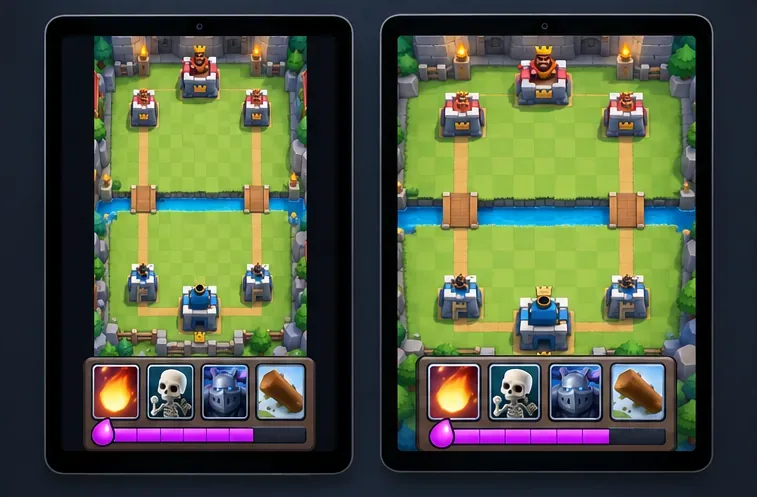
Find the best tablet aspect ratio setup for Clash Royale, compare Android display-fit choices, and check iPad full-screen framing without cropping the arena.
Fix Warzone Dev Error 6068 on startup with safe PC checks for updates, overlays, graphics drivers, game-file repair, and clean boot troubleshooting.
Check your Overwatch 2 overall match win rate with Career Stats, matching game totals, and the right filters—without mistaking hero percentages for match results.